
Tribute Calculator
Estimate stems and costs for letter and shaped tributes with pricing and VAT options.
Funeral tributes are easy to underprice, and a wrong stem count comes straight out of your margin. This calculator works out how many stems a letter, word or shape tribute needs, adds up the frame, flowers and labour, and shows what it costs to make. Then you set a price you're happy with.
What It Does
The Tribute Calculator handles three kinds of tribute:
- Letters (A to Z), on their own or as part of a name
- Words like MUM, DAD or NAN, and any mix of letters and numbers such as NAN90
- Shapes like hearts, crosses, cushions and pillows, from a picture catalogue of standard foam frames
For letters and words it estimates the stems from the frame size and the chrysanth grade you pick. For shapes you browse or search a catalogue and it fills in the frame details. Add your other flowers, labour and VAT, and it shows your total cost, your profit at the price you set, and a shopping list of the frames to order.
The Short Version
- Pick what you're making and choose the letter, word or shape.
- Choose your stems and set your price per stem.
- Add your costs for the frame, other flowers, labour and VAT.
- Read your result, then compare, save or print.
The rest of this guide walks through each step.
Pick What You're Making
Start at the top and choose Letter, Word or Shape. The tool opens on Word, which is the most common.
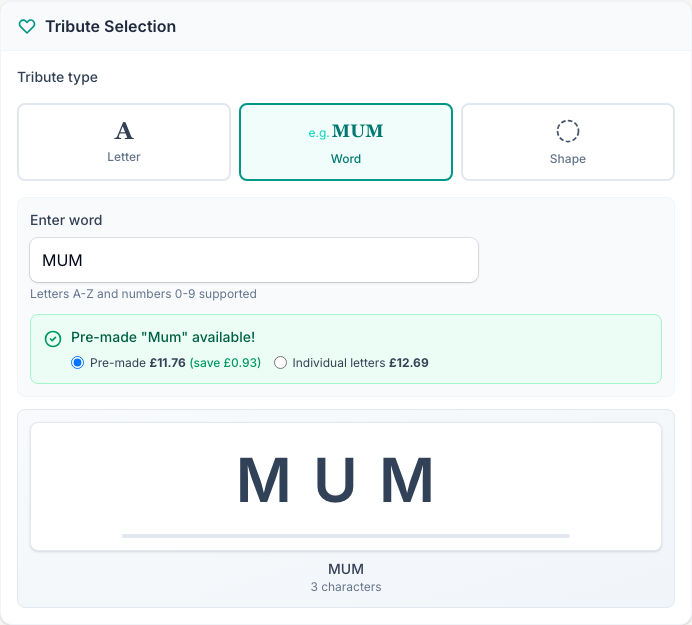
- Word. Type the name. Letters and numbers both work. If a ready-made word base exists, you'll see it offered next to the cost of building the letters one by one, so you can take whichever is cheaper. You can also include a letter bar set.
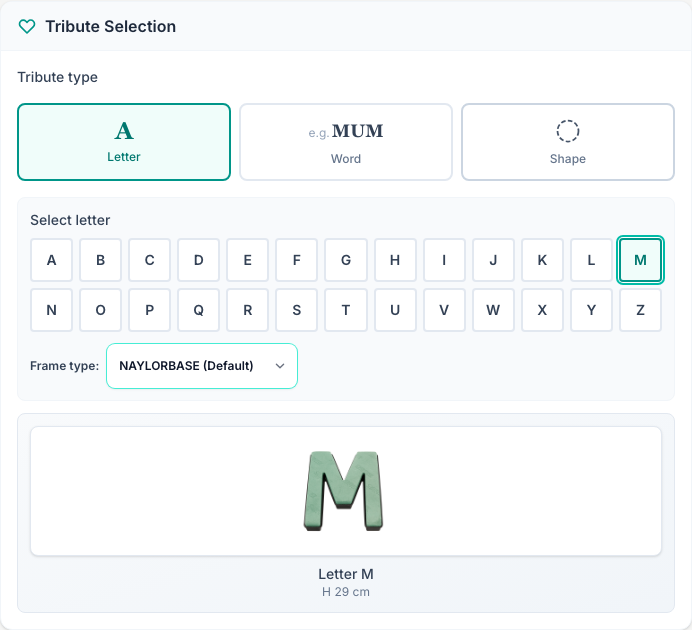
- Letter. Click the letter from the A to Z grid, then choose the frame type. A preview shows the frame with its height.
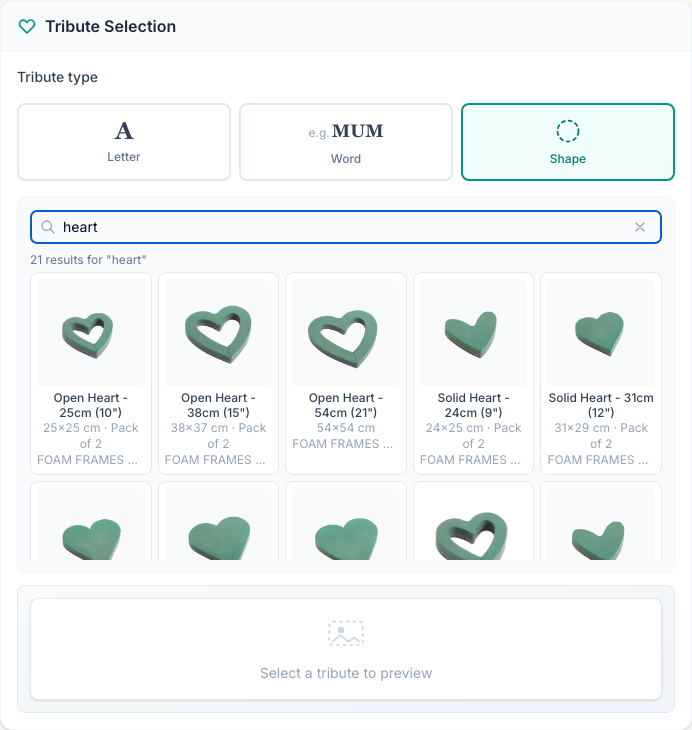
- Shape. Search by name (try "heart") or browse by brand and category. Every frame shows a photo, its size and the pack quantity.
Tell It Which Stems You're Using
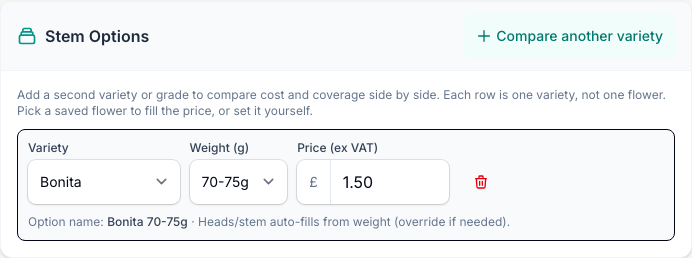
The stem count depends on the chrysanth you're using, so tell it which one. Pick a variety (Euro, Bonita, Baltica, Altaj, or your own under Custom), pick the weight grade, and type your price per stem before VAT. The tool works out roughly how many heads that grade gives, and how many stems the frame needs.
Add Your Costs And VAT
Open the Pricing & VAT card and fill in the rest.
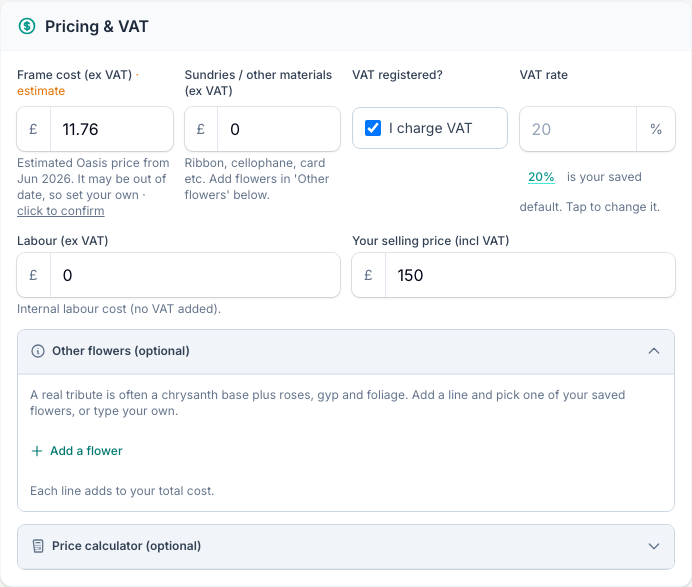
- Frame cost. This pre-fills from a dated OASIS sample price and is marked "estimate". It's a starting point only. Check it against your own supplier, then tap "click to confirm" once you're happy with it.
- Sundries. Ribbon, cellophane, a card and so on.
- VAT. The tool follows your account setting, so you set it once and forget it. "I charge VAT" and the rate both come from your Business Defaults. Tap the rate to change it for good, or untick the box for a one-off job with no VAT.
- Labour. Your own time, or a maker's time. No VAT is added to this.
- Your selling price. Type what you plan to charge to see the profit.
Add the rest of the flowers under Other flowers: a line each for roses, gyp and foliage, with a stem count and a price. Pick one of your saved flowers to fill the price, or type your own. Every line adds to the total.
Read Your Result
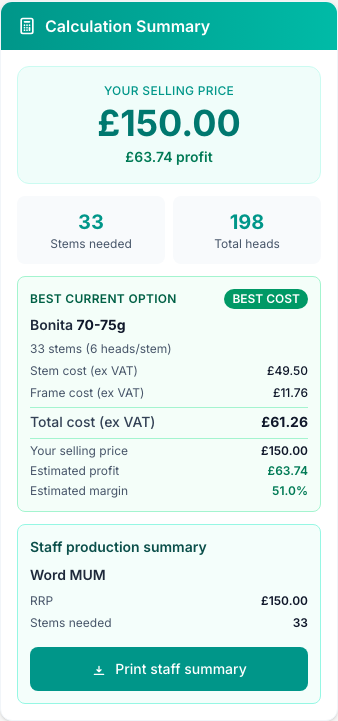
The summary on the right leads with the number you quote: your selling price, and the profit at that price. It's green when you're in profit and red when you're not. Under it you get the stems needed, the total heads, and a full cost breakdown for the best option.
Compare Stem Options
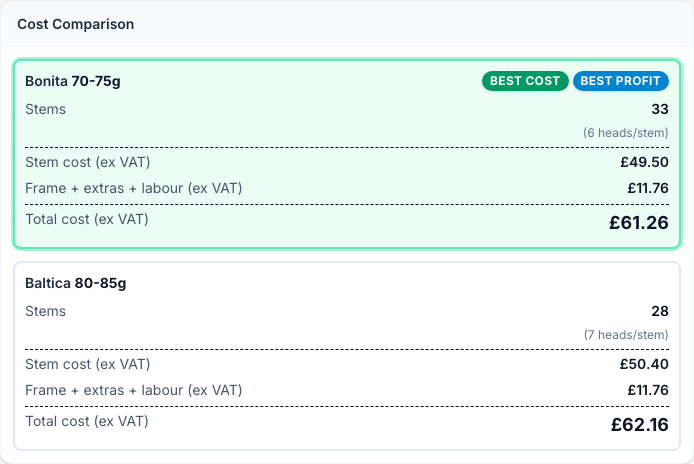
Tap Compare another variety to add a second row, and the tool lines them up side by side. A heavier grade needs fewer stems but costs more a bunch, so which one wins isn't obvious until you see the totals. Best Cost is the cheapest to make. Best Profit clears the most at your price.
Order The Right Frames
Once you've chosen your frames, the tool builds a shopping list of exactly what to order, with a photo, the quantity and the price. Order from it without second-guessing.

Setting Your Price
There's a built-in price helper under Price calculator. Choose Markup (multiply your cost) or Margin (aim for a profit percentage), and it shows a suggested price with the profit and margin it works out to.
Two ways to use it:
- Tap Use this price and it fills your selling price for you. This price then keeps up to date on its own: change a frame, a stem or your labour and the price moves with it, so it stays in step with your latest costs.
- Or type your own price in the selling-price box. A price you type is yours, and the tool leaves it exactly where you put it.
Set your markup from your own overheads, not the shop down the road.
Print A Sheet For The Workroom
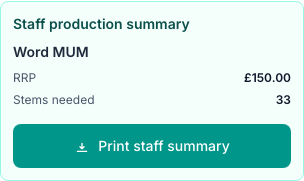
Tap Print staff summary for a PDF the workroom team can make from: the display name, the stems needed and the labour time. You can hide the cost and price on it in your Business Defaults, so seasonal staff see how to build the tribute without seeing the numbers.
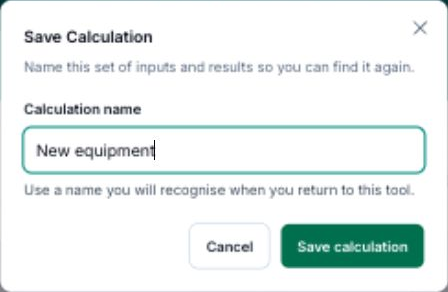
Save Your Calculation
Save this quote so you can return to its inputs and results.
- Tap Save calculation after calculating your result.
- Enter a Calculation name you will recognise.
- Tap Save calculation to keep it.
To reopen saved work, tap View saved, then Use this calculation beside its name.
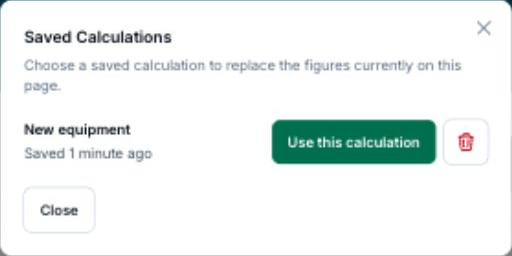
After loading a calculation, Save as new keeps a separate copy.
Tips And Best Practices
- The frame price is a guess until you check it. The pre-filled OASIS price is dated. Confirm it against your own supplier before you quote.
- Match the weight to your stems. The count assumes a standard grade until you pick a weight. If you build fuller or lighter than standard, turn on "Fine-tune the estimate" and nudge the heads-per-stem and coverage.
- Keep a small buffer. A few spare stems cover breakage and stem-to-stem variation. Better a couple over than short mid-build.
- Compare before you commit. A heavier grade can work out cheaper or dearer than you'd think. Let the comparison show you which.
Common Questions
Which chrysanth grades can I pick? Euro, Bonita, Baltica and Altaj, at weight grades from 50-55g up to 110-115g, plus a Custom option for anything else. The grade changes how many heads a stem gives, and so the stem count.
Can I price a full name like GRANDAD? Yes. Choose Word and type the name. It prices the whole thing, and where a ready-made base exists it offers that against a letter-by-letter build so you can take the cheaper.
Can I include roses and foliage? Yes. Open Other flowers and add a line for each, with a stem count and a price. Pick a saved flower to fill the price, or type your own. Every line adds to the total.
Is the stem count exact? It's an estimate from the frame and the grade you pick. Treat it as a solid starting point and adjust to how you build. Where the estimate leans on assumptions, the tool tells you.
Where do the frame prices come from? They pre-fill from dated OASIS sample prices, labelled with the month they were set. Treat them as an estimate and confirm against your own supplier before you quote.
I don't charge VAT. How do I set that? Set "Do you charge VAT?" to No in your Business Defaults, and the tribute calculator opens with VAT off and keeps it off. For a single quote you can also untick "I charge VAT" on the Pricing & VAT card.
Keep reading
Try it in your own toolbox
Create a free Florist Toolbox account to get started. The tool this guide covers is part of the Plus plan.
Create your free account