
Bouquet Name Generator
Describe a bouquet and get name ideas, product copy and an SEO meta description, ready to paste onto your website, product pages and social posts.
A great name turns a bouquet from "nice flowers" into something customers remember and share. If you sell online, the right name and description can be the difference between a scroll-past and a sale. This tool takes a description of your bouquet and gives you name ideas, product copy and an SEO meta description, ready to paste onto your website and socials.
What It Does
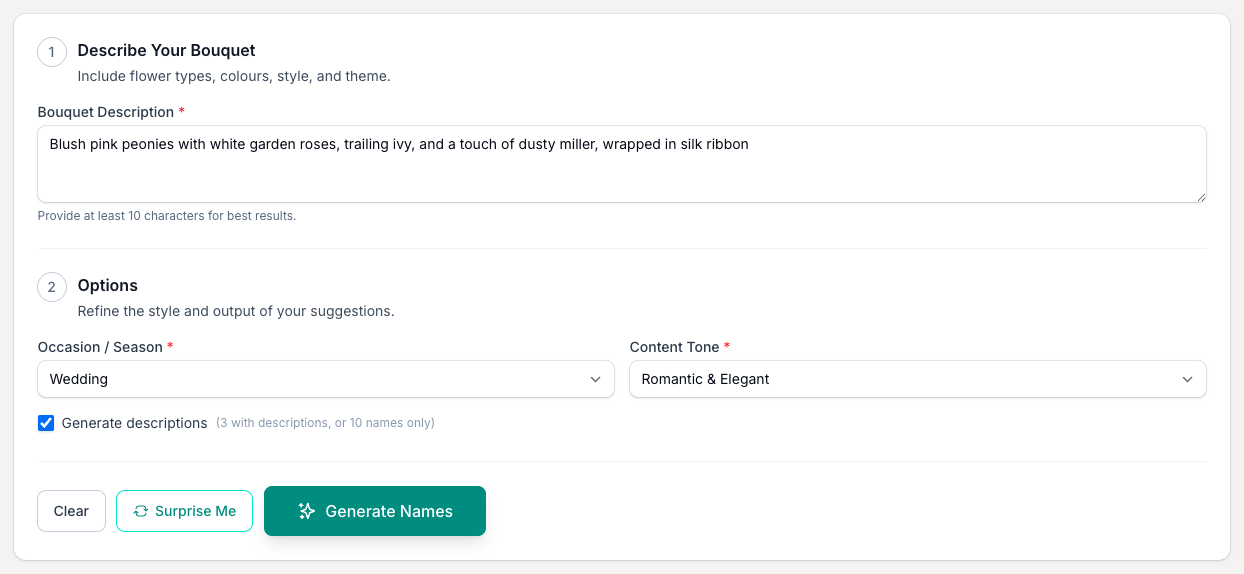
Describe a bouquet, pick an occasion or season, choose a tone, and the tool suggests names for it. It is free to use.
There are two output modes, set by the Generate descriptions tick box:
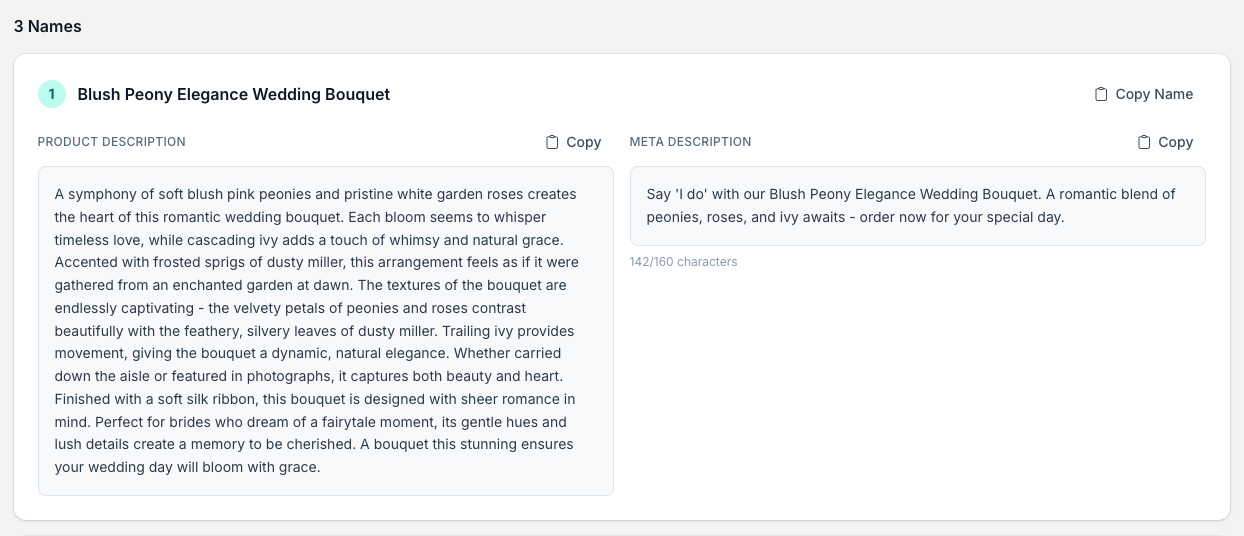
- On (the default) gives you 3 names. Each one comes with a full product description and a meta description of up to 160 characters, with a live character count so you can see it fits.
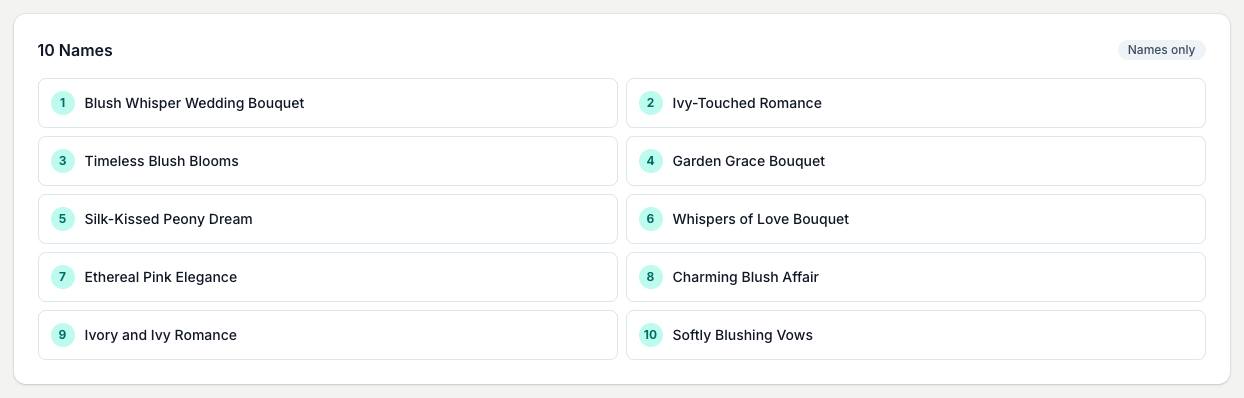
- Off gives you 10 names on their own, in a two-column grid, for browsing a wider range of ideas fast.
You pick from 15 occasions and seasons: Valentine's Day, Mother's Day, Christmas, Wedding, Birthday, Anniversary, Sympathy, Get Well, Thank You, Graduation, Easter, plus Spring, Summer, Autumn and Winter. There are 5 tones: Romantic & Elegant, Modern & Minimalist, Whimsical & Playful, Classic & Traditional, and Luxury & Premium.
Every name, description and meta description has its own copy button. The names are AI suggestions, so read and edit each one to match your brand before you publish it.
How To Use It
- Describe your bouquet in the box. Name the flowers, the colours and the style. Give it at least 10 characters, and the more detail you add, the better the names.
- Pick an occasion or season from the list.
- Choose a content tone for the wording.
- Tick or untick Generate descriptions. On gives you 3 names with full copy; off gives you 10 names to scan.
- Click Generate Names.
- Copy the name, description or meta description you want.
Copy And Reuse Your Names
Nothing here needs saving by hand. Tap Copy Name, or the copy button on any description or meta, and paste it straight into your website, product listing or a post.
Every run also saves itself to Generation History below the form, which appears once you have generated at least once. Each row is labelled by occasion and tone instead of repeating your bouquet brief. Open a past run with View to bring its names back on screen, star the ones worth keeping, or delete the runs you are done with.
Tips And Best Practices
- Be specific about colours. "Dusty rose and ivory" gets you better names than "pink and white".
- Name the flowers. "Garden roses, lisianthus and eucalyptus" gives the tool something to work with. "Mixed flowers" does not.
- Generate a few rounds and mix and match. A name from one run often pairs well with a description from another.
- Use the meta description as a starting point. It is written for search, so add your own voice before it goes live.
- Descriptions off to scan, descriptions on for copy. Turn them off to shortlist ten names, then turn them back on for the website-ready version of your favourite.
- Star the keepers. Past runs save on their own in Generation History, so star the names worth coming back to.
- Keep a master list. To store your bouquet names, descriptions, flowers and prices in one place, the Digital Florists platform keeps a product database with recipes and pricing. For more creative ideas, try the Bouquet Inspiration Generator.
Common Questions
How many names does it generate? 3 names, each with a description and meta description, when Generate descriptions is on. 10 names on their own when it is off.
Will the same description always produce the same names? No. The output varies each time, so you get fresh ideas on every run. Copy anything you like before you generate again.
Can I see names I generated before? Yes. Every run saves to Generation History below the form, where you can View, star or delete it.
Are the names good for SEO? The names are short titles and the meta description fits within about 160 characters. Treat them as a starting point and review each one before you publish.
Do I need any marketing experience? No. Describe the bouquet and pick a style, and the tool does the creative work.
Keep reading
Try it in your own toolbox
Create a free Florist Toolbox account to use the tool this guide covers, no card needed.
Create your free account