
Sundry Price List
Track ribbon, cellophane, boxes and every other sundry with costs, markups and pricing history, so your arrangements are priced on the full cost.
Sundries add up fast. Ribbon, cellophane, oasis, boxes, tissue paper, pins, wires, cards. Track them and your arrangements are priced on the full cost, rather than the flowers alone.
What It Does
The Sundries page, found under Price Lists in the top navigation, is where you manage all the non-flower materials that go into your arrangements. Each sundry has a name, a Cost per Unit, and a markup multiplier. Like flowers, these feed straight into the Arrangement Calculator and your other pricing tools.
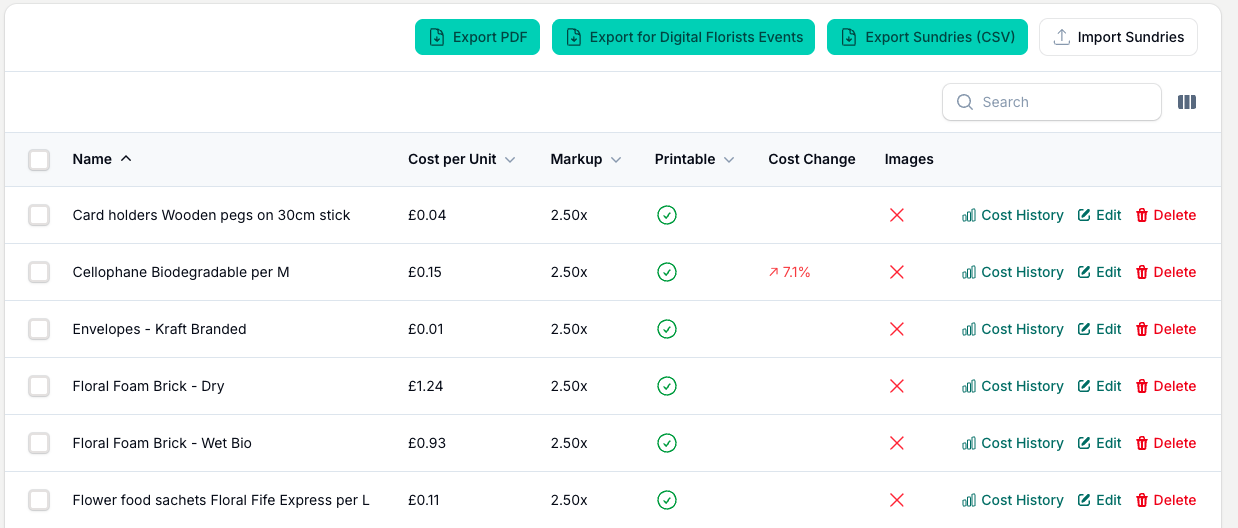
Managing Your Sundries
Adding a sundry. Click New Sundry at the top of the list. Enter the name, Cost per Unit and markup multiplier. You can also set a fixed Retail Price per Unit instead of using the multiplier.
Editing a sundry. Click any sundry in the list. Update the cost, markup or any other field and save. Cost changes are recorded in the sundry's history automatically.
Deleting a sundry. Use the Delete action on any row. If the sundry is used in a saved arrangement, you cannot delete it until it is removed from those arrangements. When you delete several at once, the Toolbox removes the ones it can and tells you which were skipped.
Importing sundries. Click Import Sundries in the toolbar to upload a CSV file. Useful for bulk updates or moving from a spreadsheet.
Images
Each sundry can have up to five images (JPEG, PNG or WebP, up to 5 MB each). View them from the list with the View Images action, and include them in PDF exports. Images are reorderable, editable and downloadable.
Cost History
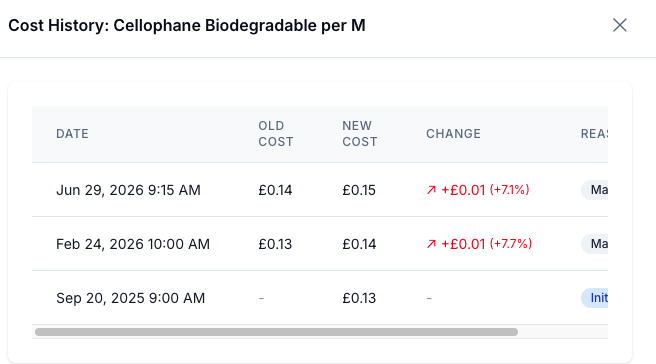
Every time you change a sundry's Cost per Unit, the Toolbox records the change for you. Use the Cost History button on any sundry row or its edit page to see the full history.
The panel shows each change with:
- Date of the change
- Old cost and new cost
- Change amount and percentage, red for an increase and green for a decrease
- Reason (Initial cost, Manual update, Imported, or Updated via import)
Exporting
From the toolbar you can:
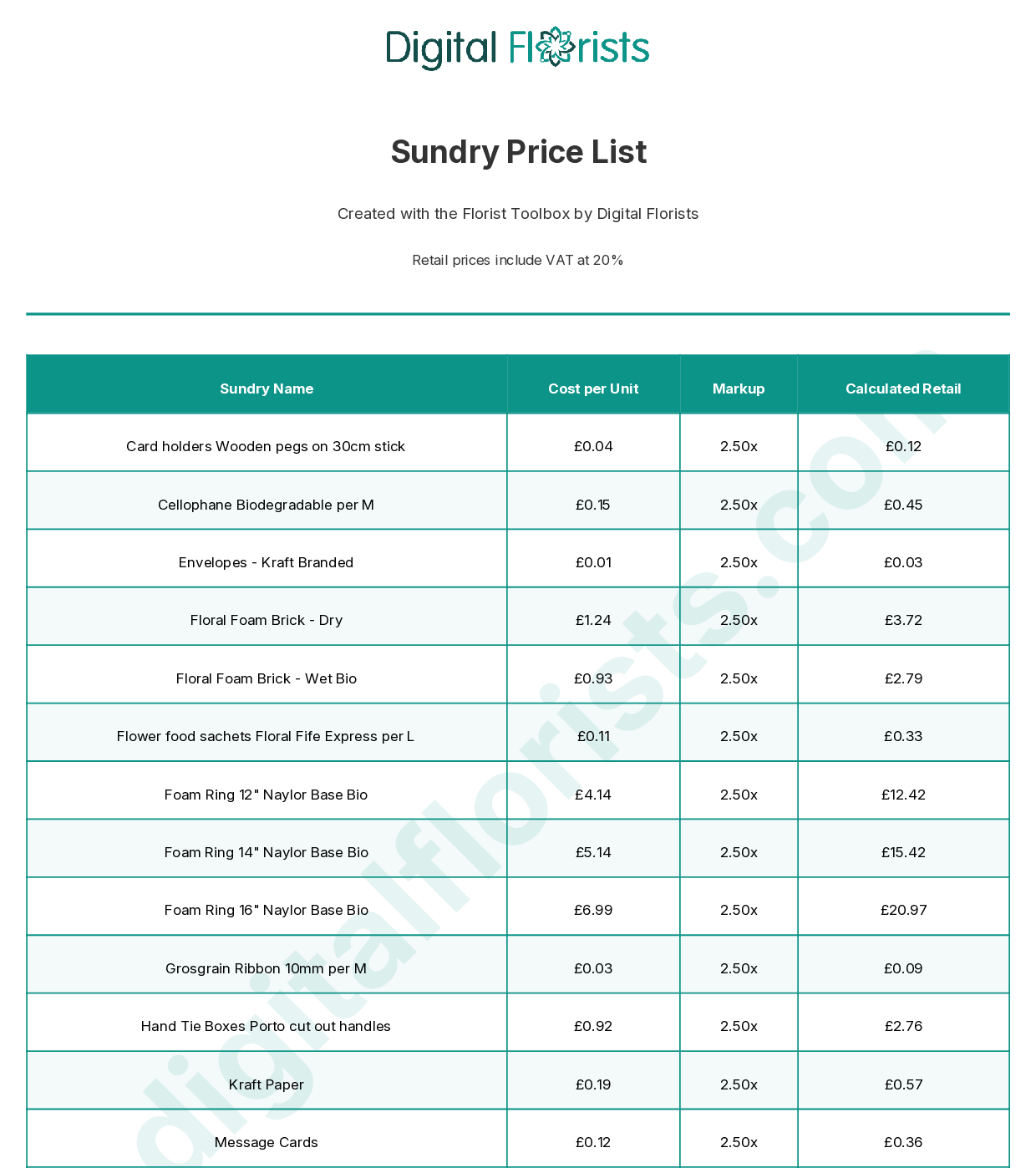
- Export PDF. Make a printable sundry price list, with the same options as the flower list: Add VAT at your rate (on by default if you are VAT registered), price rounding, cost prices and markup multipliers. Starter examples stay out of the price list.
- Download Sundry Backup (CSV). Download your entries and starter examples as a spreadsheet. The entry_type column marks which is which.
- Export for Digital Florists. Export your sundries (and optionally flowers) in the CSV format the Digital Florists shop-management platform expects. Starter examples stay out of this file.
Turn on cost prices and markup multipliers and the printed list shows each item's cost, markup and retail price, so your workroom sees exactly what every material adds to an arrangement. With Add VAT on, the retail prices include VAT and a line at the top notes the rate.
Tips And Best Practices
- Include everything. Ribbon, cellophane, oasis, floral tape, wire, pins, cards, tissue paper, boxes, bags. If it goes into an arrangement, it belongs in your sundries list.
- Check packaging costs regularly. Suppliers often nudge packaging prices up without much notice. A quick review each quarter keeps your margins honest.
- Use the retail price field for fixed-price items. If you always charge the same for a gift box regardless of markup, set the retail price directly.
- Turn off Show in Printables for niche items. Keep your printed price lists focused on the sundries your team reaches for most.
- Add images for items your team might confuse. If you stock several types of cellophane or ribbon, photos help everyone grab the right one.
Common Questions
Do I need to add sundries before using the Arrangement Calculator? No. Pre-loaded sundries are added when you complete your profile, so you can start pricing straight away and add or adjust sundries as you go.
Can I reuse the same sundry across different arrangements? Yes. Sundries are shared across all your arrangements. Updating a sundry's cost updates it everywhere going forward, and saved arrangements show a stale-price warning if the cost has changed.
What happens if a sundry's price changes? The new price applies to future calculations. Saved arrangements keep the price they were saved with, but a warning indicator appears so you know which arrangements may need updating.
Keep reading
Try it in your own toolbox
Create a free Florist Toolbox account to use the tool this guide covers, no card needed.
Create your free account