
Pricing Guide Generator
Create printable pricing guides for your team so everyone charges the right price, every time.
When a customer asks for a hand-tied to a budget, whoever is on the counter has to price it on the spot, and a guess costs you margin. This tool builds a printable pricing guide for one type of arrangement, so your whole team knows what to charge and what to spend at every price point. Save it, then print a version for you and a version for the workroom.
What It Does
The Pricing Guide Generator builds a pricing matrix. You set your markups, a labour percentage and a price range, and it fills in what to spend on flowers, sundries and labour at every price in that range. It also shows the gross profit left before overheads. The matrix updates as you type.
The sundries you pick are costed into every row, and VAT is included in the retail price when you switch it on.
Save the guide and it produces two printable PDFs:
- A Manager PDF with your direct costs, markups and gross profit before overheads.
- An Employee PDF with only what the workroom needs: the retail prices, and optionally the flower price and labour time. Your costs and margins stay off it.
A price too low to cover its sundries and labour drops out of the matrix. If the whole range is too low, the tool tells you the minimum viable retail price so you can lift the range or trim the sundries. The tool is free on every plan.
The Short Version
- Name the guide and set your markups, labour percentage and price range.
- Add the sundries that go into every arrangement of this type.
- Read the pricing matrix and check every row has a positive gross profit before overheads.
- Save the guide to store it and turn on the PDF downloads.
- Download the Manager or Employee PDF and print it for the shop.
The rest of this guide walks through each step.
Set Your Guide Up
Start in the Guide Settings card on the left.
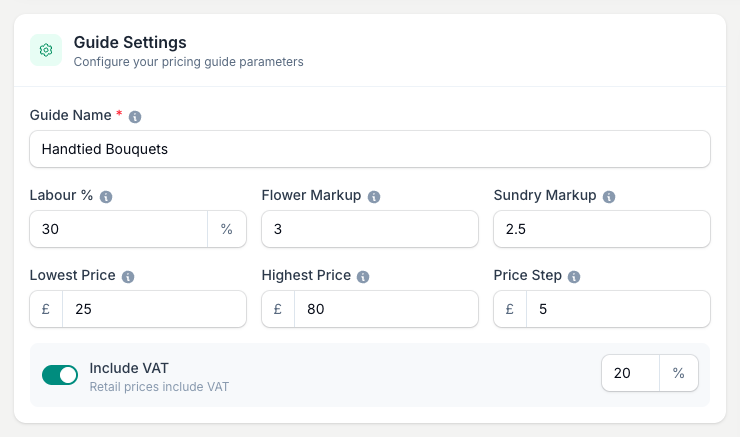
- Guide Name. Something you will recognise later, like Handtied Bouquets or Sympathy Tributes. You can save as many guides as you need.
- Flower Markup. How many times you multiply your wholesale flower cost. A markup of 3.0 turns 10 of flower cost into 30 at retail, in your account currency.
- Sundry Markup. The same idea for sundries. This is only used for sundries that have no set retail price of their own.
- Labour %. The share of the retail price that covers your time. It starts at 30%, but replace that with the figure your own time and wage costs need.
- Lowest Price, Highest Price and Price Step. These set the rows of the matrix. A range from 25 to 80 in steps of 5 gives you rows at 25, 30, 35 and so on, in your account currency.
Switch on Include VAT if you are registered and check the rate in the box beside it. The rate prefills from your business default, so you usually leave it. Retail prices in the matrix then include VAT. Switch it off for a one-off guide with no VAT.
Add Your Sundries
Sundries are the packaging, ribbon, cellophane and card that go into every arrangement of this type. They are costed into every price point.
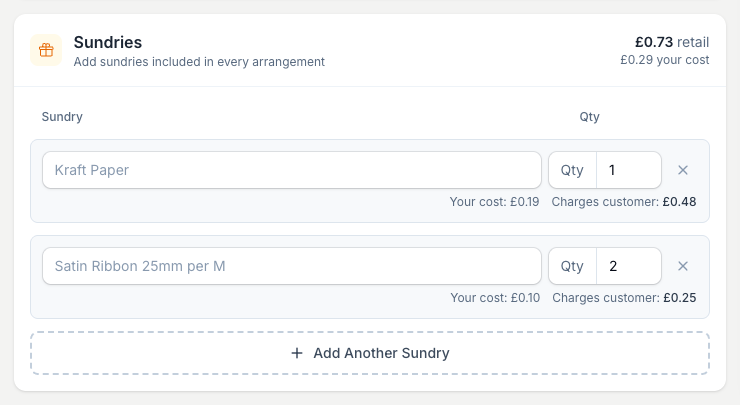
- Click the Search sundries box and type a name from your price list.
- Pick the sundry, then set the Qty.
- Each line then shows your cost and what it charges the customer. The card header totals the retail and your cost across all lines.
Tap Add Another Sundry for each extra line. Not in your list yet? Tap + Create new sundry... at the top of the search results, add the name, cost and markup, and it saves to your price list and drops into the guide in one step.
If you have not set up any sundries, add them under Price Lists first. The Sundries guide walks you through it.
Read The Pricing Matrix
The Pricing Matrix on the right is the payoff. Every price in your range gets a row, broken into its parts.
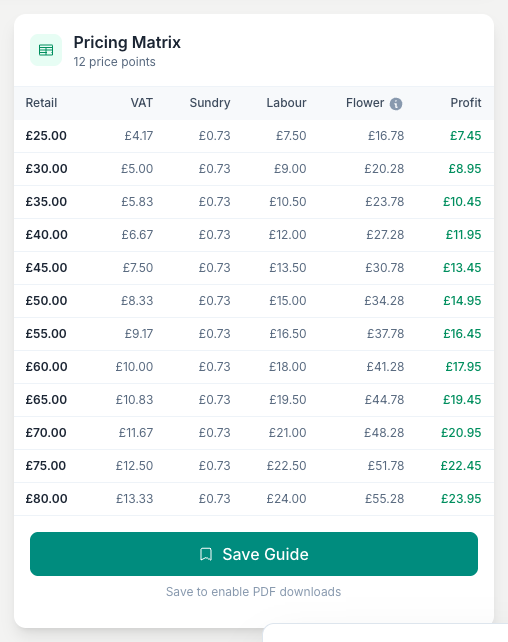
A price too low to cover its sundries and labour drops out of the table, so you only see rows that stand up. If the whole range is too low, the matrix shows a message with the minimum viable retail price. Lift the Highest Price, trim a sundry, or lower the Labour % to bring the range back into range.
Save And Download
Give the guide a name, then tap Save Guide in the matrix card footer. It reads Update after the first save. Saved guides sit in the switcher at the top of the page, so you can reload any one and re-price it.
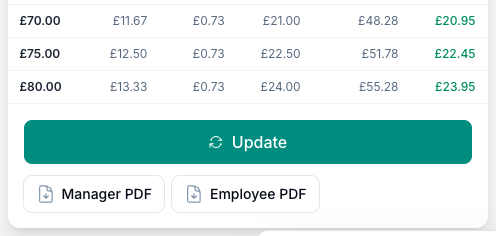
- Manager PDF. The full cost and margin picture, for your own pricing reviews.
- Employee PDF. The workroom version, showing the retail prices without your costs or margins.
When you tap Employee PDF, a short options screen opens.
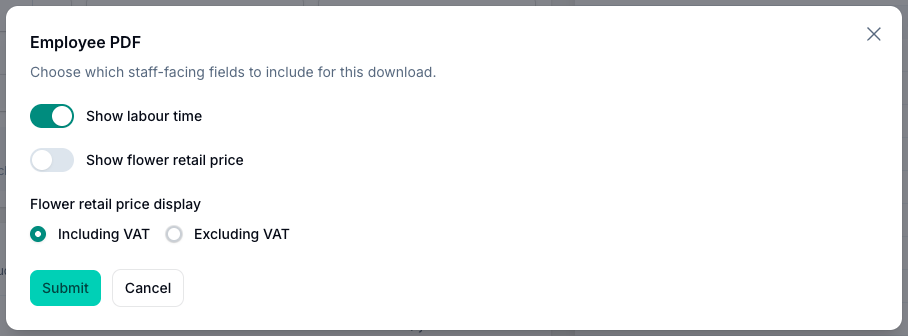
- Show labour time adds how long each arrangement should take.
- Show flower retail price adds what the flowers are priced at.
- Flower retail price display sets how VAT shows on that price.
Leave those off and the workroom copy stays a plain price list. Turn them on when your team needs more to work from.
Setting Your Price
The markups you enter here decide what the guide charges, so set them from your own numbers. Anchor them to your own overheads, not the shop down the road. Their rent and wage bill tell you nothing about what you need to charge.
If you are not sure what your markup should be, work it out first with the Business Markup Calculator. It builds a markup from your real costs and profit target. Then come back and put that figure into Flower Markup and Sundry Markup.
Remember the Labour % is a share of the retail price. The 30% starting value is an editable example, not an industry rule. Check it against your own time and wage costs, then sanity-check every matrix price against how you make up the arrangement.
Tips And Best Practices
- Build a guide per arrangement type. Hand-ties, vase arrangements, oasis designs, sympathy work and seasonal specials all carry different labour and sundries. A guide for each keeps the numbers right.
- Print the Employee version and pin it up. On the workroom wall, it lets the team price without asking you every time.
- Regenerate when wholesale prices move. Flower costs shift with the seasons. A fresh guide takes a few minutes and keeps your margins honest.
- Use the Manager version for margin reviews. The full breakdown makes it easy to see where a price point is tight.
- Save before you download. The PDF buttons only appear after you save the guide.
Common Questions
What is the difference between the Manager and Employee PDFs? The Manager PDF shows everything: your costs, markups, margins and retail prices. The Employee PDF shows only what the workroom needs, keeping your costs and margins off the sheet.
Can I create different guides for different arrangement types? Yes. Save as many as you need and name each one clearly, like Handtied Bouquets, Vases or Sympathy, so you can find it in the switcher at the top.
Do I need sundries in my price list first? Yes, the sundries you add here come from your price list. If you have none yet, set them up on the Sundries page, or tap + Create new sundry... to add one without leaving the guide.
What does the minimum viable price message mean? Your sundries and labour cost more than the price range covers, so no row stands up. Lift the Highest Price, trim a sundry, or lower the Labour % until the matrix fills in.
Does it include VAT? Yes, when you switch on Include VAT and set the rate. The retail prices in the matrix are VAT-inclusive, and the VAT column shows the VAT within each price rather than adding it on top.
Keep reading
Try it in your own toolbox
Create a free Florist Toolbox account to use the tool this guide covers, no card needed.
Create your free account