
Review Response Generator
Paste a customer review, pick the platform and star rating, and get a warm, professional reply drafted in seconds, ready to tweak and post yourself.
Every review deserves a reply, but the wording is what stalls you, and a bad one can sit unanswered for days. Paste the review, pick the platform and set the star rating, and this tool drafts a warm, professional reply in seconds. You read it, tweak the specifics, and paste it back on the platform yourself.
What It Does
Paste any review from Google, Facebook, Yelp, Trustpilot or Other, set the star rating the customer left, and the tool drafts a short, professional reply of two or three sentences, signed off with your shop name.
The star rating sets the tone on its own: upbeat and grateful for four or five stars, calm and make-it-right for one or two, and even-handed for three. There is no separate tone control to fiddle with.
It handles the good reviews, the middling ones and the difficult ones. It does not post for you: you copy the draft and paste it back on the platform. Every reply is saved to your Generation History, so you can find one again.
The Short Version
- Paste the review into Review Text (at least 10 characters).
- Pick the Platform it came from.
- Set the Rating the customer left.
- Tap Generate Response.
- Read the draft, add the personal detail, tap Copy and paste it back on the platform.
The rest of this guide walks through each step.
How To Use It
Start in the Review Details card on the left and fill in the three boxes.
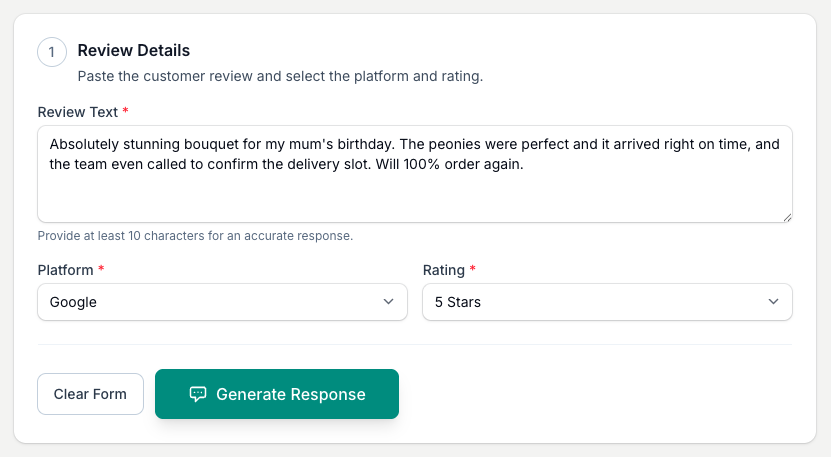
- Paste the customer's review into Review Text. You need at least 10 characters.
- Pick the Platform it came from: Google, Facebook, Yelp, Trustpilot, or Other for anywhere else.
- Set the Rating the customer left, from 5 Stars down to 1 Star.
- Tap Generate Response.
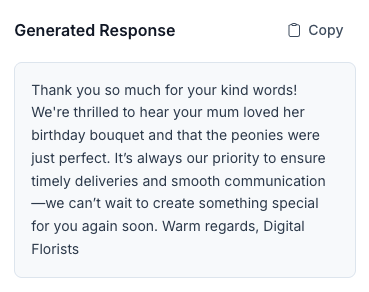
The reply lands in the Generated Response card on the right. Read it, add the customer's name or the order detail so it feels like you, then tap Copy and paste it back on the platform.
When You Get A Negative Review
It happens to every shop. A late run, a mix-up, flowers that did not last. It is never nice to read, but a good reply can win people over.
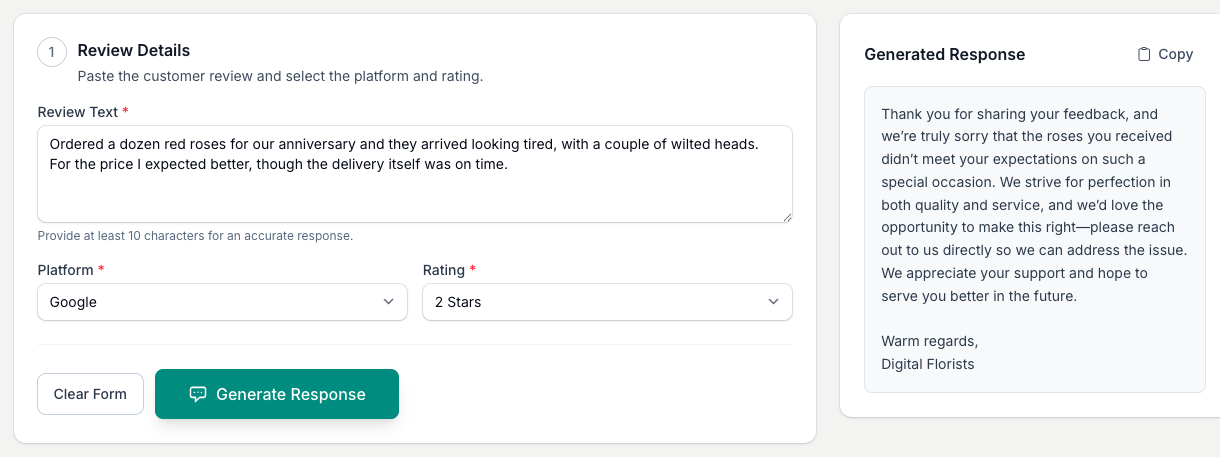
Set the low Rating and the draft stays calm and non-defensive. It thanks the customer, acknowledges the specific point they raised, and offers to put it right.
- Keep it short. A couple of sentences is plenty.
- Show you have heard them. A simple "I'm sorry to hear that" goes a long way.
- Take it offline. Offer a phone call or email rather than going back and forth in public.
Finding A Past Reply
Every reply is saved automatically. They sit in the Generation History section below the tool, with a count next to the heading. Tap the heading to open or close it.

Tips And Best Practices
- Set your shop name in your profile first. Open Business Details and enter your Business Name. The reply uses that name to sign off.
- Always read it before posting. It is a starting draft. Add the customer's name or the order detail so it feels genuine.
- Put the specifics in the review box. Include the flowers and the occasion, an anniversary hand-tie or a sympathy order, and the reply speaks to the points you mention.
- Reply to the good ones too. A thank-you on a five-star review makes that customer feel valued, and future customers notice.
- Reply quickly, within a day or two. A prompt reply shows you are paying attention.
Common Questions
Which review sites does it work with? Google, Facebook, Yelp and Trustpilot, plus Other for anywhere else. The reply reads the same wherever you paste it.
Does it post the reply for me? No. You copy the draft with Copy and paste it back on the platform yourself. There is no direct Google or Facebook connection.
Can I change the tone? The tone follows the Rating you set, so there is no separate tone control. You can still edit the draft freely before you post it.
Will it write the same thing every time? No. Each reply is based on what the customer actually wrote, so two reviews rarely get the same words.
Can I see replies I generated before? Yes. They are saved in your Generation History below the tool. Tap View on any row to load it back into the panel.
What happens to the review text I paste? It is sent to the AI service we use and saved with the generated reply in your account history. This lets View restore the form. The review text does not go into product analytics. Delete the history entry when you no longer need it.
What if I need a card message too? Try the Card Message Generator for personalised card wording for any occasion.
Keep reading
Try it in your own toolbox
Create a free Florist Toolbox account to get started. The tool this guide covers is part of the Plus plan.
Create your free account