
AI Prompt Library
Ready-made AI prompts built for florists to get better results from ChatGPT and other AI tools.
Tried ChatGPT and got a bland, could-be-any-shop answer back? The AI Prompt Library gives you ready-made prompts written for florists, so you get a better result without guessing what to ask. It's a set of copy-ready prompts you paste into ChatGPT, Claude or Gemini, and it's free.
What It Does
It's a library of ready-made prompts you copy and paste into any AI chat tool, whether that's ChatGPT, Claude or Gemini. Each prompt targets a real florist job: product descriptions, social captions, emails, Google review replies, care cards, wedding and event copy, seasonal offers.
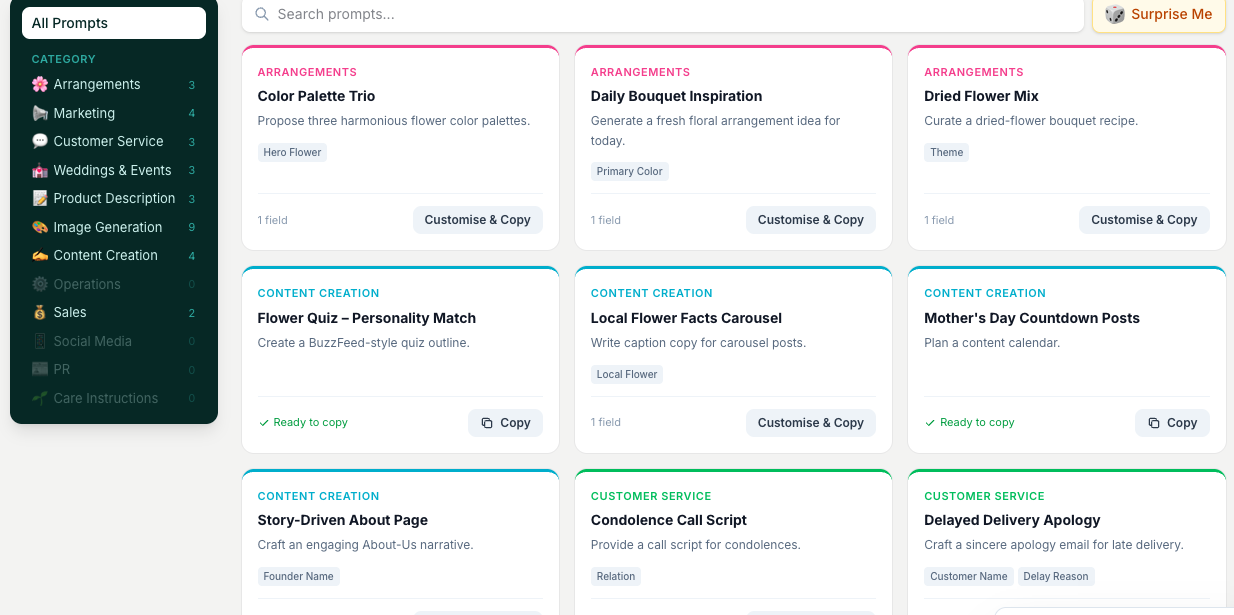
The prompts are grouped into categories, and each category shows a live count of how many prompts sit inside it. You browse the grid, search across the top, or pick a category on the left to narrow it down.
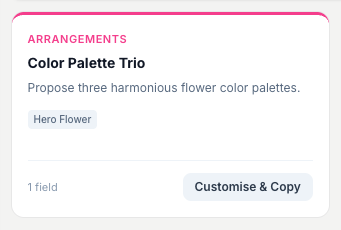
Some prompts are ready to copy in one tap. Others have fill-in fields (the words in square brackets, like your shop name or the flower) that open a customise screen so you make the prompt yours before you copy it. Not sure where to start? Surprise Me picks one at random.
The library is free, and the prompts work with the free version of ChatGPT and other free AI tools.
The Short Version
- Browse the grid, search the box, or pick a category on the left.
- Tap a card. A ready prompt copies straight away; a prompt with fields opens the customise screen.
- Fill in the fields and watch the preview build your finished prompt.
- Tap Copy to Clipboard.
- Paste it into ChatGPT, Claude or Gemini, then tweak the result to sound like you.
Find A Prompt
Start on the main screen. You've got three ways to find what you need: scroll the grid of cards, type in the Search prompts... box across the top, or tap a category in the dark rail on the left. Each category shows how many prompts it holds, so you know before you click.
Filter By Category
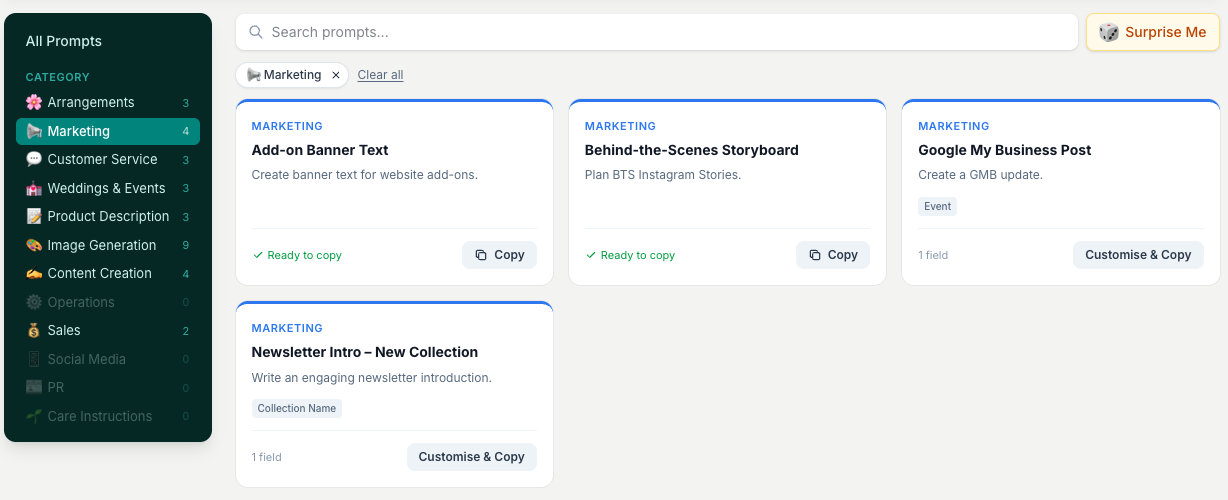
To narrow the grid, tap a category in the left rail. The grid shows only that category, and a removable chip appears above it with a Clear all link next to it. Tap the chip's x or Clear all to go back to everything. Categories with no prompts show dimmed and don't click.
Customise And Copy
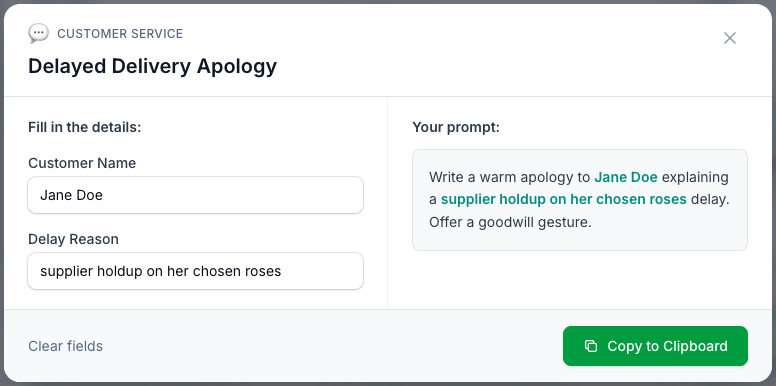
Tap a card with fields and the customise screen opens. Your fields sit on the left under Fill in the details:, and your finished prompt builds on the right under Your prompt:. As you type, each bracketed word is swapped for what you wrote (shown highlighted); anything you haven't filled in yet shows as an amber placeholder, so you can see at a glance what's left.
For a card with no fields, one tap copies the prompt to your clipboard right there, with no screen to open.
Once it's copied, paste it into ChatGPT, Claude or Gemini. Read what comes back, then tell the AI to adjust it, or add your own touches, before you publish.
Not sure where to begin? Tap Surprise Me and it opens a random prompt for you (or copies it straight away if it has no fields).
Tips And Best Practices
- Fill the fields with specifics. Your style, the season, the occasion. The more detail you give, the closer the result lands.
- Ask the AI to adjust rather than starting over. If the first answer misses, tell it "make this shorter" or "warmer tone" and it reworks the same draft.
- Add your own voice. AI gets the structure right; you make it sound like your shop. A line like "write in a warm, friendly style for a small independent florist" goes a long way.
- Try more than one tool. The same prompt reads differently in ChatGPT, Claude and Gemini, so it's worth a couple of goes to see which suits you.
- Use search or the category filter to find the right prompt fast instead of scrolling the whole grid.
- Use real flower photographs. Image prompts can set a background or scene around your own photograph. Do not ask AI to invent a product bouquet. Check every stem against the original and reject anything fake-looking before publishing.
- Keep a Google reviews reply consistent by pairing a review-reply prompt with your own tone. If you'd rather have review requests go out to past customers on their own, the Digital Florists platform handles that automatically.
Common Questions
Do I paste these into ChatGPT, or does it write the copy here? This is a prompt library. You copy a prompt from here and paste it into your AI tool, and the AI writes the copy. It's the question you ask, worded to get a better answer.
Do I need to pay for ChatGPT to use these? No. The prompts work with the free version of ChatGPT and other free AI tools, and the prompts themselves are free in the toolbox.
What are the square brackets in some prompts? They're fields for you to fill in, like your shop name or the flower. Open the prompt and a short form appears; your answers replace the brackets before you copy the finished prompt.
The AI result doesn't sound like me. What can I do? Add a line describing your tone, such as "write in a warm, friendly style for a small independent florist". You can also tell the AI to redo it in a different voice without starting again.
Are new prompts added over time? Yes. New prompts are added regularly based on what florists ask for, so it's worth checking back.
Which prompts should I try first? Pick the job in front of you. For a bouquet write-up, look under Product Description; for a caption, Social Media; for a reply to a review, Customer Service. You might also like the Card Message Generator, the Review Response Generator and the Bouquet Name Generator, which do these jobs for you without a prompt.
Keep reading
Try it in your own toolbox
Create a free Florist Toolbox account to use the tool this guide covers, no card needed.
Create your free account