
Arrangement Calculator
Price bouquets from real costs, markups, labour and tax, then save the exact calculation.
Price a bouquet from the flowers and sundries you are using, then see how the retail price is built. The Arrangement Calculator keeps the recipe, pricing choices and result together, so you can quote the job and come back to the same saved price later.
What It Does
The calculator starts with your direct flower, sundry and labour costs. It applies your chosen markups, adds VAT or tax once, then shows the Retail Price and the gross profit before overheads.
You can start from a copy of one of your sample arrangements, pick ingredients from your price list, or create an item without leaving the calculator. Quick keeps the everyday settings short. Detailed adds wastage and price rounding.
Saved arrangements keep the exact prices and settings used when you saved them. A later price-list change does not quietly reprice that work.
The Short Version
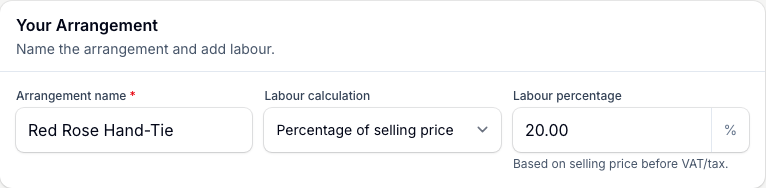
- Name the job in Your Arrangement and pick your Labour calculation.
- Open Pricing Setup and set your pricing method and VAT or tax.
- Add your flowers and sundries.
- Read the Retail Price card.
- Tap Save Arrangement.
Get Your First Price
If you added the florist examples when you set your profile up, tap Try Example. It opens a copy of one of your sample arrangements, priced from your own price list. The copy is yours to change and save, and the sample it came from stays as it is.
- Tap the Cost amount on a row and change it to a recent supplier price.
- Watch the Retail Price card update.
- Tap Save Arrangement to keep it.
To price from scratch instead, tap New in the bar above the calculator.
Choose Quick Or Detailed
Pick Quick or Detailed under Calculator mode, in the bar above the calculator.

- Quick gives you the everyday recipe, pricing, labour and tax controls.
- Detailed keeps all of those and adds Flower wastage, Sundry wastage and Round retail price.
Going back to Quick puts wastage and rounding aside. They stop affecting the price, and your settings are still there when you switch to Detailed again. So a recipe priced in Quick is your costs, your markup, your labour and your tax, and nothing else. A saved arrangement reopens in the mode you used, at the price you saved.
Set Up The Pricing
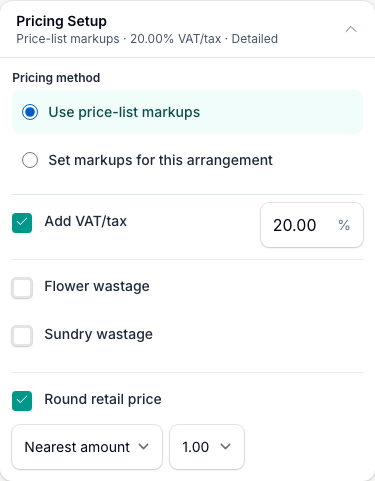
Pricing Setup sits under the Retail Price card. Tap its heading to open it. The line underneath shows the pricing method and the VAT or tax rate in use, so you can check both without opening it.
Pick A Pricing Method
Choose one:
- Use price-list markups applies the markup saved against each flower and sundry.
- Set markups for this arrangement shows a Flowers markup and a Sundries markup box for this job only.
Changing the Flowers markup does not change the Sundries markup. An item saved with a fixed price takes priority over either method.
Add Labour And Tax
Pick your Labour calculation in Your Arrangement. Both modes offer the same three methods:
- Fixed allowance adds the amount you enter before VAT or tax.
- Percentage of material cost applies your percentage to the material cost after wastage.
- Percentage of selling price makes labour that percentage of the selling price before VAT or tax.
The labour amount is added to the selling price and counted as a direct labour cost, so it does not create gross profit of its own.
Check Add VAT/tax. Switch it off when tax should not be added, or change the VAT/tax rate for this arrangement. The line under the retail price then says no VAT/tax was added.
The calculator treats a markup as a pre-tax multiplier. VAT or tax is added once, after the marked-up materials and the labour have been combined.
Add Wastage And Rounding
In Detailed, switch on Flower wastage or Sundry wastage and set a percentage for each. Wastage raises the material cost before markup:
Cost after wastage x markup = selling subtotal before tax
Switch on Round retail price to tidy the final figure. Choose Nearest amount and pick 0.50 or 1.00, or choose End in .99 or End in .95. Rounding can move the price up or down.
Add Flowers And Sundries
Stems go in Flowers. Wrap, ribbon, containers and everything else go in Sundries.
- Tap Add another flower or Add another sundry.
- Type in the search box and pick the item from the list.
- Set the quantity with the stepper.
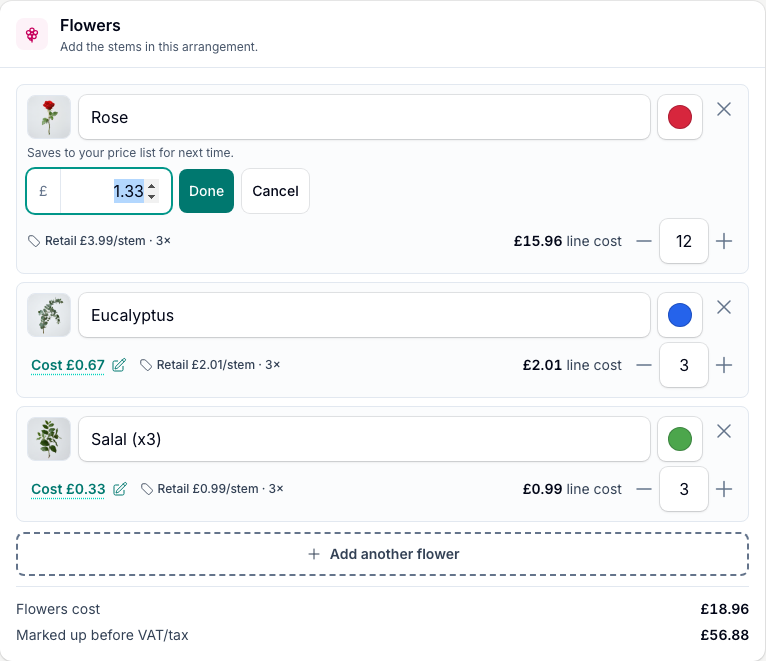
Each row shows what the item costs you, a Retail tag with the selling price per unit before VAT or tax and the markup behind it, and the line cost. Items already used in that section are left out of the list, so you cannot add the same flower twice.
The cost shown is the amount left as a cost to your business after any VAT or tax you reclaim. Ask your accountant which supplier taxes your business can reclaim.
If an item is missing, tap Create new flower or Create new sundry at the bottom of the search list. Add its name, cost and pricing details, then carry on with the arrangement.
Buying by the bunch or the pack? Under How do you enter the cost? pick the supplier-pack option and the tool divides the cost for you.
- For a flower, choose Work it out from a supplier bunch or pack, then fill in the Supplier bunch or pack cost and Stems per bunch or pack. You get the cost per stem.
- For a sundry, choose Work it out from a supplier pack, then fill in the Supplier pack cost and Usable units per pack. You get the cost per unit.
A bunch or pack size entered anywhere else is reference only and never divides a cost you have already saved.
Edit An Ingredient Cost
Tap the Cost amount on the row to change it. The new cost is saved to your price list for next time.
- Press Enter or tap Done to save it.
- Press Escape, tap Cancel or click away to cancel it.
- If the save fails, your typed cost stays in the box so you can try again.
A short message confirms what the edit did, with an Undo link so you can put the old cost back. The message clears itself after about 15 seconds and takes Undo with it, so use it while it is on screen. Changing a price-list cost from a new, unsaved arrangement updates that draft as well.
When you are viewing saved work, a price-list change does not alter its saved result. The page shows the price you saved and what it comes to today, so you can compare them first.
Understand The Result
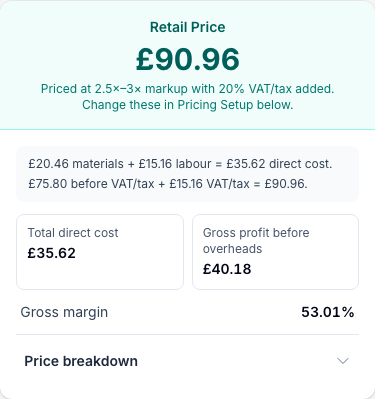
The Retail Price card leads with the price. Straight under it, one line names the two figures that move that price most: the markup your ingredients are on and the VAT or tax rate. A job on a 3x markup with 20% tax says so in plain words, and the same line points you to Pricing Setup to change either. Where your rows sit on different markups, it shows the lowest and the highest.
Below that, a one-line sum shows materials plus labour, then the price before VAT or tax, the tax, and any rounding.
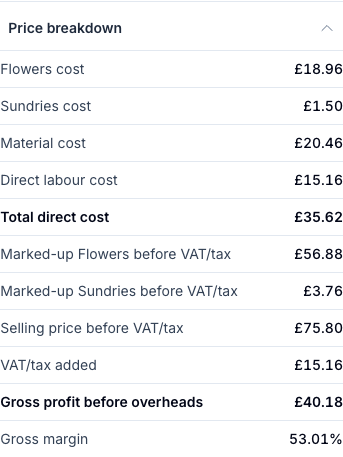
Under the sum sit Total direct cost and Gross profit before overheads, with Gross margin beside them.
- Flowers cost and Sundries cost are what each side of the recipe costs you.
- Material cost adds those together. If you switched wastage on, a wastage line appears above it and the label reads Material cost after wastage.
- Direct labour cost is the amount worked out from your labour calculation.
- Total direct cost combines materials and labour.
- Marked-up Flowers before VAT/tax and Marked-up Sundries before VAT/tax split the selling side by category.
- Selling price before VAT/tax combines the two.
- VAT/tax added shows the tax added once.
- Rounding adjustment appears when rounding moved the price.
- Gross profit before overheads is the pre-tax selling price minus direct cost.
- Gross margin shows that gross profit as a percentage of the pre-tax selling price.
- A 10.00 flower cost at 3x becomes 30.00 before tax.
- A 4.00 sundry cost at 2x becomes 8.00 before tax.
- Add a 5.00 labour allowance for a 43.00 selling price before tax.
- Add 20% tax, which is 8.60.
- The retail price is 51.60.
The direct cost is 19.00. The gross profit before overheads is 24.00, so your rent, wages and other running costs still need to come out of that amount.
On a phone the retail price also sits in a bar across the bottom of the screen. Tap it to jump to the full card.
Use A Fixed Price Instead Of A Markup
An item in your price list can carry one set price instead of a markup. Choose Set a fixed customer price when you create or edit the item, then fill in the Customer/till price per stem or Customer/till price per unit. For new items, that is the amount charged at the till, including the VAT or tax you have configured.
The row then shows a Retail tag and no markup is applied to it. The calculator splits the pre-tax and tax parts for the breakdown. Wastage still raises your material cost, but it does not raise the fixed price, so your gross profit falls as wastage rises.
Save And Reprice Later
Type a name in Arrangement name, then tap Save Arrangement. The button stays greyed out until the arrangement has a name, and it reads Update Arrangement when you are editing saved work.
A saved arrangement keeps its ingredient costs, markups, fixed prices, labour, tax, wastage, rounding, mode and result. Reloading it shows the same retail price.
When your price list changes later, the arrangement opens with a notice showing the price you saved and what it comes to at today's flower and sundry prices. Tap Review Changes to see each changed line, then Apply New Prices to update the saved arrangement, or Keep Current Prices to leave it exactly as it is.
If one of its flowers or sundries has gone from your price list, that arrangement cannot be priced from today's list and the notice says so. Your saved price stays as it is. Add the ingredient back, or swap that row for something you still stock.
Tap Duplicate on a saved arrangement to make a variation without changing the original.
Print A Recipe Card
Once an arrangement is saved, tap Print.
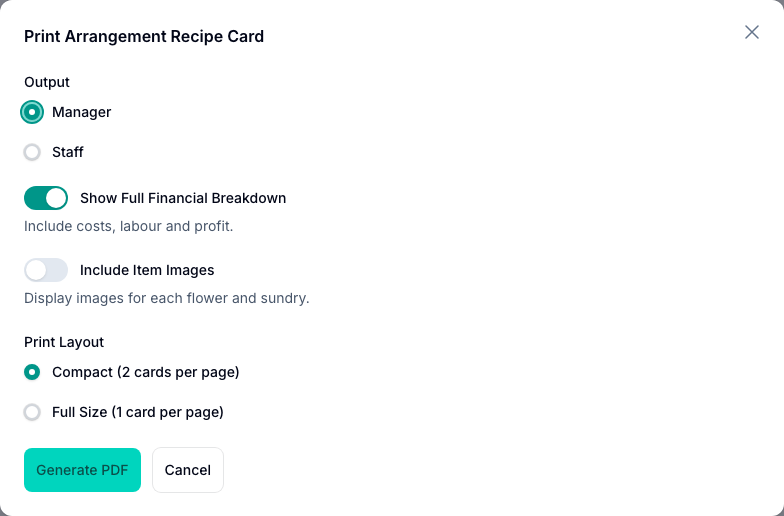
- Output chooses Manager or Staff. A staff sheet drops the cost and profit breakdown and keeps the recipe. It still prints the retail price, and whether it also shows labour cost or a price against each ingredient follows the staff-output settings in your Business Defaults. Check those before you hand a sheet to the workroom.
- Show Full Financial Breakdown appears on Manager and adds costs, labour and profit.
- Include Item Images adds the flower and sundry pictures.
- Print Layout offers Compact (2 cards per page) or Full Size (1 card per page).
Tap Generate PDF to download it.
Copy To Digital Florists
If your shop uses Digital Florists, open a saved arrangement and tap Copy to Digital Florists. In Digital Florists, open the product you want and paste the recipe into its ingredient list.
Setting Your Price
Set your markup from your own overheads, not the shop down the road. Their rent and wage bill tell you nothing about the gross profit your shop needs.
Use the Business Markup Calculator to find the average pre-tax multiplier your business needs. Then use price-list markups, or a Flowers markup and Sundries markup per job, to reach that average across your work.
Tips And Best Practices
- Open Pricing Setup first. Check the pricing method and the VAT or tax rate before you build the recipe. The summary line under its heading shows both.
- Choose how to charge labour. A fixed amount, a percentage of material cost after wastage, or a percentage of the selling price before tax.
- Keep Flowers and Sundries separate. Their costs and their useful markups can differ.
- Count every sundry. Packaging, oasis, ribbon and cards all use part of the retail price.
- Use Detailed when you want wastage costed in. In Quick the price is your costs, markup, labour and tax only.
- Save repeat designs. Keep weekly bouquets, wedding posies and sympathy work ready to load.
- Review before you apply new prices. One supplier change can move several saved designs at once.
Common Questions
Can I use different markups for Flowers and Sundries? Yes. Choose Set markups for this arrangement, then enter the Flowers markup and the Sundries markup separately.
Can every ingredient use its own markup? Yes. Choose Use price-list markups. An item saved with a fixed price still takes priority.
What happens when I edit a price-list cost? The new cost is saved for future work. A new draft updates with it, while a saved arrangement keeps its price until you choose Apply New Prices.
What happens if I am not VAT registered? Switch Add VAT/tax off. The line under the retail price then says no VAT/tax was added, and no output tax goes on the price.
Is gross profit the amount left after every business expense? No. Gross profit before overheads has covered the arrangement's direct materials and labour. Your rent, insurance and other running costs still come out of it.
Why can I not see Print or Duplicate? They appear once the arrangement is saved. Give it a name and tap Save Arrangement first.
Can I change a saved arrangement? Yes. Its saved result stays in place until you change the recipe or choose Apply New Prices. Check the new retail price before you save the update.
Keep reading
Try it in your own toolbox
Create a free Florist Toolbox account to use the tool this guide covers, no card needed.
Create your free account