
Cost Evaluation Calculator
Work out how many extra bouquets you need to sell to cover a new cost, from a wage to a van or a rent rise, using your own per-bouquet figures.
Before you take on a new cost, a wage, a van or a rent rise, it helps to know how many extra bouquets it takes to pay for it. This calculator works out how many extra bouquets you need to sell, and the revenue they represent, from your own figures. You put in the cost and your per-bouquet numbers, and it turns them into a clear target.
What It Does
Enter the annual cost you are weighing up, plus your average selling price and your profit per bouquet. Tap Calculate Requirements and it works out the extra bouquets you need to sell to cover that cost, broken down by year, month, week, day and hour. Each target comes with the retail revenue it represents, so you see the volume and the money side by side.
Add your Average Flower Cost and it also shows the estimated flower spend at each level. Add your opening schedule and it sharpens the daily and hourly targets. It is a good sense-check before a hire, a van, a rent increase, new equipment or a marketing spend.
The Short Version
- Enter the new annual cost you want to evaluate.
- Add your average selling price and profit per bouquet.
- Optionally add your flower cost and opening schedule.
- Tap Calculate Requirements.
- Read your targets by year, month, week, day and hour.
The rest of this guide walks through each step.
How To Use It
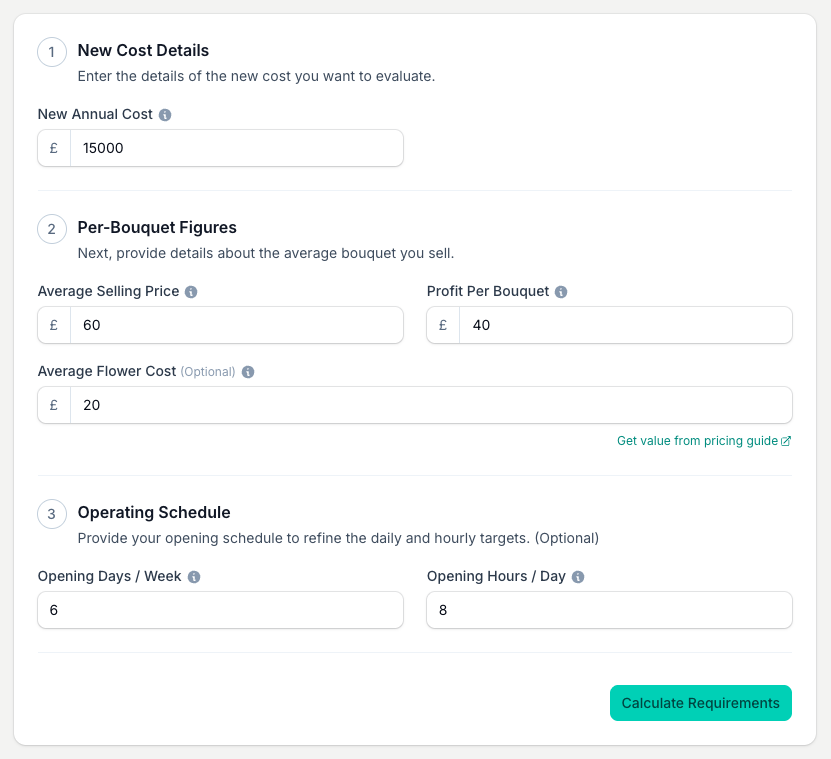
Work down the three steps on the left, then calculate.
- Type the New Annual Cost. For a recurring cost like a monthly wage, enter the annual total.
- Type your Average Selling Price, the typical price a customer pays for one bouquet.
- Type your Profit Per Bouquet as a money amount, not a percentage. Use what is left after all existing costs, including overheads, before deducting the new cost you are testing.
- Optionally add your Average Flower Cost to see flower spend in the results.
- Optionally set Opening Days / Week and Opening Hours / Day to refine the daily and hourly targets.
- Tap Calculate Requirements.
Read Your Result
The result leads with the Additional Bouquets Needed for the year, and the revenue that number represents. Under it, the same target is broken down into Per Month, Per Week, Per Day and Per Hour rows, each with its own revenue figure.
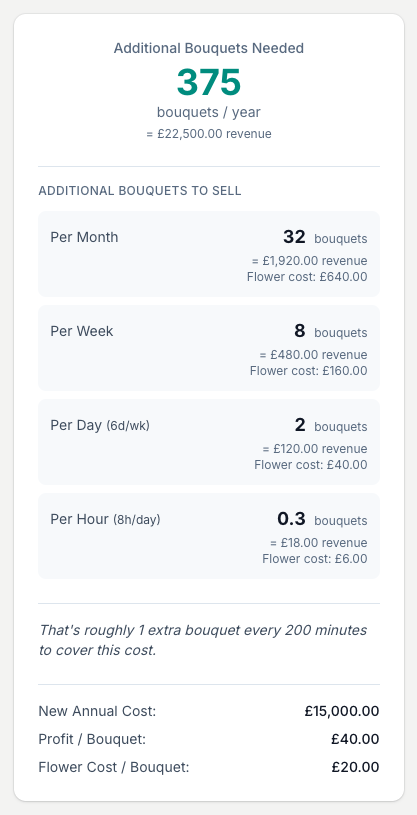
- The Per Day row shows the days a week it assumes in brackets. It uses 7 days unless you set Opening Days / Week.
- The Per Hour row only appears once you have entered Opening Hours / Day.
- If you entered an Average Flower Cost, each row also shows the flower spend at that level.
- An italic line under the rows puts the target in everyday terms, such as roughly one extra bouquet every so many minutes, so it lands without doing the sums in your head.
- A short summary at the foot repeats your inputs: New Annual Cost, Profit / Bouquet and, if you added it, Flower Cost / Bouquet.
The bouquet counts round up to the next whole bouquet, so treat them as a solid target rather than an exact figure.
Setting Your Targets
A target is only as good as the Profit Per Bouquet you enter. Use the average money amount left after your existing costs. Keep the new cost out of this amount: the calculator uses it separately to work out the extra bouquets needed.
Work from your own costs and overheads, not the shop down the road. Their rent and wage bill tell you nothing about what you keep from a bouquet. Count each existing cost once when working out this amount. To review your flower prices, the Get value from pricing guide link beneath Average Flower Cost opens the Pricing Guide Generator.
To see the wider picture behind a single cost, pair this with the Operating Cost Calculator, which totals all your overheads, and the Bouquet Sales Calculator, which works out the sales you need to break even.
Save Your Calculation
Save this cost evaluation so you can return to its inputs and results.
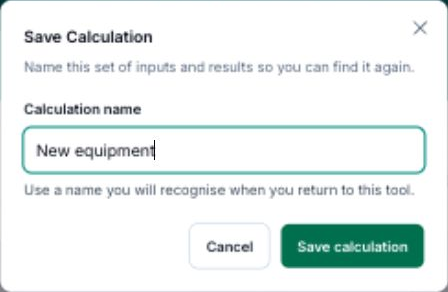
- Tap Save calculation after calculating your result.
- Enter a Calculation name you will recognise.
- Tap Save calculation to keep it.
To reopen saved work, tap View saved, then Use this calculation beside its name.
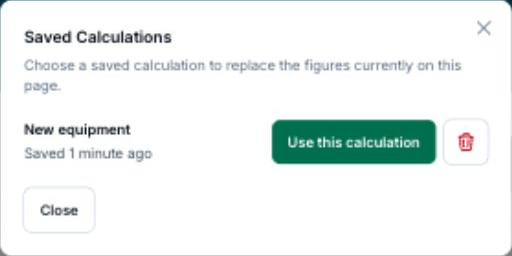
After loading a calculation, Save as new keeps a separate copy.
Tips And Best Practices
- Run the numbers before you hire. A new staff member is one of the biggest commitments a small shop makes, so see the target before you commit.
- Test equipment and vans against a real break-even. A van or a cold store has a payback point. See it before you sign.
- Apply it to marketing spend. Ask how many extra bouquets a campaign needs to sell, then judge whether that is realistic for your shop.
- Use your actual average profit, not a best-case. The target is only as honest as the profit figure you put in.
- Cost billed monthly? Enter the annual total. Multiply the monthly figure by 12 and put that in New Annual Cost.
Common Questions
What if the cost is monthly, not annual? Multiply it by 12 and enter the annual total in New Annual Cost. The tool works from annual figures and breaks them down for you.
What is the difference between profit and sale price? The sale price is what the customer pays. For Profit Per Bouquet, enter the money left after all existing costs, including overheads and any VAT you account for. Enter an amount, not a percentage, and exclude the new cost you are testing.
What if I leave the opening schedule blank? The Per Day row assumes a 7-day week, and the Per Hour row only appears once you enter Opening Hours / Day. Fill both in for targets that match your real trading pattern.
Can I compare several costs? Yes. Run a separate evaluation for each cost and compare the targets. Save each one so you can come back and set them side by side.
Keep reading
Try it in your own toolbox
Create a free Florist Toolbox account to get started. The tool this guide covers is part of the Plus plan.
Create your free account