
Flower Wastage Tracker
Record wasted stock, track supplier credits and see the cost left after money comes back.
The Flower Wastage Tracker records what you throw away and the cost left after supplier credits. Log flowers or damaged items, keep a record of claims, and review your losses over time.
What It Does
Use Record to enter wasted stock and save its cost. Claims keeps track of supplier credit requests and their outcomes. Analytics shows wastage and credits for the period you choose.
The tracker keeps your records. It does not send a claim, contact a supplier or collect a credit for you. Contact the supplier through your usual channel, then record the outcome here.
The Short Version
- Open Record and check the Date.
- Pick a flower or a custom item.
- Enter the quantity and check its cost.
- Choose the Reason for the waste.
- Add supplier or claim details if needed.
- Tap Save Entry.
- Review Claims and Analytics as credits arrive.
Record Wasted Flowers
- Open Search flowers and choose the flower you lost.
- Choose its colour if colour choices are shown.
- Set Qty to the number wasted.
- For a flower sold in bunches, choose Stems or Bunches to match what you are counting.
- Check the Cost and the unit beside it.
- Choose a Reason for the loss.
The selected flower supplies its recorded cost and bunch size. Check those figures against the stock you are recording. The Flowers tutorial explains your flower price list.
For example, three stems at 1.33 each cost 3.99 in your account currency. A bunch of ten at that stem cost is 13.30. Choosing Bunches changes both the quantity calculation and the cost per unit.
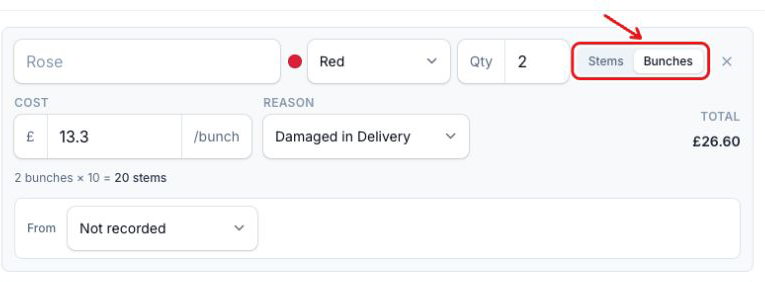
Tap Add Another Item to record a different flower or a separate reason on another line.
Add A Damaged Pot Or Other Item
- Open Search flowers on the line you want to use.
- Choose Custom item (non-flower).
- Type a name, such as Broken pot.
- Enter Qty.
- Enter its unit Cost.
- Choose a Reason.
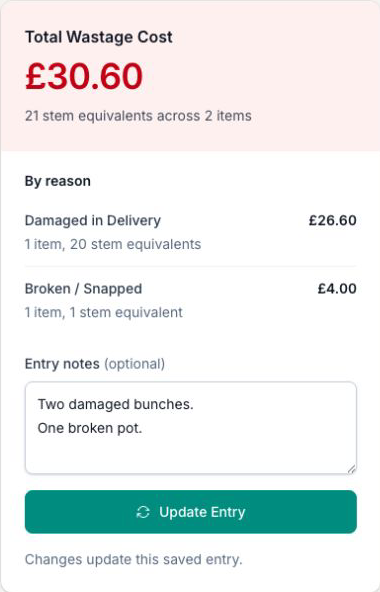
Quantity totals use stem equivalents. One flower stem counts as one; a bunch uses its recorded stem count. Each custom item also counts as one, so the combined total can include pots or other stock.
Two bunches of ten stems plus one pot therefore show 21 stem equivalents. At 13.30 per bunch and 4.00 for the pot, the total cost is 30.60. These are example amounts in your account currency.
Record A Supplier Credit Request
Choose the supplier under From on the relevant line. If the supplier is missing, choose + Add supplier... and enter the Supplier name.
Tick Claim a credit and enter the amount you are asking for. Check the entry date and costs, then tap Save Entry.
A recorded request is not money received. It stays separate from the credits that reduce your net wastage.
Update A Credit Outcome
- Open Claims.
- Find the claim and tap Update claim.
- Choose the outcome under What happened?.
- For Credit received, enter the Amount credited.
- Check the Date.
- Tap Save claim.
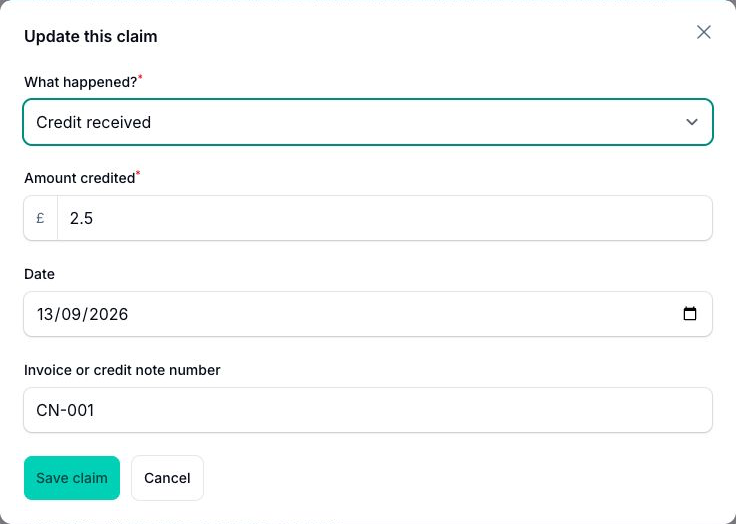
Enter what the supplier credited, even if it is less than the amount requested. For a 3.99 loss with a 2.50 credit, the net wastage is 1.49.
Marking that credit as received moves the claim into Settled. The 1.49 remains part of the loss; it does not stay in the waiting-on-credit total as another claim.
Correct A Saved Entry
Under Record, open Recent Entries and tap Edit beside the entry. Check the loaded date and items, make your correction, then tap Update Entry.
Review Your Wastage
Open Analytics and choose the period you want to review.
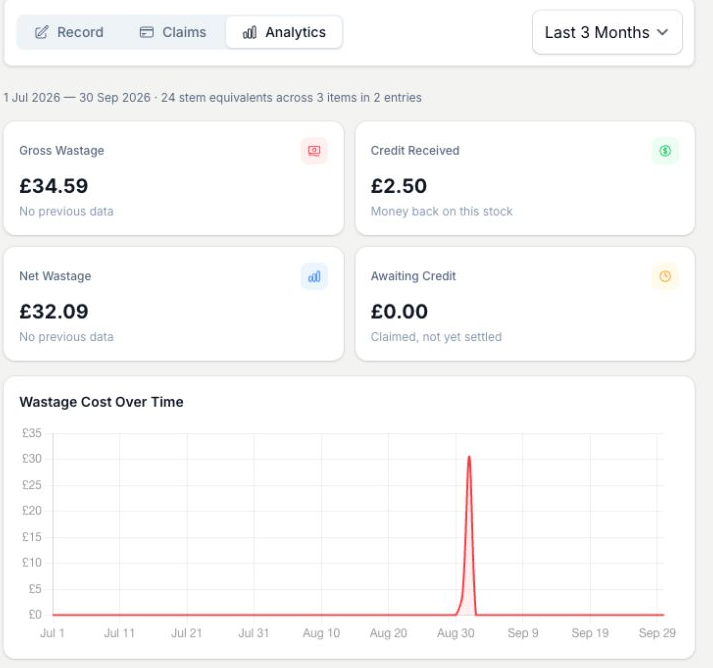
- Gross Wastage is the recorded cost before credits.
- Credit Received is the money credited against stock in that period.
- Net Wastage is the cost left after those credits.
- Awaiting Credit shows requests still waiting for an outcome.
Last 3 Months includes the current calendar month and the two before it. Last 6 Months includes the current month and the five before it. For example, in September those ranges start on 1 July and 1 April respectively.
Credits are counted against the period of the original wastage entry. A credit recorded later can change that earlier period's net wastage. The credit date does not move the stock loss into a new period.
Use the chart and breakdowns to compare the recorded losses. For example, gross wastage of 34.59 less credits of 2.50 leaves net wastage of 32.09.
Tips And Best Practices
- Check the unit before saving. Three bunches and three stems have different costs and quantities.
- Use a separate line for a different reason. It keeps your loss records clearer when you review them.
- Record the outcome when the supplier replies. A requested credit does not reduce the loss until a received amount is recorded.
- Check the entry date when comparing periods. Analytics follows the date of the stock loss, including credits against that stock.
Common Questions
Does Claim a credit send anything to the supplier?
No. It records your request in the tracker. Contact the supplier separately and update the claim when you have an outcome.
Why does the quantity total include a pot?
The total uses stem equivalents. Each custom item counts as one alongside flower stems and the stem counts of bunches.
What if the supplier credits only part of the cost?
Record the amount received. It reduces net wastage by that amount. Once marked Credit received, the claim is settled even if the credit is lower than the original loss.
Why did an earlier month's net wastage change?
A credit belongs to the original wastage entry's period. Recording a credit later updates the net loss for that stock.
Keep reading
Try it in your own toolbox
Create a free Florist Toolbox account to get started. The tool this guide covers is part of the Plus plan.
Create your free account