
Business Markup Calculator
Work out the average pre-tax markup your shop needs to cover costs and reach its profit target.
Find the average pre-tax multiplier your shop needs to cover a year of costs and reach its profit target. The Business Markup Calculator works at business level. Use that result when setting flower and sundry markups for individual designs.
What It Does
The calculator turns your annual operating costs, flower and sundry costs, and profit target into one average markup.
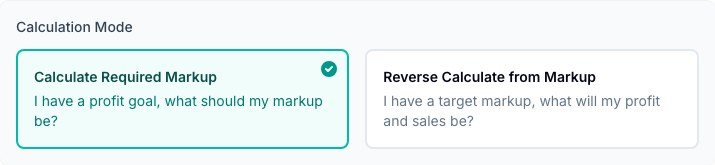
- Calculate Required Markup starts with the profit you want and finds the multiplier.
- Reverse Calculate from Markup starts with a multiplier and shows the revenue and profit it could produce.
- VAT or tax settings keep output tax separate from the multiplier.
- Optional sales targets use your Average Bouquet Sales Price to estimate the orders needed over the year.
- Detailed results show break-even revenue, target revenue, margins and an annual cost breakdown.
Results appear after you press Calculate. Press it again after changing an input.
The Short Version
- Pick Calculate Required Markup or Reverse Calculate from Markup.
- Enter your annual operating and material costs.
- Set your profit target or the multiplier you want to check.
- Confirm your VAT or tax setting.
- Press Calculate and read the pre-tax multiplier.
Choose The Calculation
Use Calculate Required Markup when you know the annual profit you want. Enter the profit as a fixed amount or as a percentage of total costs.
Use Reverse Calculate from Markup when you already have an average multiplier in mind. The result shows what that multiplier means for annual revenue and profit.
Enter Your Annual Costs
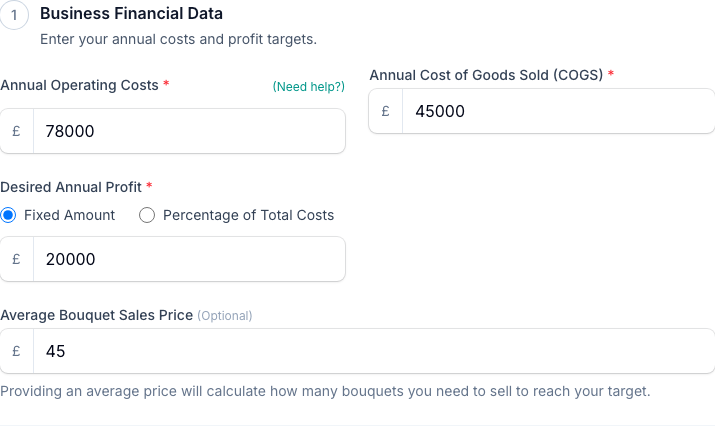
Fill in Business Financial Data with figures covering the same full year.
- Annual Operating Costs includes rent, wages, utilities and the other costs of running the shop. Use the Operating Cost Calculator if you need to build that figure first.
- Annual Cost of Goods Sold (COGS) covers the flowers, sundries and other materials bought for the work you sell.
- Desired Annual Profit is the amount you want left after those annual costs.
- Average Bouquet Sales Price is optional. Add it to see weekly, monthly and annual sales targets.
Use the amount that remains a cost to your business after any VAT or tax you reclaim. Ask your accountant which purchase taxes your business can reclaim.
Set VAT Or Tax
Choose whether your business adds VAT or another sales tax to customer prices. Enter the rate your business uses when the tax setting is on.
The multiplier shown by a new calculation is before output tax:
Cost after any recoverable purchase tax x markup = selling price before output tax
The Arrangement Calculator adds output tax once when it builds the retail price. Do not add the tax rate into the multiplier as well.
For example, a 10.00 cost at 3x gives a 30.00 selling price before tax. At 20% tax, the retail price is 36.00.
The calculator applies the rate you enter. Have your accountant confirm the rate and the costs your business should use.
Read The Result
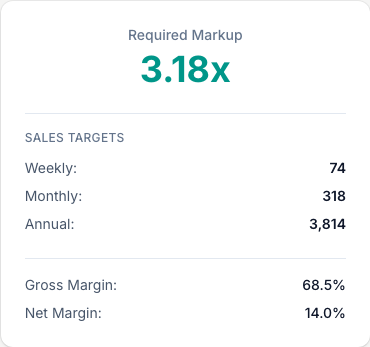
Press Calculate. The summary leads with Required Markup in the main mode and Resulting Profit in reverse mode.
Read the multiplier as a business-wide average. A 3x result means the selling prices before output tax need to average three times the relevant material costs over the year you entered.
The detailed results explain the target:
- Break-Even Revenue covers the annual operating and material costs entered, with no profit left.
- Target Revenue adds the chosen profit target.
- Gross margin describes the space between material cost and selling price before overheads.
- Net margin describes the target profit as a share of revenue after the annual costs entered.
- Sales Targets appear when you enter an Average Bouquet Sales Price.
Tax is shown separately where it applies, so the pre-tax business target and the customer amount are not confused.
Compare Markup Scenarios
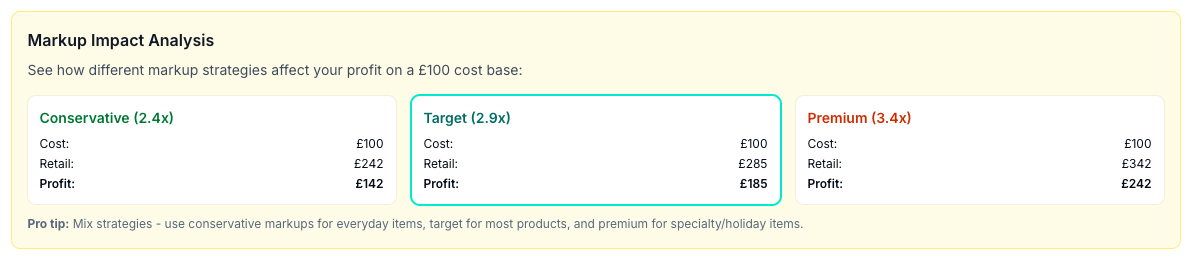
The Markup Impact Analysis compares a lower multiplier, the calculated target and a higher multiplier on the same example cost.
Use it to see how a small change in markup affects the selling price before tax and the gross profit available for overheads. It is a comparison, not a rule that every item must use the same multiplier.
Use The Multiplier In An Arrangement
The required markup is an average across your work. You can reach it with a mixture of price-list markups, or set separate flower and sundry multipliers for one design.
Open the Arrangement Calculator, open its Pricing Setup, then choose one of these pricing methods:
- Use price-list markups for ingredient-by-ingredient pricing.
- Set markups for this arrangement to use one Flowers markup and one Sundries markup.
The Arrangement Calculator treats the multiplier as pre-tax and adds VAT or tax once.
Save And Reuse The Calculation
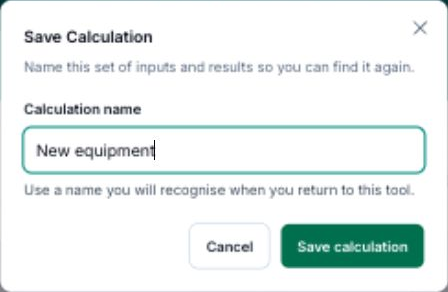
Save this calculation so you can return to its inputs and results.
- Tap Save calculation after calculating your result.
- Enter a Calculation name you will recognise.
- Tap Save calculation to keep it.
To reopen saved work, tap View saved, then Use this calculation beside its name.
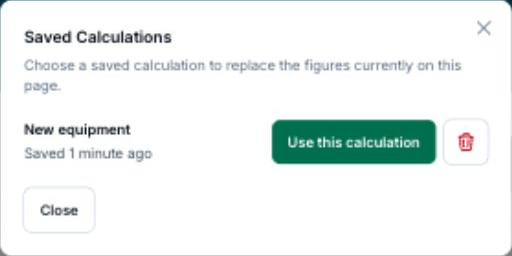
After loading a calculation, Save as new keeps a separate copy.
Setting Your Price
Set the business average from your own costs, not another florist's prices. A shop with lower rent or a different wage bill can need a different multiplier.
Review the result when annual costs, supplier spending or profit goals change. Then adjust your price-list markups, or the Flowers markup and Sundries markup on a job, where the business average has moved.
Tips And Best Practices
- Include your own wage. Put it in Annual Operating Costs rather than treating all remaining money as pay.
- Use one period. Enter a full year of costs with a full-year profit target.
- Keep tax out of the multiplier. Let the Arrangement Calculator add output tax once.
- Use figures from your accounts. Rounded real totals give you a better starting point than a neat guess.
- Check both directions. Find the required markup, then use reverse mode to check the average you currently use.
Common Questions
What is the difference between markup and margin? Markup compares selling price with cost. Margin shows profit as a share of the selling price. The calculator shows both, but the Arrangement Calculator needs the multiplier.
Does the multiplier include VAT or sales tax? New calculations return a pre-tax multiplier. The Arrangement Calculator adds output tax once when it works out the retail price.
What is the difference between break-even and target revenue? Break-even covers the annual costs entered with no profit left. Target revenue also includes the profit goal.
What if I am not VAT registered? Choose the option that says your business does not add VAT or tax. The calculator then shows the business figures without output tax.
My required multiplier looks high. What should I check? Check the annual costs, material spending and profit target cover the same period. Then compare the target with a realistic annual sales volume.
Can I use this for part of a year? Use full-year figures or full-year estimates for the annual costs and profit target. The calculator treats the inputs as annual amounts and splits sales targets across 12 months and 52 weeks. Entering only a quarter of costs would understate those weekly and monthly targets.
Keep reading
Try it in your own toolbox
Create a free Florist Toolbox account to get started. The tool this guide covers is part of the Plus plan.
Create your free account