
Operating Cost Calculator
Add up your flower shop's overheads and see annual, monthly, weekly and daily totals, with each expense shown in a cost distribution chart.
You cannot price with confidence until you know what it costs to keep your doors open. This calculator adds up every fixed overhead of running your shop and shows the annual, monthly, weekly and daily cost. It leaves out flowers and sundries, so you get a clean overhead figure to feed your other pricing tools.
What It Does
The Operating Cost Calculator collects your regular business expenses in one place and totals them for you. The totals update as you type, so you see your annual, monthly, weekly and daily running cost at a glance, plus a count of the lines you have filled in.
- Pre-loaded templates. Start from a UK, Irish, US or Blank template. Each region template opens with about 30 common expense categories, so you are not building the list from scratch.
- Monthly and yearly in step. Every row has a Monthly and a Yearly column. Type one and the other fills in for you.
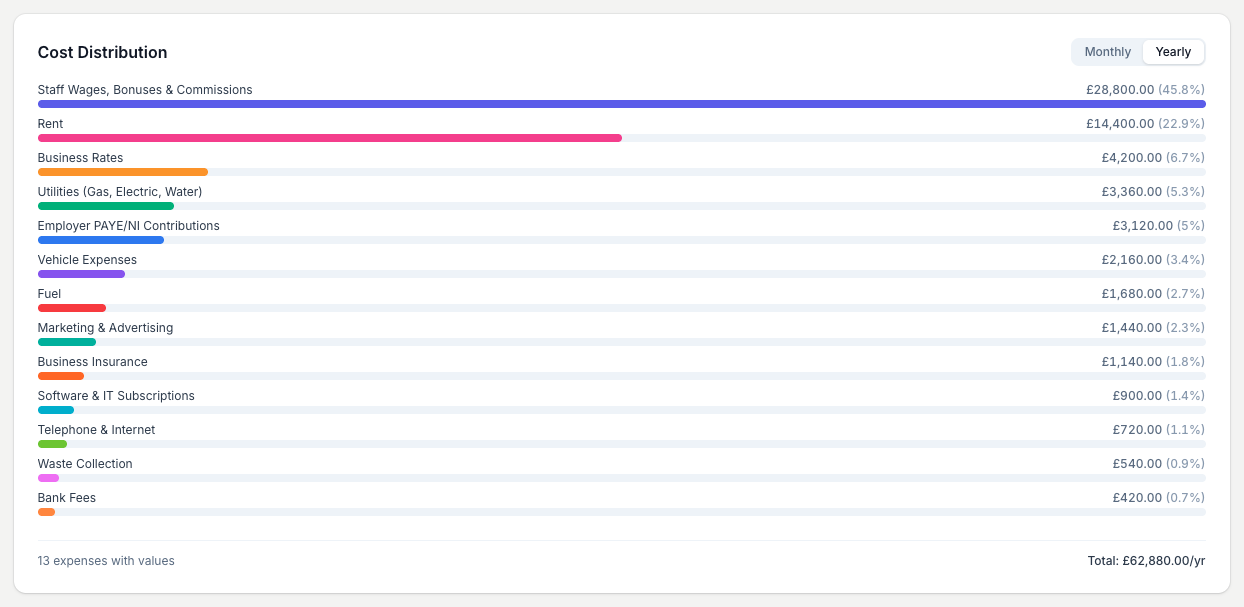
- Cost Distribution chart. Each expense shows as a bar sorted largest-first, with its share of the total, so your biggest overheads stand out. Switch the chart between Monthly and Yearly.
It does not include the cost of flowers or sundries, and it does not work out the revenue or number of sales you need to break even. It gives you the overhead figure to carry into your other tools.
The Short Version
- Choose a template that matches your country.
- Type each cost into the Monthly or Yearly column.
- Add or remove rows so the list matches your shop.
- Read your totals: annual, monthly, weekly and daily.
- Check the Cost Distribution chart to see your biggest overheads.
The rest of this guide walks through each step.
Choose A Template
Start at Choose a Template and pick UK, Irish, US or Blank. The tool opens on the template matching your account country, so you can usually start typing straight away.

Fill In Your Figures
Under Your Expenses, type each cost into the Monthly or Yearly column. Type whichever you know and the other column fills in for you. Type your rent in the Monthly column, or your insurance in the Yearly column, whichever matches how you pay.
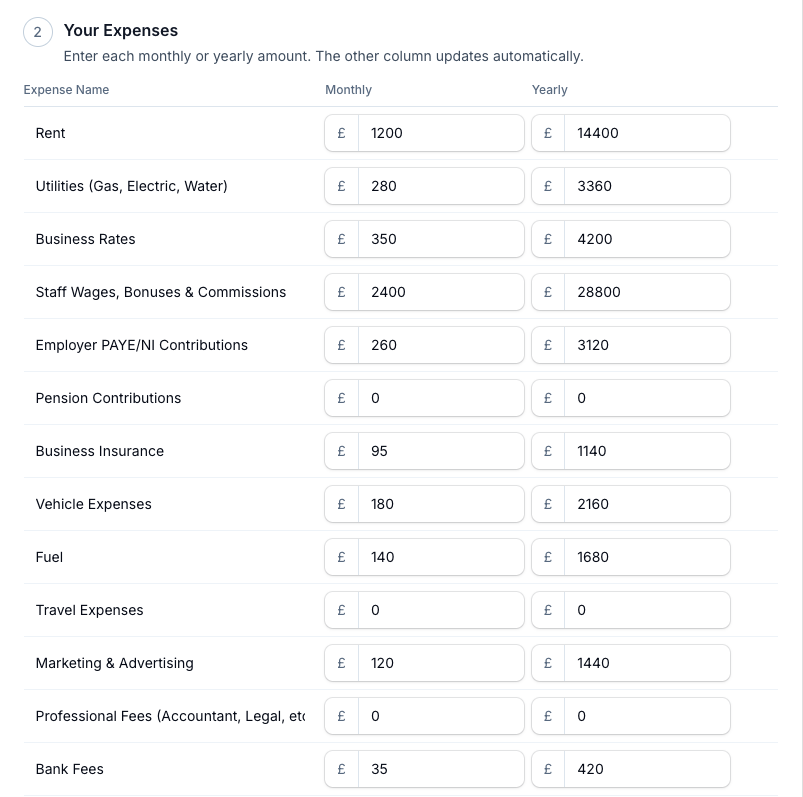
- Add a row. Tap Add Expense for a line that isn't in the template.
- Rename a row. Type over the name in the Expense Name column to match what you call it.
- Remove a row. Hover the row (or tap and hold on a phone) and tap the X on the right.
Leave any category you do not use at zero. Empty rows do not count towards your totals.
Read Your Totals
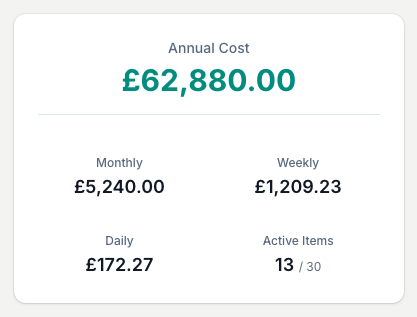
The summary panel keeps your running cost in view. It leads with your Annual Cost, then shows Monthly, Weekly and Daily. Active Items counts the lines you have filled in out of the total rows, so you can see at a glance how much of the list you have covered.
See Your Cost Distribution
The Cost Distribution chart shows each expense as a bar, sorted largest-first, with its share of the total. It's the quickest way to spot where the money goes and which overheads are worth a closer look. Use the Monthly and Yearly switch to change both the bars and the total at the foot of the card.
Turning Overheads Into A Price
This tool gives you the overhead number. Your pricing tools turn it into a price.
To find the overhead each order must cover, divide your monthly overhead total by the number of orders you expect to make up in a month. That's the slice of your running costs every sale has to carry before you add flowers and profit. If your monthly overhead is 5,240 in your account currency and you make up 600 orders a month, each order needs to cover roughly 8.73 of overhead before anything else.
Set your markup from your own overheads, not the shop down the road. Their rent and wage bill tell you nothing about what you need to charge. The Business Markup Calculator works your markup out from the overhead figure you build here, and the Cost Evaluation Calculator checks whether your current prices cover it. Tax and what you can claim are your accountant's call, not a figure this tool guarantees.
Save Your Calculation
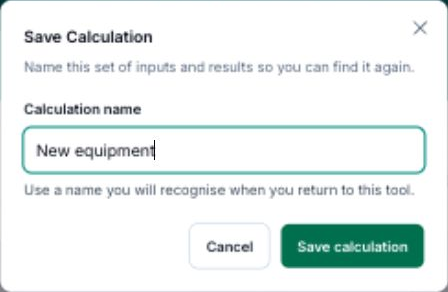
Save this calculation so you can return to its inputs and results.
- Tap Save calculation after calculating your result.
- Enter a Calculation name you will recognise.
- Tap Save calculation to keep it.
To reopen saved work, tap View saved, then Use this calculation beside its name.
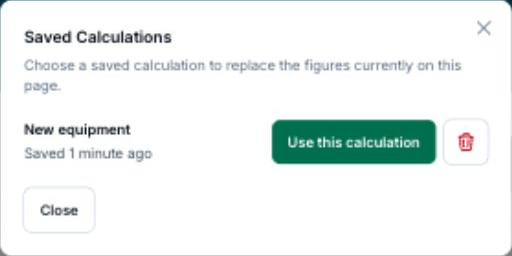
After loading a calculation, Save as new keeps a separate copy.
Tips And Best Practices
- Review your figures every quarter. Costs creep up without you noticing. A quick check each season keeps things honest.
- Do not forget the hidden costs. Card-machine fees, bank charges and annual software renewals are easy to miss and they add up.
- Include your own wage or drawings. If you leave yourself off, your overhead figure understates the truth.
- Average your variable costs. For a cost that moves month to month, use a three-month average for a more realistic figure than a single month.
- Save a snapshot each quarter. Keeping saved calculations lets you compare your overheads over time and spot the trend before it bites.
- Put the tax to one side as well. Overheads are not the only money that has to leave the account. Take your monthly figures into the Tax Reserve Calculator for a suggested monthly transfer into a separate tax pot.
Common Questions
Do I need to include the cost of flowers? No. This calculator is for fixed and recurring overheads only. Flower and sundry costs move with every order and are handled in the Arrangement Calculator.
What if I work from home? Enter a proportion of your home costs, such as rent, utilities and broadband, based on the space you use for the business. Your accountant can advise on the share you can claim.
Can I switch between templates? Yes, but switching replaces your current list with the new template's rows and clears any figures you have typed. Save your calculation first if you want to keep them.
How often should I update it? Monthly or quarterly works well, as costs shift with the seasons, your suppliers and your staffing. Save each version so you can see the change.
Does it work out the revenue I need to break even? No. It totals your overheads; it does not calculate the sales you need to cover them. For that, take the overhead figure into the Cost Evaluation Calculator or set your markup with the Business Markup Calculator.
Keep reading
Try it in your own toolbox
Create a free Florist Toolbox account to get started. The tool this guide covers is part of the Plus plan.
Create your free account