
Card Message Generator
Get personalised card message suggestions for any occasion in seconds, so you have the words ready when a customer asks you to write something nice.
When a customer says "write something nice," this tool gives you the words. It takes less than a minute and saves you staring at a blank card in the middle of a busy shift.
What It Does
You enter the occasion, who the flowers are for, who they are from and any small detail you know. The tool writes three card messages for you to choose from. Each one reads a little differently, from heartfelt to short and simple, so you can pick the one that suits the customer.
The occasion list covers Birthday, Anniversary, Valentine's Day, Mother's Day, Father's Day, Thank You, Sympathy, Congratulations, Get Well Soon, and Other. Every set you generate is saved to your history, so you can reopen a message you wrote earlier.
The Short Version
- Choose the occasion from the dropdown.
- Enter the recipient's name and the sender's name.
- Add any extra detail you know, such as a favourite flower.
- Tap Generate Messages and read the three options.
- Tap Copy on the one you want.
The rest of this guide walks through each step.
Fill In The Details
Start in the Message Details card on the left. Pick the Occasion from the dropdown, then type the Recipient's Name (who the flowers are for) and the Sender's Name (who they are from). All three are needed before the tool can write anything.
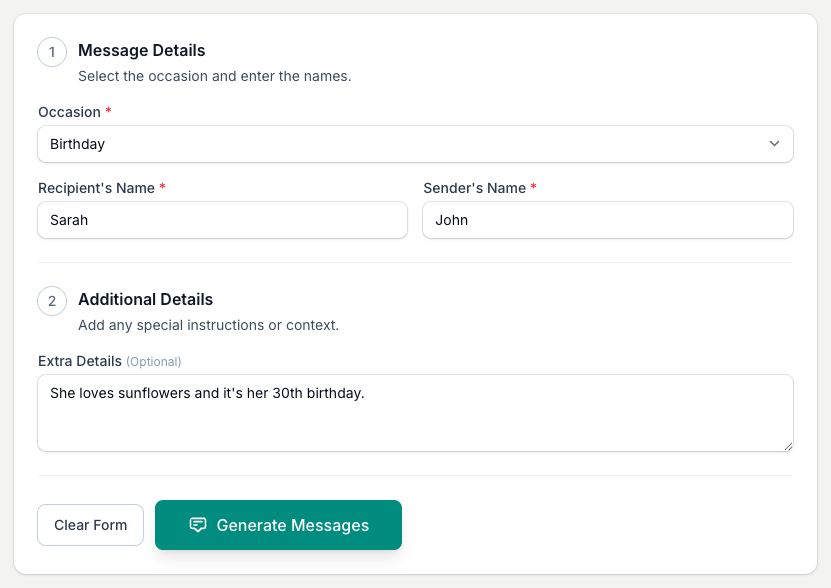
If you want to see the tool work before typing anything, tap Try with sample data on a fresh page and it fills in a worked example for you. That button only shows while the occasion and both names are empty.
Generate And Copy
Tap Generate Messages. After a moment, three options appear in the panel on the right, each labelled Option 1, 2 and 3.
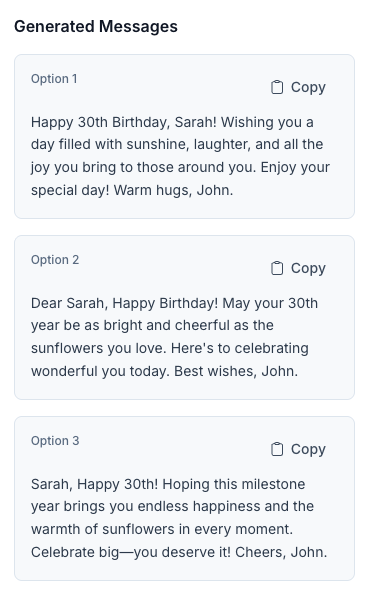
Each set you generate is saved to your history automatically, so nothing is lost if you move on and want it back later.
Your Generation History
Below the tool, the Generation History panel keeps every set you have generated. The history label shows the occasion, not the names or details you typed. Tap the header to open it, then tap View on any entry to restore the form and messages. You can star the ones you like and delete the ones you do not.
The names, details and generated messages stay in your account history until you delete the entry.

Tips And Best Practices
- Add a personal detail. One small thing, like a favourite flower or a milestone birthday, makes the message feel written for that person rather than picked off a shelf.
- Always read it first. The messages are AI suggestions and a strong starting point, not a finished card. A quick read makes sure it sounds right for the customer.
- For sympathy, keep it simple. Less is often more. Choose Sympathy and the tool writes something gentle and sincere.
- Offer the customer a choice. If they are unsure, read them two of the three options and let them pick.
Common Questions
Can I use this for any occasion? The dropdown covers the most common ones. If yours is not listed, pick Other and describe it in the Extra Details box.
What if the message does not feel quite right? Add more detail in the Extra Details box and tap Generate Messages again. A small change to what you type often gives a noticeably different set.
How many messages does it generate? Three, each with a slightly different tone, so you have real options to choose from.
Can I see messages I have generated before? Yes. Open the Generation History panel below the tool and tap View on any past set to load it back in.
What happens to the names and details I enter? They are sent to the AI service we use and saved with the generated messages in your account history. This lets View restore the form. The form inputs do not go into product analytics. Delete the history entry when you no longer need it.
Keep reading
Try it in your own toolbox
Create a free Florist Toolbox account to get started. The tool this guide covers is part of the Plus plan.
Create your free account