
Tax Reserve Calculator
Estimate a monthly set-aside from your latest sales, expenses and VAT figures.
Use your latest figures to estimate how much to move into a separate tax pot each month. The result keeps profit tax and VAT separate, so you can see what makes up the suggested transfer.
It is a planning estimate, not a tax return or advice. Ask your accountant or tax adviser to confirm your full position, payment dates and what you owe.
What It Does
The calculator has three country choices:
- United Kingdom estimates 2026/27 Income Tax and Class 4 National Insurance for a sole trader. It can also estimate Corporation Tax for a limited company.
- Ireland estimates 2026 Income Tax, USC and Class S PRSI for a sole trader. It can also estimate Corporation Tax for a limited company.
- Other uses the effective tax rate and monthly statutory amounts you enter. It uses your account currency and does not guess local tax rules.
If you are VAT registered, add the VAT charged on sales and the VAT you can reclaim on purchases. The calculator shows the difference as VAT due or an expected repayment.
The calculation does not include payroll, PAYE, director salary, dividends or payment deadlines.
The Short Version
- Pick your Country and Business Type.
- Enter your Monthly Sales and Monthly Expenses.
- Add the extra details shown for your tax setup.
- Turn on VAT Registered if it applies to you.
- Enter VAT on sales and reclaimable VAT on purchases.
- Tap Calculate Tax Reserve.
- Check the suggested transfer and each part of the breakdown.
Choose Your Tax Setup
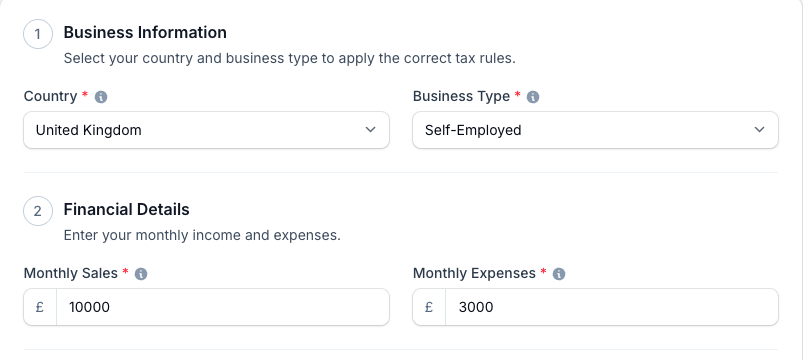
Pick the country where the business is taxed. Then choose Sole Trader or Limited Company.
The next questions change to match that choice. Fill in the figures from your accounts, bookkeeping report or accountant rather than guessing.
UK Sole Trader
Choose Rest of UK or Scotland. Add Other Taxable Income if you have taxable income outside the business.
The result estimates Income Tax on your combined taxable income. It estimates Class 4 National Insurance on the business profit only.
UK Limited Company
Complete the extra accounting details requested on screen. The accounting-period length and number of associated companies can change the Corporation Tax limits.
Use the augmented-profit figure from your accounts where the page asks for it. Ask your accountant if you are unsure which figure applies.
Irish Sole Trader
Add any Other Taxable Income. The estimate includes Income Tax, USC and Class S PRSI.
The standard-rate band and tax credits are editable because personal circumstances differ. Use the figures your accountant has confirmed for you.
Irish Limited Company
The profit from monthly sales and expenses is treated as trading profit. Enter any non-trading profit separately. The calculator applies the Irish Corporation Tax rate for each type of income.
Other Countries
Enter an Effective Profit Tax Rate supplied by your accountant or tax adviser. Add an Other Monthly Statutory Amount if you have another regular amount to reserve.
This mode does not apply allowances, thresholds or filing rules for your country.
Enter Monthly Sales And Expenses
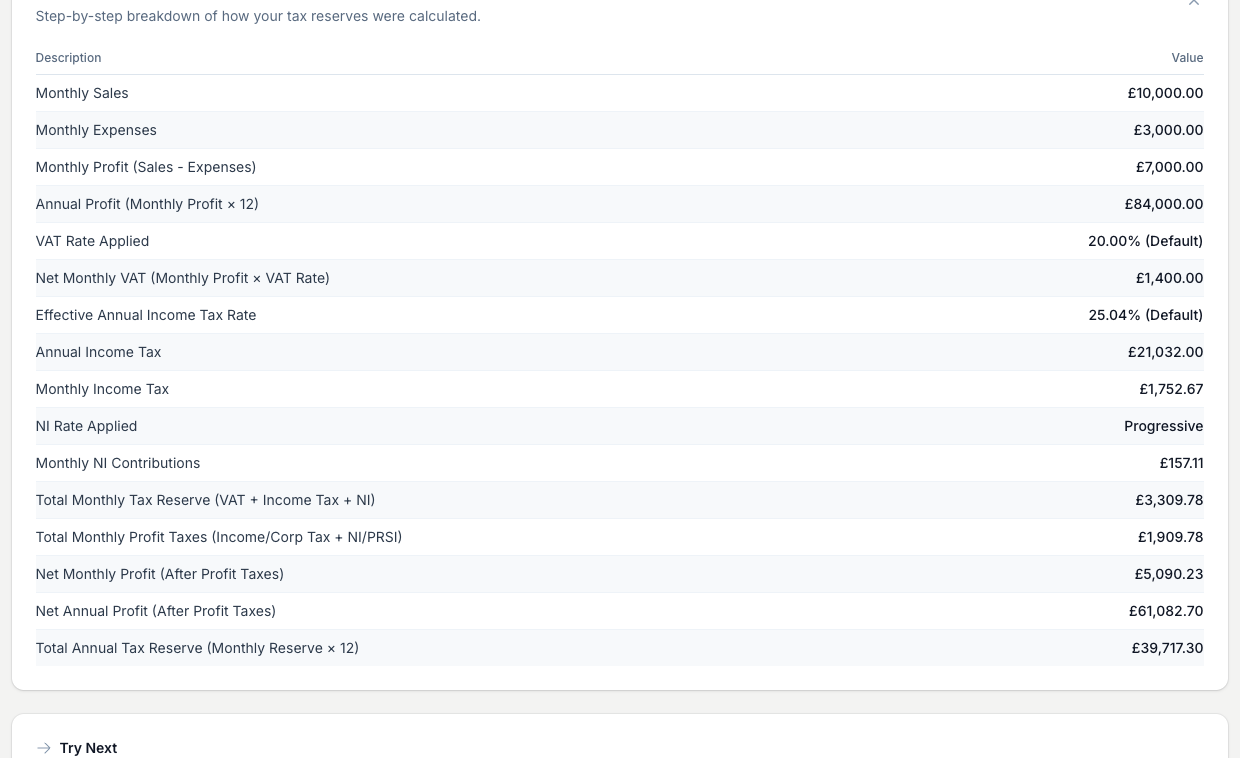
Enter an average month in Monthly Sales and Monthly Expenses. The calculator subtracts expenses from sales, then projects that monthly profit across 12 months for the annual tax estimate.
Use sales and expenses from the same period. If one peak month would give a misleading picture of the year, use your annual accounts to work out a representative monthly average.
Not sure what a typical month of expenses comes to? Start with the monthly total from the Operating Cost Calculator. Add flowers, sundries and any other expenses not already included. If wages are in your overhead total, do not add them again.
Add Your VAT Figures
Leave VAT Registered off if the business is not registered.
If it is registered:
- Enter the Monthly Output VAT charged on sales.
- Enter the Monthly Reclaimable VAT paid on purchases.
- Check both figures against the same period in your bookkeeping records.
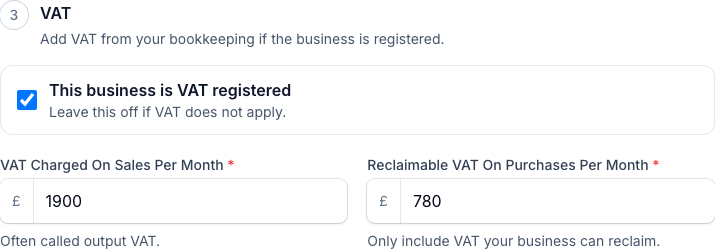
VAT schemes and adjustments can change the amount on a return. Confirm the figure against your VAT return before moving or spending the money.
Read Your Estimate
Tap Calculate Tax Reserve after checking the inputs.
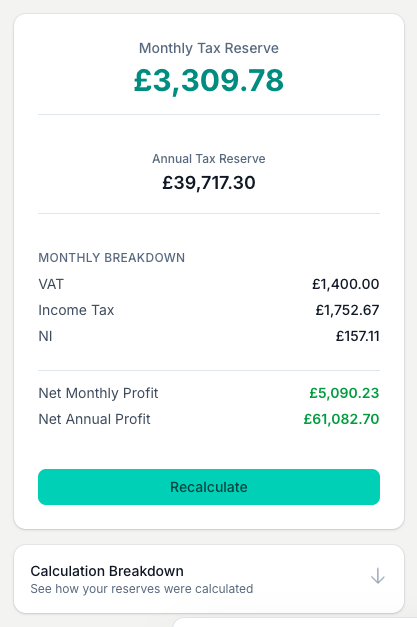
The result shows:
- your Suggested Monthly Transfer;
- the annual total behind it;
- the profit used for the estimate;
- each income-tax, social-contribution or corporation-tax part that applies;
- VAT due or an expected VAT repayment.
The monthly figure divides the annual estimate into regular transfers. It does not change the dates when the tax authority expects payment.
Save And Reopen An Estimate
Save this estimate so you can return to its inputs and results.
- Tap Save calculation after calculating your result.
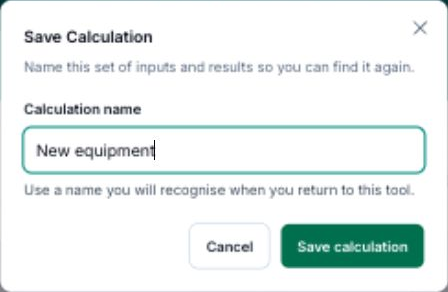
- Enter a Calculation name you will recognise.
- Tap Save calculation to keep it.
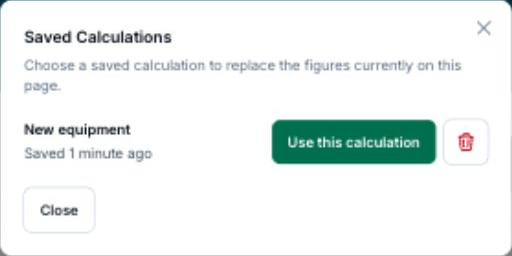
To reopen saved work, tap View saved, then Use this calculation beside its name.
After loading a calculation, Save as new keeps a separate copy.
Tips And Best Practices
- Use figures from finished bookkeeping. A profit guess produces a set-aside guess.
- Keep periods consistent. Use monthly sales and expenses from the same period. Use any annual or VAT figures for the period named on screen.
- Move the money regularly. A monthly transfer keeps tax money away from the stock and wages account.
- Update after a material change. Recalculate after a strong peak season, a large expense or a change in business structure.
- Keep payroll separate. The estimate does not include PAYE, staff payroll, director salary or dividends.
- Check the final amount. Give the breakdown to your accountant before relying on it for a return or payment.
Common Questions
Why does the calculator turn my monthly profit into an annual figure? Income tax, National Insurance, PRSI and Corporation Tax use annual profits, bands or accounting periods. The result then divides the annual estimate into a monthly planning transfer.
Why does a UK sole trader choose Scotland or the rest of the UK? Scottish Income Tax has different bands and rates. Class 4 National Insurance follows the UK rules in both choices.
Why do I enter VAT amounts instead of a VAT rate? VAT due is based on VAT charged on sales less VAT you can reclaim on purchases. Applying a VAT percentage to profit would not follow that method.
Does it include salary, dividends or PAYE? No. Those sit outside this estimate. Ask your accountant how they affect the business and your personal tax position.
Can I use it outside the UK or Ireland? Yes. Choose Other and enter an effective rate and statutory amounts supplied by your accountant. The calculator does not infer local tax law.
Is the result what I owe? No. It is a planning estimate for a regular set-aside. Your tax return, reliefs, personal circumstances and accounting adjustments can change the final amount.
Keep reading
Try it in your own toolbox
Create a free Florist Toolbox account to get started. The tool this guide covers is part of the Plus plan.
Create your free account