
The Dashboard
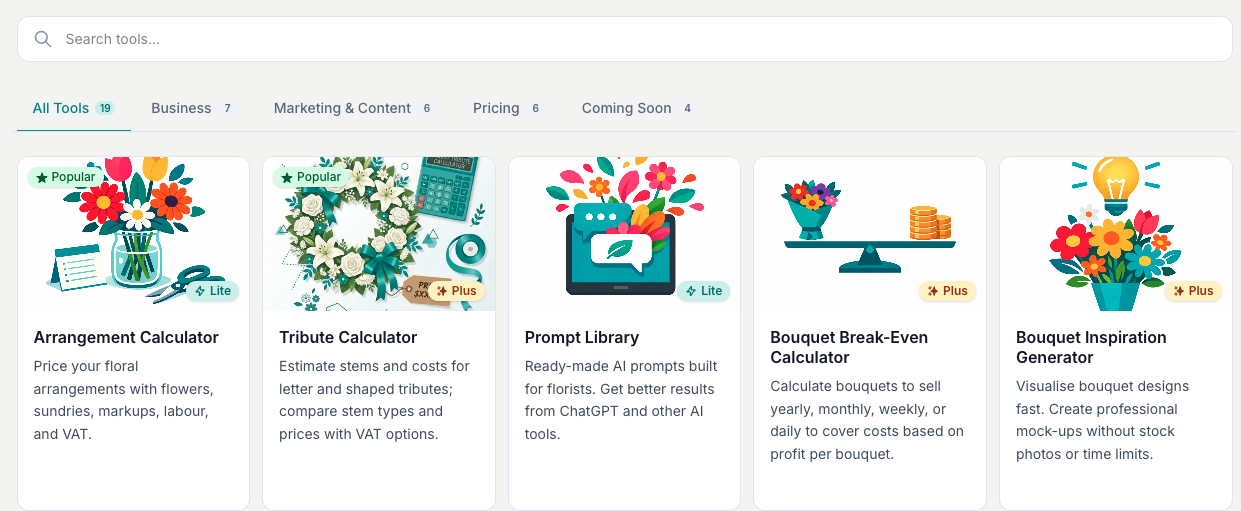
Find your way around the Toolbox dashboard. Search tools by name, favourite the ones you use most and open any calculator in a click or two.
The Dashboard is where every visit starts. As soon as you log in you land on My Tools, with every tool one search or one click away.
What It Does
The Dashboard, labelled My Tools in the sidebar, lays out every tool you can reach as a grid of cards. Each card shows the tool's name, a short description, an illustration, and a small badge telling you which plan the tool sits on. It is the hub you come back to each time you use the Toolbox.
At the top of the page, a Jump back in strip shows your favourite tools and the ones you have used recently, so the tools you reach for most stay within a click.
Finding Tools
There are two ways to reach a tool: search for it, or use the category tabs.
Search. Type into the Search tools box near the top. The grid filters as you type, matching your words against both the tool name and its description. Type markup or delivery and the tools that fit show straight away. Clear the box, or tap the cross, to see everything again.
Category tabs. The tabs above the grid group tools by category. All Tools shows the whole set, with the recommended tools sorted to the front. The other tabs match the tool categories (Pricing, Business, Marketing & Content, and so on), and each tab carries a count of how many tools it holds. Searching hides the tabs and looks across every tool.
Favourite Tools
Mark the tools you use often as favourites so they are always to hand.
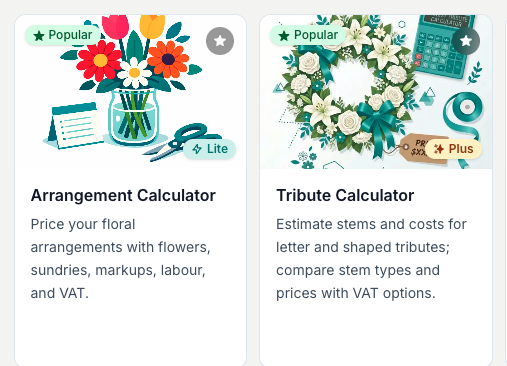
Hover over any tool card and tap the star in the top-right corner of its image. The star turns yellow to show it is saved. Tap it again to remove the favourite. Favourited tools then show in the Jump back in strip at the top of the page, next to your recently used tools.
Your favourites are saved to your account, not your browser, so they follow you to any device the next time you log in.
Tool Cards
Each card carries a small badge in the bottom-right corner that tells you, at a glance, whether you can open the tool.
- Lite (teal). A free tool, included on the Lite plan. Tap the card to open it. Hovering over the card shows Open tool.
- Plus (amber). A tool on the paid Plus plan. On Lite, tapping the card opens a prompt with the next available action for your account. Eligible new accounts can start a 7-day trial. See Plans & Billing for what each plan includes.
- Member (violet). A tool you can open because your account is connected through an industry partner.
A green Popular badge in the top-left marks the tools the team suggests starting with: the Arrangement Calculator and the Tribute Calculator.
Tips And Best Practices
- Favourite your most-used tools on day one. It takes a couple of seconds and saves you scrolling on every visit.
- Search when you are not sure of the category. It matches names and descriptions, so a rough word usually finds the tool.
- Watch for the Jump back in strip. Your favourites and recent tools sit at the top, so you rarely need to scroll.
Common Questions
Why can I not open some tools? Tools with a Plus badge need the Plus plan. On Lite you will still see them listed, but tapping one opens a prompt with the next available trial, checkout or subscription action for your account. See Plans & Billing for how to upgrade.
Can I reorder the grid? Not by hand. All Tools leads with the recommended tools, then the rest follow a set order. Use search, the category tabs, or your favourites to jump straight to what you need.
My favourite disappeared. What happened? Favourites are tied to your account, not the browser or device. If they are missing, you may be signed in to a different account. Log back into your usual one and they will be there.
Keep reading
Try it in your own toolbox
Create a free Florist Toolbox account to use the tool this guide covers, no card needed.
Create your free account