
Delivery Profitability Calculator
Calculate the true cost of each delivery including wages, fuel, depreciation, and more.
A delivery fee can look healthy until you add wages, fuel, vehicle running costs and time. This calculator brings all of that together so you can see the true cost of each drop, and whether the fee you charge covers it. Then you set your fee from your own numbers, not the shop down the road.
What It Does
The calculator has two modes, so you can go as deep as you need.
- Quick mode is a fast hourly model. Set your region, delivery fee, wage and area type, add your hours and days, and it shows your profit per hour and break-even fee. It uses a flat vehicle-and-fuel figure per delivery and assumes you're VAT registered.
- Detailed mode builds the full per-run picture. It adds vehicle and fuel (petrol, diesel or electric), driver time, insurance, failed deliveries, parking and tolls, owned-or-leased vehicle costs and VAT registration.
It picks up regional defaults for Ireland, Great Britain and the US, and sets the currency and units for you (miles or kilometres, mpg or L/100km, gallons or litres). The results update as you type. In Detailed mode you also get a CO2 figure for the run.
The Short Version
- Pick Quick or Detailed at the top of the page.
- Set your region, fee and schedule in Basic Setup.
- Enter your real costs, more of them in Detailed mode.
- Read your profit and break-even fee in the summary.
- Save or print the result.
The rest of this guide walks through each stage.
Start In Quick Mode
The page opens with a Calculator mode switch at the top. Choose Quick for a fast ballpark.
In Basic Setup, fill in the top row: your Region, your Delivery fee (the tool marks it as including VAT outside the US), and your driver's Wage/hr. Then set the schedule row: Area type, Deliveries/hr, Hours/day and Days/week.
Area type (City, Suburban or Rural) sets a starting Deliveries/hr for you, since a city drop and a rural run pack in a different number per hour. You can type over that figure to match what you really do.
Quick mode keeps the vehicle side simple. A blue note tells you the flat vehicle-and-fuel figure it uses per delivery, and that it assumes you're VAT registered. For anything more exact, switch to Detailed.
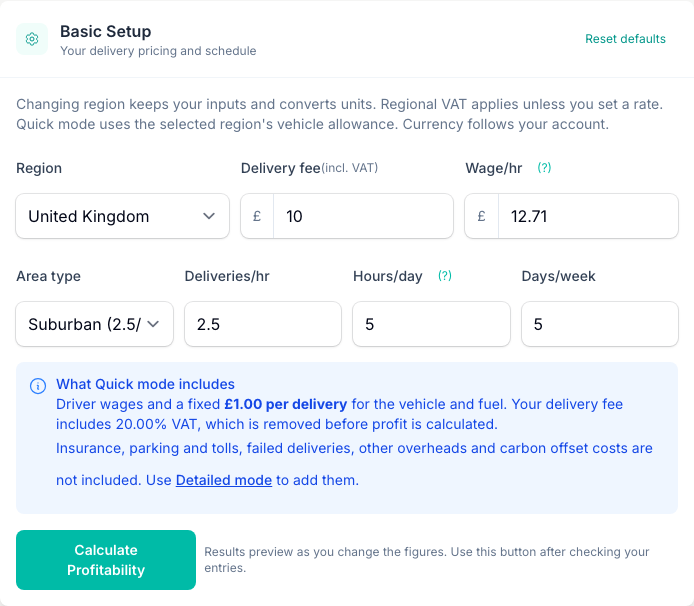
Switch To Detailed Mode
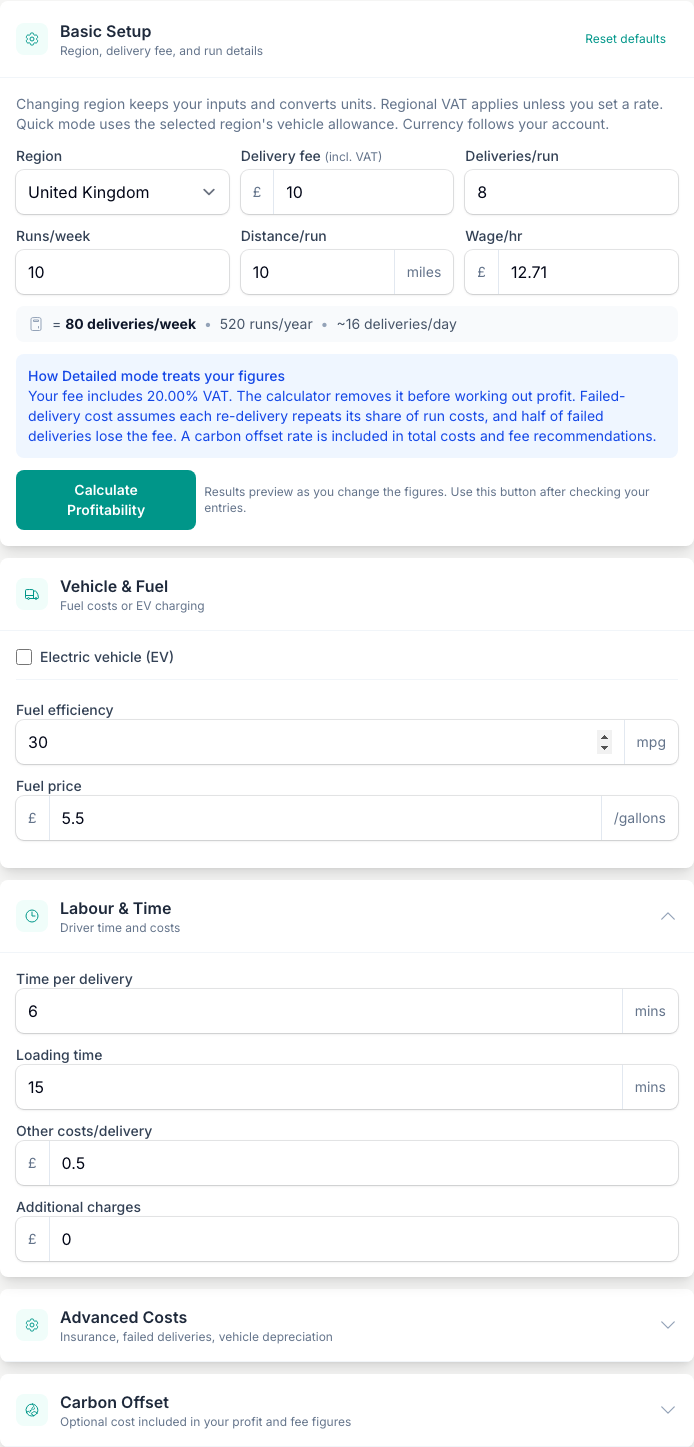
Tap Detailed on the mode switch to open the full inputs. Work down the left column.
In Basic Setup, set your Delivery fee, Deliveries/run, Runs/week, Distance/run and Wage/hr. A small line under the row shows what that works out to per week and per year.
Next, Vehicle & Fuel. For a petrol or diesel van, enter your Fuel efficiency and Fuel price. Driving an electric van? Tick Electric vehicle (EV) and the fields swap to EV efficiency and Charging price.
Then Labour & Time: your Time per delivery, Loading time, Other costs/delivery and any Additional charges you add to the fee.
Add Your Advanced Costs
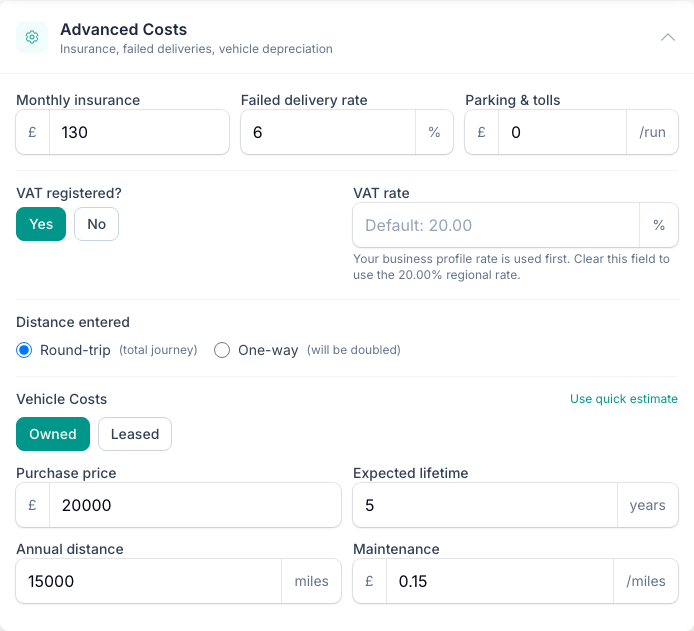
Open the Advanced Costs card, which starts closed, by tapping its header. This is where the real running costs live.
- Monthly insurance, Failed delivery rate and Parking & tolls sit in the top row. The failed-delivery rate is the share of drops that don't complete, so their driver time and fuel still land in your total.
- VAT registered? Choose Yes or No, and use VAT rate override if your rate differs from the regional default. This sets whether your business is VAT registered and nets VAT out of the fee. It doesn't change whether the fee you typed already includes VAT. VAT is your call with your accountant; the tool only applies the setting you choose.
- Distance entered. Pick Round-trip for the full there-and-back journey, or One-way and the tool doubles it for you.
- Vehicle Costs. This opens on the detailed inputs, where you choose Owned (purchase price, expected lifetime, annual distance and maintenance) or Leased (monthly payment and runs per month). Tap Use quick estimate if you would rather use a simple per-run figure instead.
Read Your Result
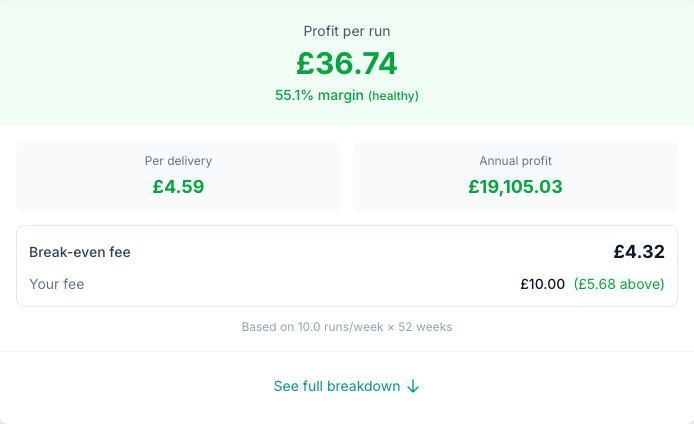
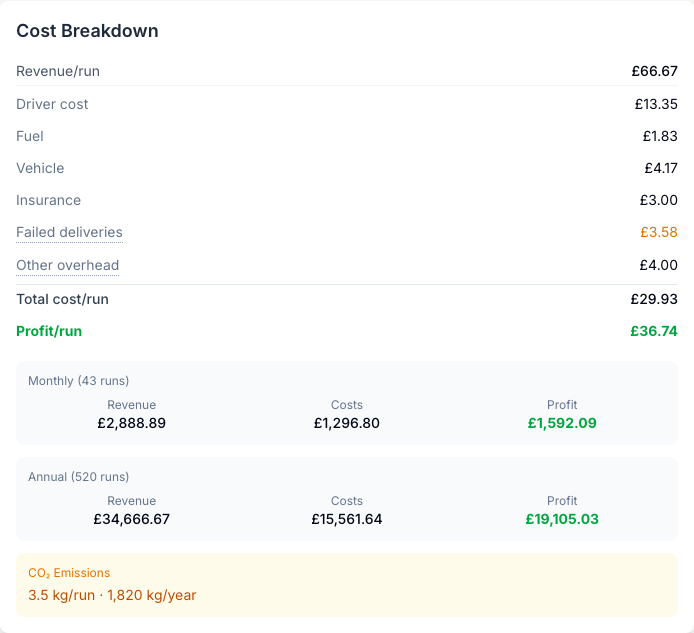
The summary on the right leads with the number that matters: your Profit per run in Detailed mode, or Profit per hour in Quick. It's green when you're in profit and red at a loss, with a margin badge reading healthy, marginal or loss.
Under it you get your Per delivery profit, your Annual profit, and your fee set against the Break-even fee, with a note of how far above or below you sit. When you're running at a loss, it suggests what to charge to break even.
Setting Your Price
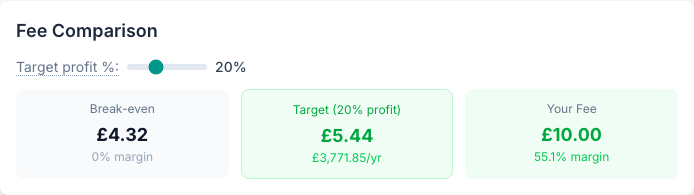
Use the Fee Comparison card to work out what to charge. In Detailed mode, slide the Target profit % to see three fees side by side: the Break-even fee, the Target fee for the margin you picked, and Your Fee with its margin. A status line tells you if you're below break-even or below your target.
Set your delivery fee from your own overheads, not the shop down the road. Their rent, wage bill and round tell you nothing about what your run costs. If the tool shows a loss, raise your fee toward break-even, or set a minimum order value so the product margin on the order helps cover the drop. To build your markup from your real costs first, the Business Markup Calculator works it out from your overheads.
Save Or Print
Save this calculation so you can return to its inputs and results.
- Tap Save calculation after calculating your result.
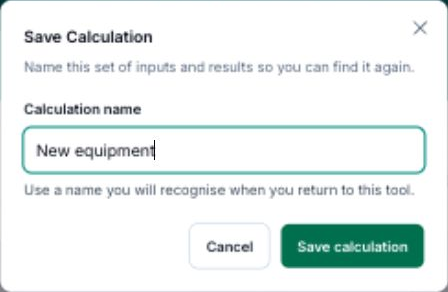
- Enter a Calculation name you will recognise.
- Tap Save calculation to keep it.
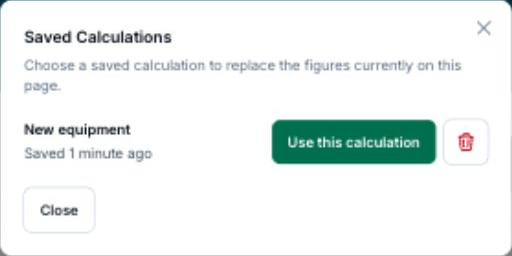
To reopen saved work, tap View saved, then Use this calculation beside its name.
After loading a calculation, Save as new keeps a separate copy.
Tips And Best Practices
- Start in Quick, finish in Detailed. Quick gives you a ballpark in seconds. Move to Detailed once you have the real fuel, insurance and vehicle numbers to hand.
- Cost the return journey every time. Your driver's fuel and time don't stop at the doorstep. Use Round-trip, or enter One-way and let the tool double it.
- Match the fuel-price unit. Enter the price per litre or gallon shown beside Fuel price. A payment per mile or kilometre is a different cost.
- Re-run when fuel moves. A few pence per litre adds up fast across a busy week. Keep separate figures for a local drop and a distant rural run.
- Trust Detailed when the two modes disagree. If Quick shows a profit and Detailed shows a loss, go with Detailed. Its real fuel, insurance and vehicle figures are closer to the truth.
Common Questions
What does the area type setting do in Quick mode? City, Suburban and Rural each set a starting deliveries-per-hour, since traffic and distance differ across them. It's only a starting point. Type your own Deliveries/hr to match your real experience.
Should I set VAT registered to Yes if I'm not registered? No. Set VAT registered? to No and the figures use your full income without netting VAT out of the fee. VAT is a decision for you and your accountant; the tool applies whichever setting you pick.
What if my driver uses their own car? There is no box for a payment per mile or kilometre. Fuel price needs the price per litre or gallon shown beside it. A mileage payment in that box would give the wrong cost.
What is the failed delivery rate for? It accounts for drops that can't be completed, when nobody's home or the address is wrong. A failed delivery still costs driver time and fuel. Enter the share of your deliveries that typically fail and the tool folds that into your cost.
What does the CO2 figure tell me? In Detailed mode it estimates the emissions from your vehicle, fuel and distance. It's for information only. An electric van shows zero direct emissions.
My fee is already above break-even. Is there anything to worry about? That's a good place to be. In most cases it's wise to keep the surplus as a buffer for rising fuel, failed deliveries and seasonal spikes, rather than a reason to drop your charge.
Keep reading
Try it in your own toolbox
Create a free Florist Toolbox account to get started. The tool this guide covers is part of the Plus plan.
Create your free account