
Dozen Red Rose Price Calculator
Calculate the retail price of a dozen red roses including all costs, markups, and VAT.
Every florist gets asked "how much for a dozen red roses?" This tool makes sure your answer is confident, consistent, and profitable. Instead of pricing on instinct or matching the shop down the road, it builds the price up from your own costs and shows you the full breakdown behind the number.
What It Does
It prices the single most-asked-for product in any shop, a dozen (12 stems), from the ground up. Enter your rose and foliage costs, set your markups and labour, add any packaging, and it gives you a retail price with every part of the sum shown. The price updates as you type, so there is no Calculate button to press.
It also includes a batch projection that tests how your profit holds up if you buy in volume and some of the stock does not sell. That is a year-round help, and it matters most around Valentine's Day and Mother's Day, when you commit to a big buy-in.
The Short Version
- Enter your rose and foliage costs.
- Set your markups, labour and VAT.
- Add any packaging sundries you use.
- Read the recommended price and breakdown.
- Check the batch projection, then save or print.
The rest of this guide walks through each step.
Enter Your Costs
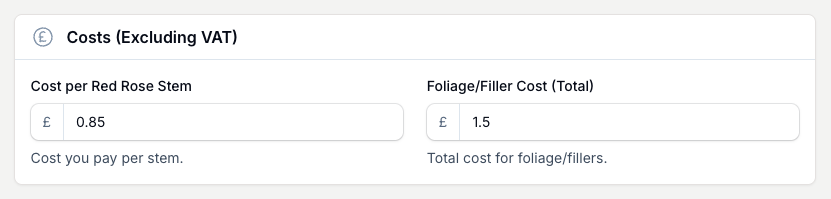
In Costs (Excluding VAT), enter your Cost per Red Rose Stem. The tool multiplies it by 12 for you, so you enter the price of one stem, not the bunch. Then add your Foliage/Filler Cost (Total) as a single figure for the whole dozen. Foliage is marked up at 2x in the calculation.
Set Markups, Labour And VAT
Markup Settings is where the price takes shape. Most of it pre-fills from your Business Defaults, so there is little to change each time.
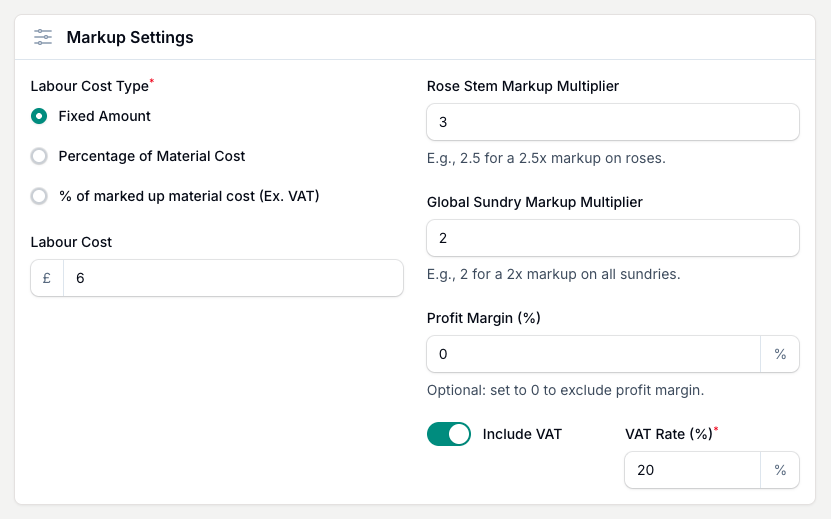
- Rose Stem Markup Multiplier. How much you mark up the roses. A 3 means a 3x markup. This pre-fills from your Business Defaults.
- Global Sundry Markup Multiplier. The markup applied across your packaging sundries.
- Profit Margin (%). An optional extra layer of margin on top of your markups. Leave it at 0 to skip it.
- Labour Cost Type. Choose a Fixed Amount, a percentage of material cost, or a percentage of the marked-up material cost before VAT. Labour is a real cost, so include it every time. A boxed, bowed dozen takes more of your time than a plain wrap.
- Include VAT and VAT Rate (%). These pre-fill from your region and Business Defaults. Switch VAT off for a job that does not carry it.
Add Your Packaging Sundries
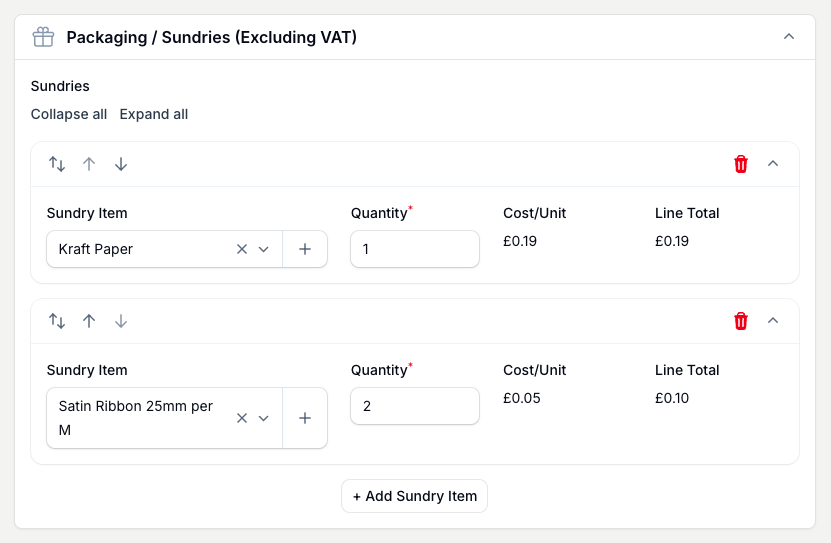
The Packaging / Sundries (Excluding VAT) section sits below Markup Settings and is collapsed to start with. Open it and add each item you use: cellophane, kraft paper, ribbon, a card, a box. Pick each one from your own sundry price list or create it inline, then set the quantity. The cost pulls from your price list, so you only add what you actually use and the price matches how you present the roses.
Read Your Price
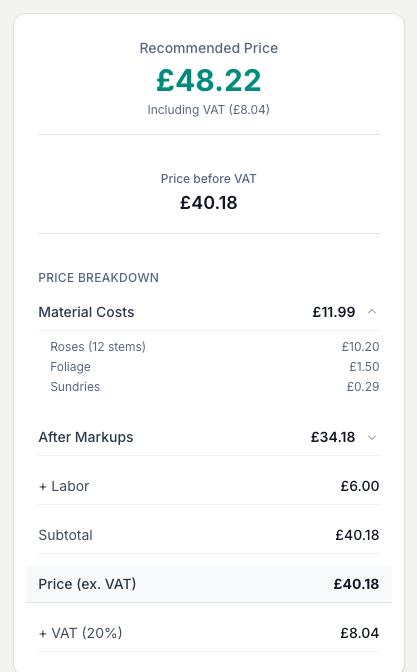
The results panel leads with the Recommended Price, with VAT and the price before VAT shown underneath. The Price Breakdown shows every part of the sum: your material costs (roses, foliage and sundries), the figures after markup, labour, the subtotal, any profit margin, the price before VAT, and the VAT itself. Open Material Costs to see the roses, foliage and sundries split out. It all updates as you change any input.
Check The Batch Projection
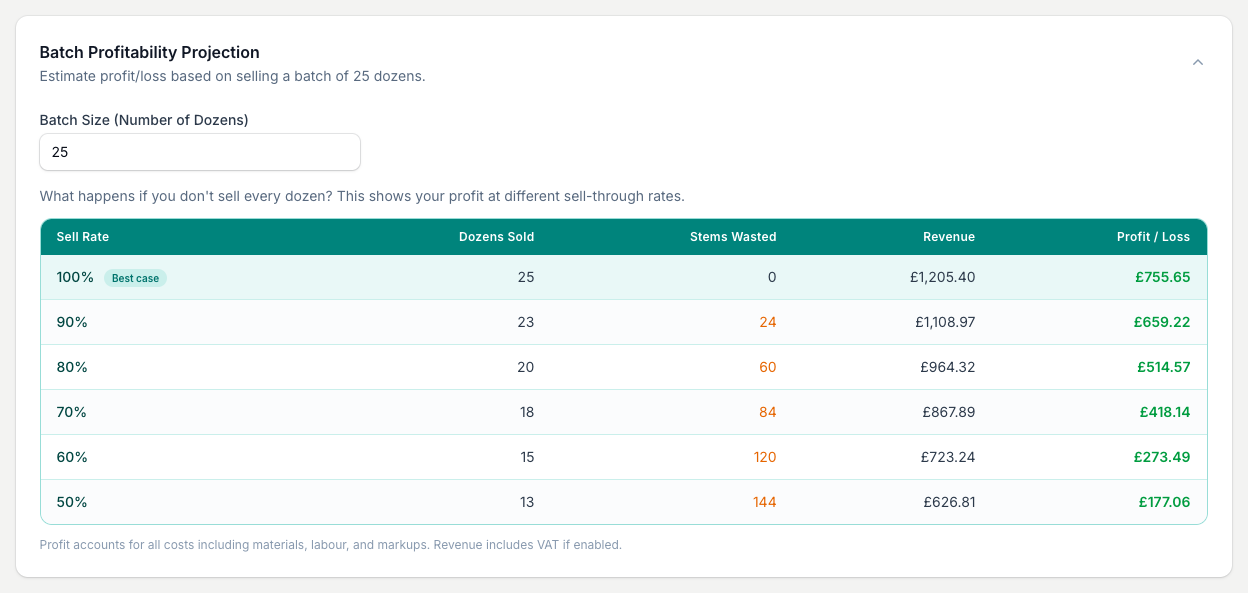
The Batch Profitability Projection answers a peak-season question: what happens if you buy a batch and not all of it sells? Set the Batch Size (Number of Dozens) to your real buy-in. The table then shows sell-through rates from 100% down to 50%, with the dozens sold, stems wasted, revenue and profit at each rate.
Use it to size your order. If the plan still turns a profit at a lower sell rate, you can buy in with confidence. If profit disappears when a chunk goes unsold, that is your cue to order fewer.
Setting Your Price
This calculator builds the price from your markups, labour and optional profit margin, so the levers that move the number are the Rose Stem Markup Multiplier and the Profit Margin. Anchor your markup to your own overheads, not the shop down the road. Their rent and wage bill tell you nothing about what you need to charge. The Business Markup Calculator works your markup out from your real costs, and the Red Rose Profit Analyser models a full peak week once your price is set.
Save Or Print Your Price
Use the Print/Save Report button in the header (top right) to print a clean copy or save it as a PDF from your browser.
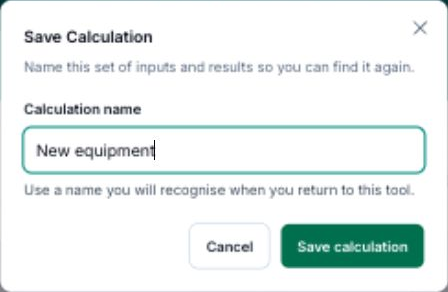
Save this calculation so you can return to its inputs and results.
- Tap Save calculation after calculating your result.
- Enter a Calculation name you will recognise.
- Tap Save calculation to keep it.
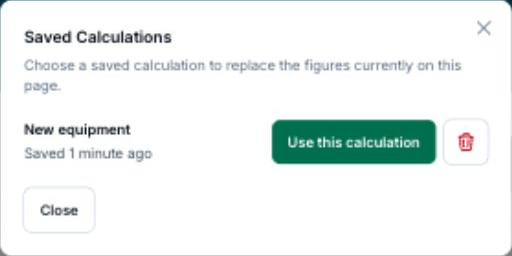
To reopen saved work, tap View saved, then Use this calculation beside its name.
After loading a calculation, Save as new keeps a separate copy.
Tips And Best Practices
- Run this before every peak, not once at setup. Rose stem prices spike around Valentine's and Mother's Day. Updating your figures ahead of time means you are not pricing on the fly on your busiest days.
- Use the batch projection to set your buying quantity. It shows the risk before you commit to a large order.
- Keep your sundry costs current. Cellophane, ribbon and boxes change price when you reorder, so a quick review keeps this calculator accurate.
- Use a realistic labour figure. A boxed, bowed, carded dozen takes more time than a plain wrap. Do not undercount it.
- Set your Business Defaults once. They pre-fill the markup and VAT fields, so setup is quick every time you open the tool.
Common Questions
Can I change the number of stems? No, this tool is built for a dozen (12 stems). To price a different quantity, the Arrangement Calculator lets you add any number of stems.
What is the batch projection for? It shows the outcome of buying a batch if some of it does not sell. Set the Batch Size to your real buy-in, and each row shows a different sell-through rate, so you can see the impact before you commit.
Do I have to add every sundry separately? Only add what you actually use. If you sell a plain-wrapped bunch with no box, leave the box out. The price then matches how you present the roses.
Should I use the same markup as my other arrangements? That is your choice. Some florists keep one markup across everything, others price red roses a little differently on a high-profile item. The breakdown shows the full picture either way.
Where do my sundry options come from? From your own sundry price list. Go to Price Lists in the top navigation and open Sundries to manage them. You can also create one from the dropdown in this calculator without leaving the page.
Do I have to press Calculate? No. The price updates as you type.
Keep reading
Try it in your own toolbox
Create a free Florist Toolbox account to use the tool this guide covers, no card needed.
Create your free account