
Florist Website Checker
Check your flower shop website for the problems that cost you orders, then see each issue marked on screenshots of your own site.
A customer who cannot find your delivery area, your order-by time or your phone number on their phone will often order from someone else. The Florist Website Checker looks at your shop's website the way a customer does, scores it in seven areas and shows you what to fix first, marked on screenshots of your own pages.
What It Does
The checker runs in two stages.
- The quick check reads your homepage. It needs no account and usually takes a minute or two. You get a homepage score, a score for each area it can check, and your homepage on a computer and a phone.
- The full report opens once you sign in and confirm the website is yours. It reads your other key pages (contact, delivery, a category and a product), follows a customer from a bouquet towards your checkout, runs Google's speed test and adds an AI review of your pages. Each issue it can point at gets a numbered marker on your screenshots, with how to fix it.
The seven areas are:
- Florist Essentials: whether a customer can see what you sell, where you deliver, by when, and how to reach you.
- Ordering & Checkout: how many steps, pages and boxes stand between a customer and a paid order.
- Speed & Mobile: how quickly your pages load and how well they work on a phone.
- Search & Local: whether Google, link previews and local searches can read and understand your site.
- Trust & Security: security certificates, secure connections, policies and the details that make a customer comfortable paying.
- Design & Content: images, wording and layout.
- Accessibility: automated tests on your homepage for common problems that stop customers using a screen reader, a keyboard or a zoomed-in screen.
Florist Essentials and Ordering & Checkout carry the most weight in your overall score, because they decide whether a customer orders.
The Short Version
- Type your website address and tap Check My Website.
- Read your quick check scores.
- Tap See my full report and create a free account, or sign in.
- Confirm the website is yours.
- Wait a few minutes for the full report. We email you when it is ready.
- Work through Fix These First, then each area.
- Tap Share with your web designer to send the report to whoever looks after your site.
- Tap Check again after you make changes.
Run The Quick Check
- Open the Florist Website Checker page.
- Type your shop's web address, for example
yourshop.co.uk. - Tap Check My Website.
A progress list shows each step as it runs, with a list of plain facts about your site as they come in. Keep the page open and your results appear on it.
When it finishes you see:
- Only Your Homepage Was Checked, a panel with the button for your full report. Tap What the full check adds to see what the quick check covered and what the full check adds
- your homepage score and how many things there are to look at
- Fix These First, the titles of your three biggest issues
- Your Scores By Area, with a bar and an issue count for each area
- Your Homepage As Customers See It, on a computer and a phone
- Google's Own Results, the speed scores Google reported for your homepage
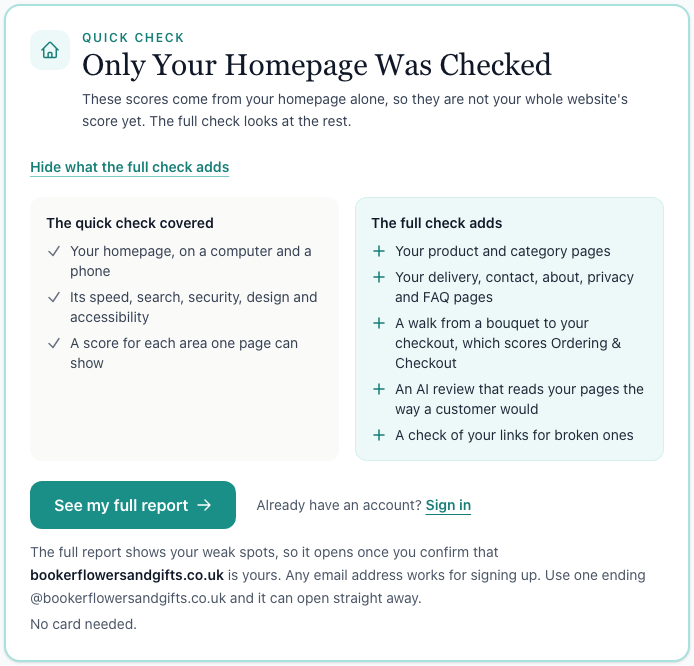
Each area the quick check scored is marked Homepage only, and Ordering & Checkout shows Not scored, because a quick check reads your homepage only. If your site's security protection turned the checker away from some pages, a note says so and those areas may not be scored.
Your quick check page stays open to anyone with its link for 30 days. If the website was checked recently, you may see that result instead of a new check.
Sign Up For The Full Report
- Tap See my full report in the Only Your Homepage Was Checked panel.
- Create a free account. No card is needed.
Your website comes with you through sign-up, so you land on the checker with your site ready to go. Already have an account? Tap Sign in next to the button instead.
Sign up with your shop email address (for example an address ending in your own web address) and the full report can open as soon as you confirm your email. More on that below.
Signed in, you can also check a site from the checker itself: type the address under Website address and tap the button next to it. If the site is already confirmed as yours, the button reads Run Full Check and the full check starts straight away. It usually takes a few minutes. Otherwise the button reads Run Quick Check. Tap Add a website to check another site.
Confirm The Website Is Yours
The full report shows your site's weak spots, so it only opens for the people who run the site. The confirm card picks the easiest way for you and shows it first. Which one you see depends on your account email and what the checker found on your site.
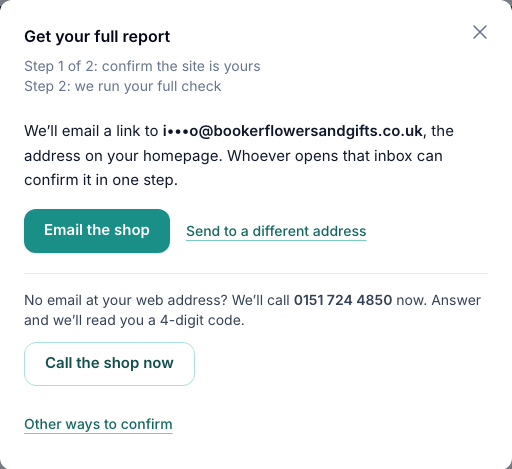
Your Account Email Matches Your Website
If your account email ends in your website's address and you have confirmed that email, the site is confirmed for you automatically. If you have not confirmed your email yet, the card asks you to open the email we sent and tap the link. Tap Send the email again if it has not arrived.
We Email The Shop
If the checker found an email address on your homepage or contact page, the card shows it partly hidden.
- Tap Email the shop.
- Open that inbox on any phone or computer.
- Tap the link in the email, then tap Yes, it's our website.
The card moves on by itself once you confirm. If the link has expired, send a new one from the card. Tap Send to a different address to pick another address the checker found.
If no address was found but you have one at your own web address, type the part before the @ and tap Send the link.
Ask Us To Confirm It
If neither email route works, tap Ask us to confirm it. Our team phones the number on your website to check it is you. Once they confirm it, your full check runs and we email you when the report is ready.
Where it is available for your shop, the card may offer Call the shop now instead. An automated call rings a shop number from your website and reads out a short code. If there is more than one number, pick the one you can answer and tap Call this number. Type the code and tap Confirm.
Other Ways To Confirm
Tap Other ways to confirm for two options that whoever looks after your website can set up:
- a TXT record in your domain settings
- a line in your homepage code
Tap Copy the message to send them the details in one go. Once it is in place, tap Check now. We also keep checking for a while and email you when it works.
After You Confirm
The full check starts by itself. It usually takes a few minutes. You can close the page: we email you when the report is ready.
Read Your Full Report
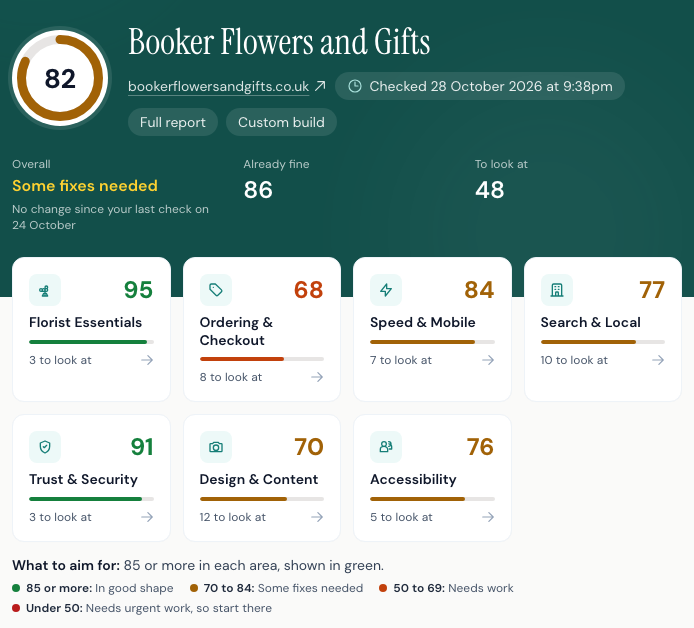
The report opens with your shop name, your overall score and a tile for each area. Tap a tile to jump to that area.
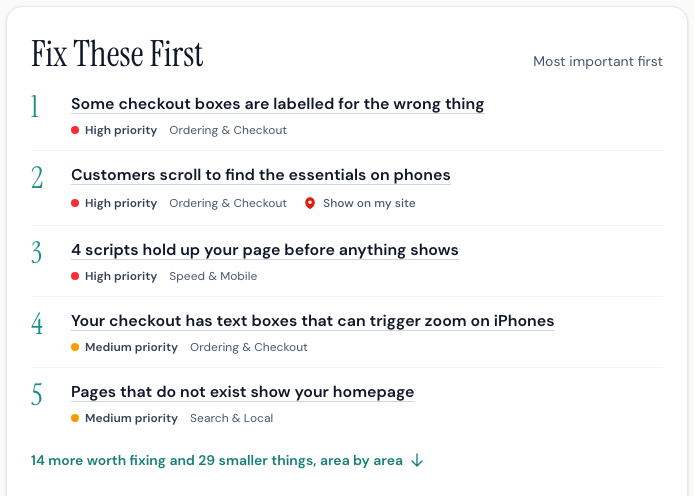
Fix These First
Fix These First lists the most important issues, biggest first. Each line shows its priority and its area. Tap a title to open that finding, or tap Show on my site to see it on your screenshot. Issues marked Your provider can help are settings on the platform your site runs on, which your website provider can usually change for you.
Beside it, Already Working Well lists what your site does right.
Tell Us About Your Shop
Answer a few yes or no questions, such as Do you deliver? and Same-day delivery?, so the checker only judges what applies to your shop.
- Choose Yes or No for each question. To clear an answer, choose it again.
- Tap Save answers.
Your report updates. Checks you leave unanswered show as notes and do not count against you. Tap Change answers to edit them later.
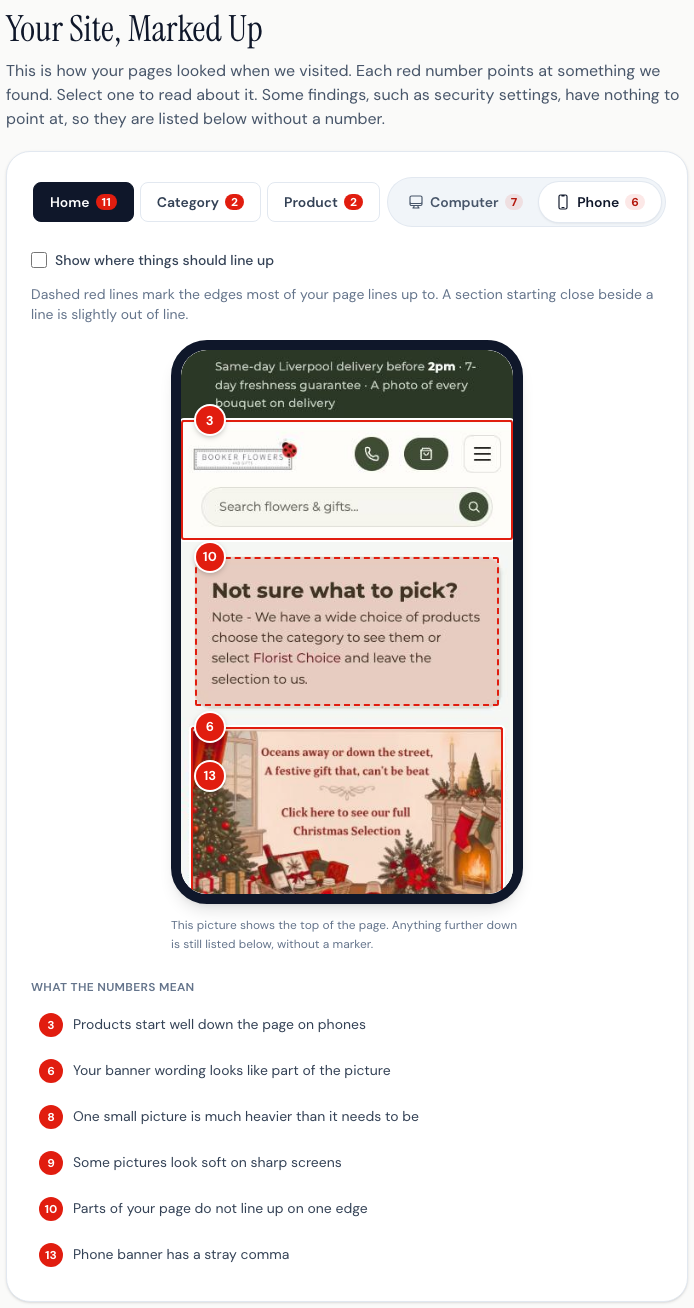
Your Site, Marked Up
This shows your pages as they looked when we visited. Each red number points at something we found.
- Switch between Computer and Phone, and between pages such as Home, a category and a product when the check captured them. On a phone, the Phone and Computer switch sits above the page tabs. A Google phone test tab shows the screenshot Google took during its own speed test, when there is one.
- Tap or click a number to see what it is, then Open this finding to read it.
- On a phone, the computer picture is small. Tap Open the picture full size to zoom in to look closer.
- Use What the numbers mean to jump to any marker, including ones further down the page.
- Tap See the whole page to see the full-length screenshot.
- Where it shows, tick Show where things should line up to see dashed lines along the edges most of your page lines up to.
Some findings, such as security settings, have nothing to point at, so they are listed below without a number.
Work Through Each Area
Each area is its own numbered card with its score and a short summary. Tap a finding to open it. Tap Expand all to open every finding at once, or Collapse all to close them.
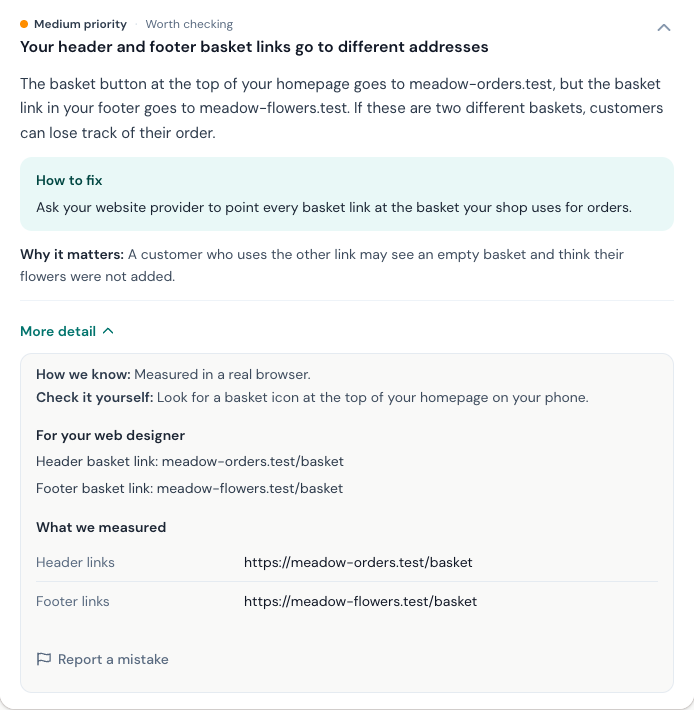
An open finding shows:
- what we found, often as a short list
- How to fix, sometimes with a line on who can do it
- Why it matters
- a tag such as High priority or Medium priority, Worth checking when it is a likely problem rather than a clear one, and AI opinion when our AI review spotted it, so it is worth a second look
Lower-priority issues sit in a smaller things row at the end of each area. You also see what is already fine, notes, and any checks we could not run this time.
In Ordering & Checkout, Your order, step by step shows screenshots from adding a product to the basket and moving towards checkout. Tap a step to see the whole page.
If some issues come from how your website platform is set up, they are gathered in Things Your Website Provider Can Help With so you can forward them together.
How We Know And Check It Yourself
Tap More detail on a finding to see:
- How we know: where the result came from, such as measured in a real browser, read from your page code, or Google's own test
- Check it yourself: a link or step to see it with your own eyes, such as running Google's speed test or opening your sitemap
- For your web designer: technical detail to pass on
- What we measured: the figures behind the finding
Report A Mistake
If a finding is wrong, tap More detail, then Report a mistake.
- Choose what is wrong: This is not true, This is out of date, I have already fixed this or Something else.
- Add a note if it helps.
- Tap Send report.
Our team reads these and uses them to correct the checks. Report a mistake shows when you are signed in, not on a share link.
More About This Check
At the foot of the report:
- Google's Own Results shows Google's speed test scores for your homepage, exactly as Google reported them.
- Score History lists your score for each check, once you have more than one. From four checks it also draws them as a line, out of 100, oldest on the left.
- How we checked explains how the scores are worked out.
Share The Report
- Tap Share with your web designer.
- Tap Make and copy the link. The link is copied for you. Tap Copy if you need it again.
- Paste it into an email or message to your web designer or provider.
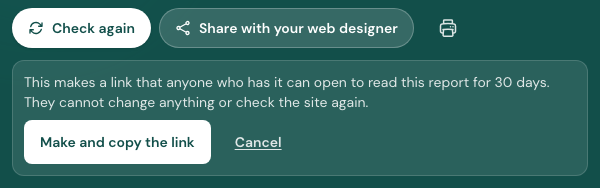
Anyone with the link can read the report for 30 days. They cannot change anything or check the site again. On a phone, the share button sits under Fix These First.
To keep a copy, use Print or save as PDF. The printout is short: your scores, Fix These First and each area's main issues with how to fix them. Tick Include technical detail for your web designer to add the smaller things, what we measured, the marked-up screenshots, Google's results and everything already fine.
Check Again
After you make changes, tap Check again at the top of the report (on a phone, under More options). A new full check runs and opens as a new report, and your old reports stay in Recent Checks. If a full check finished very recently, the checker opens that report first. Tap Check again once more to run a new one anyway.
In the checker, Check Again starts the check and a progress bar shows each step until it finishes. Your last scores stay on the page until then.
Until 30 November 2026, Lite includes one full check per website each week (it resets on Monday). From 1 December 2026, full checks are part of Plus. Your earlier reports stay readable, and quick checks stay free. Lite accounts can add up to 3 websites and Plus accounts up to 5. A failed check doesn't count towards your allowance. See Plans And Billing for what each plan includes.
The Report-Ready Email
When a full check finishes, we email the person who asked for it. The email shows your overall score, how each area scored, the top things to fix and what is working well, with a button to open the full report. If you are not signed in, the link asks you to sign in first.
Tips And Best Practices
- Start with Fix These First. It is ordered by what is most likely to cost you orders.
- Answer the shop questions early. A shop that does not deliver should not be marked down for a missing delivery area.
- Check on your phone too. Most flower orders start on a phone, so the Phone view is the one to study.
- Send the share link rather than screenshots. Your web designer gets every finding, the markers and the technical detail in one place.
- Run Check again after each round of fixes. Score History shows whether the changes helped.
- Treat AI opinion findings as a second pair of eyes. They are worth a look, but you know your site best.
Common Questions
Will this upset my website provider? It should not. The checker loads a handful of pages at a gentle pace in an ordinary web browser, the way a customer would. Analytics and ad tracking are blocked during its visits, so they should not show up as customers in your stats. If your site asks a visitor to prove they are human, it stops there.
Does it place orders? No. It does not place or pay for an order. For a full report it may add one product to a basket to see your checkout. It stops before any real personal or payment details.
Why is my score different from Google's? Our scores draw on Google's speed test alongside our own checks of what matters to a flower shop, so the numbers will not match. Google's test also gives slightly different results each time it runs. You can see Google's own scores under Google's Own Results.
How long do you keep data? We keep screenshots and copies of your pages for 12 months, then delete them. Your scores and findings stay, so your report history keeps working with a note that the screenshots have gone. A share link stops working after 30 days, and a quick check page after 30 days.
Why is an area not in my score? Sometimes we cannot check enough of an area to score it fairly, for example when a site's security protection turns some requests away. That area is left out of your overall score, and anything we did spot is still listed. Checking again later usually fills the gap.
Can I check more than one website? Yes. Tap Add a website in the checker, and use the website name at the top to switch between them. Each website needs confirming on its own before its full report opens.
Will a good score bring more orders or a higher Google ranking? Not on its own. The scores are a guide to what to fix first. Search & Local checks your website only: your Google Business Profile, reviews and distance usually matter more for map results.
Keep reading
Try it in your own toolbox
Create a free Florist Toolbox account to use the tool this guide covers, no card needed.
Create your free account