
Flower Price List
Keep your flower price list up to date with cost prices, markups and pricing history, so every arrangement you price runs on real wholesale numbers.
Your flower list is the foundation of every pricing calculation in the Toolbox. When you price an arrangement, the calculator pulls straight from this list. Keep it accurate and every quote you give runs on real numbers.
What It Does
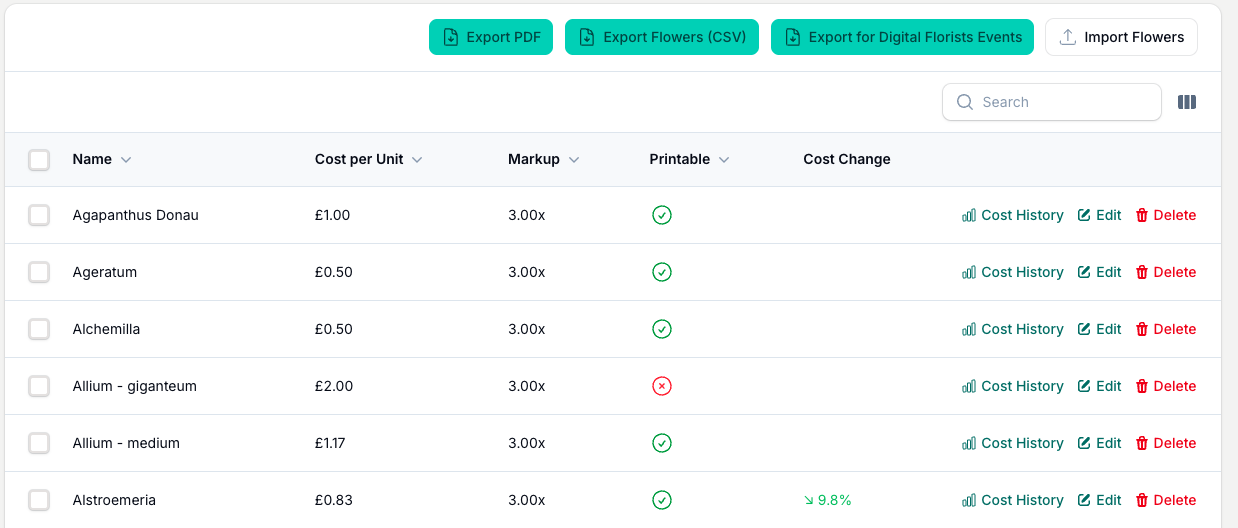
The Flowers page, found under Price Lists in the top navigation, is where you manage every flower your shop works with. Each flower has a name, a Cost per Unit, and a markup multiplier that sets its retail price. The unit is yours to choose (stem, bunch, pack, box, dozen, half-dozen, spray, or branch), so the same list handles single stems and pre-bunched product alike. The Arrangement Calculator, Pricing Guide Generator and other tools all draw from it.
Getting Started With Flowers
When you complete your profile during onboarding, the Toolbox loads 116 pre-set flowers with default pricing based on your region. You can edit any of these, delete the ones you do not use, or add your own.
Managing Your Flowers
Adding a flower. Click New Flower at the top of the list. Enter the name, Cost per Unit and markup multiplier. You can also set a fixed Retail Price per Unit instead of using the multiplier; this field lives inside the collapsed Advanced Settings section, so open that to use it. Optionally choose a unit type (stem, bunch, pack, box, dozen, half-dozen, spray, or branch), a bunch size and a season.
Editing a flower. Click any flower in the list to open it. Change the cost, markup or any other field and save. If you change the cost, a new entry is added to that flower's cost history automatically.
Deleting a flower. Use the Delete action on any row. If the flower is used in a saved arrangement, you cannot delete it until it is removed from those arrangements.
Importing flowers. Click Import Flowers in the toolbar to upload a CSV file with your flower data. This is useful when moving from a spreadsheet or updating prices in bulk.
Images
Each flower can have up to five images (JPEG, PNG or WebP, up to 5 MB each). A photo icon in the Images column shows which flowers have pictures, and you can include them in PDF exports from the Arrangement Calculator. You can reorder, edit and delete images from the flower's edit page.
Cost History
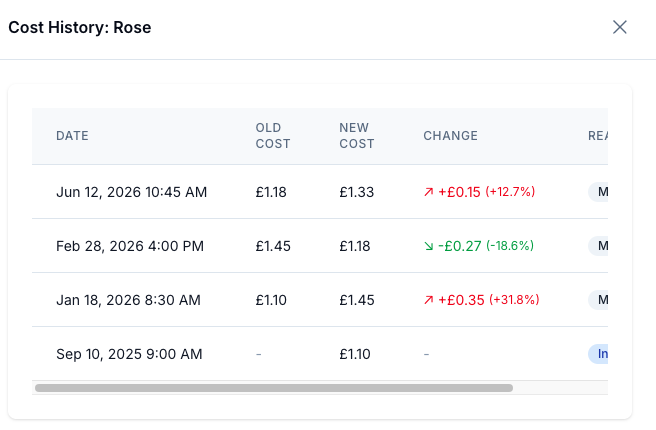
Every time you change a flower's Cost per Unit, the Toolbox records the old and new price for you. View the full history with the Cost History button on any flower row or its edit page.
The panel shows each change with:
- Date of the change
- Old cost and new cost
- Change amount and percentage, red for an increase and green for a decrease
- Reason (Initial cost, Manual update, Imported, or Updated via import)
Exporting
You have several export options in the toolbar:
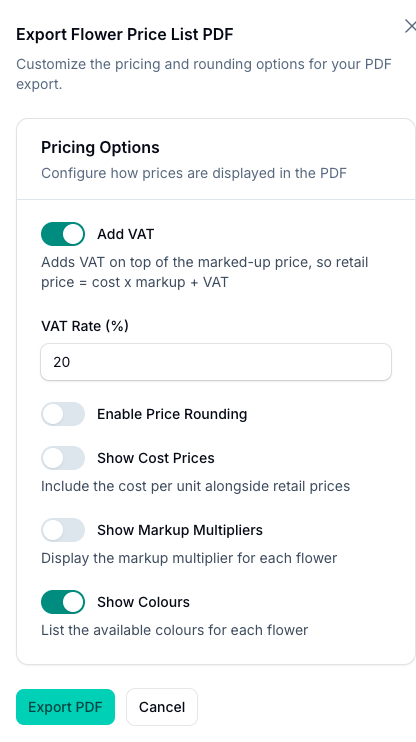
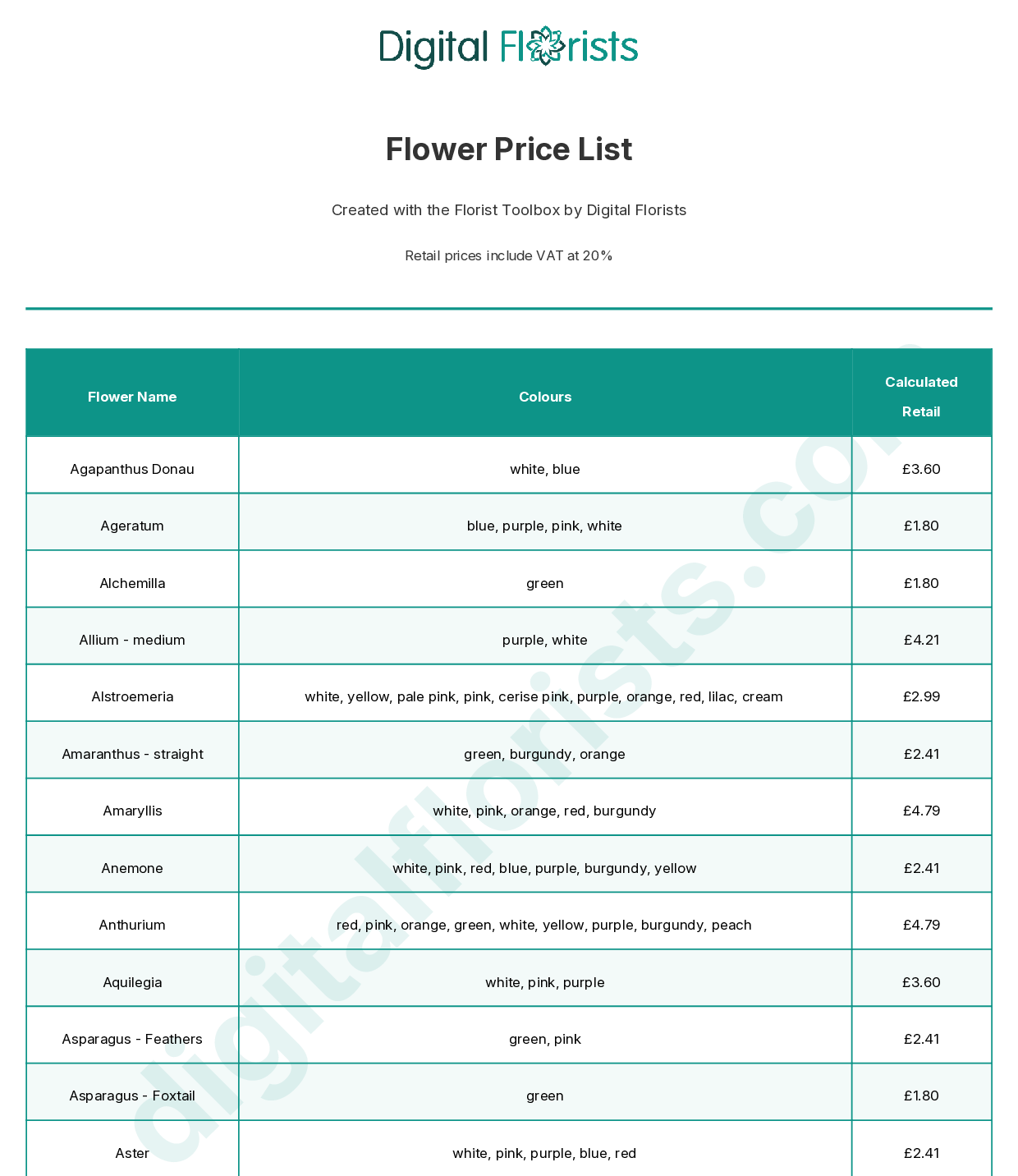
- Export PDF. Make a printable price list. Add VAT puts VAT on top of the marked-up price at the rate you set, and starts on if you are VAT registered. You can also turn on price rounding, show cost prices alongside retail, show the markup multipliers, and list each flower's colours. Starter examples stay out of the price list.
- Download Flower Backup (CSV). Download your entries and starter examples as a spreadsheet. The entry_type column marks which is which.
- Export for Digital Florists. Export your flowers (and optionally sundries) in the format the Digital Florists shop-management platform expects. Starter examples stay out of this file.
Tips And Best Practices
- Review your costs each season. Wholesale prices shift through the year. Use the cost history to spot the trend and update accordingly.
- Set a retail price for premium stems. If a flower has a fixed price that does not follow your standard markup, open Advanced Settings and set the Retail Price per Unit. It overrides the multiplier.
- Use the Show in Printables switch. Turn it off for flowers you only stock occasionally, so they do not clutter your printed price lists.
- Add images for your most popular flowers. They make the PDF recipe cards from the Arrangement Calculator far more useful for your team.
- Keep names consistent. Stick to one convention (for example
Rose, RedorRed Rose) so searches and dropdowns stay predictable.
Common Questions
What is the markup multiplier? It is the number your Cost per Unit is multiplied by to reach the retail price. A markup of 3.0 means a flower costing 0.50 retails at 1.50.
Can I set a retail price instead of using the markup? Yes. Enter a Retail Price per Unit under Advanced Settings and it takes priority over the markup multiplier for that flower.
What happens if I delete a flower that is used in an arrangement? You cannot. The Toolbox blocks deletion of a flower that is part of a saved arrangement. Remove it from those arrangements first.
Does changing a flower's cost affect my saved arrangements? Saved arrangements keep the cost they were saved with. A warning indicator appears on any arrangement where an ingredient price has changed, so you know which ones may need re-pricing.
Keep reading
Try it in your own toolbox
Create a free Florist Toolbox account to use the tool this guide covers, no card needed.
Create your free account