
Bouquet Inspiration Generator
Explore bouquet shapes and colour directions with private AI references. Check every flower and mechanic before using an idea.
When a design is still rough, a quick visual can help you explore shape and colour. This tool creates three AI reference images from your written brief. Keep them private while you plan. They can invent flowers and mechanics, so check every detail before using an idea.
What It Does
Describe an arrangement, pick a type, and the tool creates three AI reference images. They are private planning aids, not finished bouquet photographs. It covers six kinds of work: Bouquet, Centrepiece, Buttonhole, Corsage, Wire and Tribute. The extra options change to match the type you pick, so a bouquet asks for a container while a tribute asks for a frame shape.
Each set gives you the same brief in three style takes: Compact, Natural and Wild, so you can compare a few looks side by side. Each is an interpretation, not a guaranteed match to your brief. The images appear as they finish. You can download successful images, and the set is saved to your history to reopen later.
Your remaining monthly image credits are shown at the top of the page. Each style uses one credit. A failed image credit is returned automatically.
The Short Version
- Pick your arrangement type.
- Describe the flowers, colours and finish in the box.
- Choose the container or shape for that type.
- Generate and wait for each reference to finish.
- Download the ones you like; they are also saved to your history.
The rest of this guide walks through each step.
Pick Your Arrangement Type
Start by choosing what you are making. There are six types, each with its own icon: Bouquet, Centrepiece, Buttonhole, Corsage, Wire and Tribute. The one you pick is highlighted.
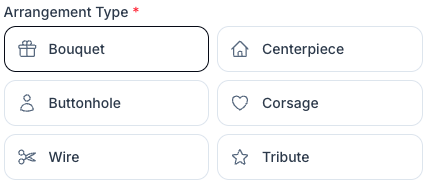
- Bouquet and Centrepiece show a Container Style: Glass Vase, Gift Box, Wicker Basket or No Container.
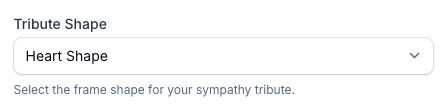
- Tribute shows a Tribute Shape: Heart, Cross, Wreath/Ring, Circle/Posy Pad, Pillow, Letter, Word or Custom.
- Buttonhole shows a style choice of Pin or Pocket Square; Corsage shows Wrist or Pin.
- Wire has no extra option, so you describe the frame shape in the box instead.
Describe Your Arrangement
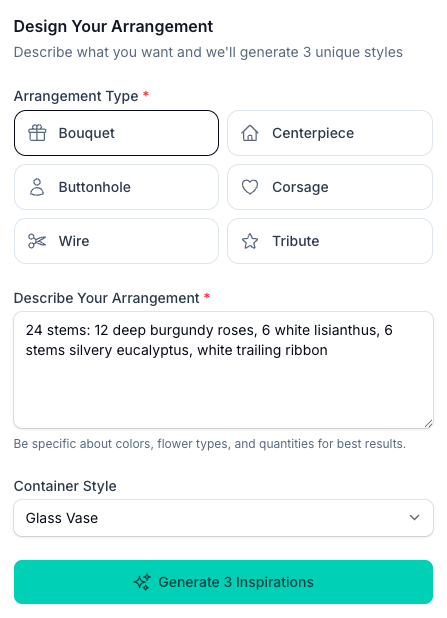
Type your design into the Describe Your Arrangement box. Detail helps steer the image, but it does not guarantee an exact match. Name the stem count, flower varieties, colours, foliage and ribbon or wrapping.
Generate And Read Your Results
Tap Use 3 Image Credits. Each style card shows a spinner, then its image. If a style fails or times out, its image credit is returned.
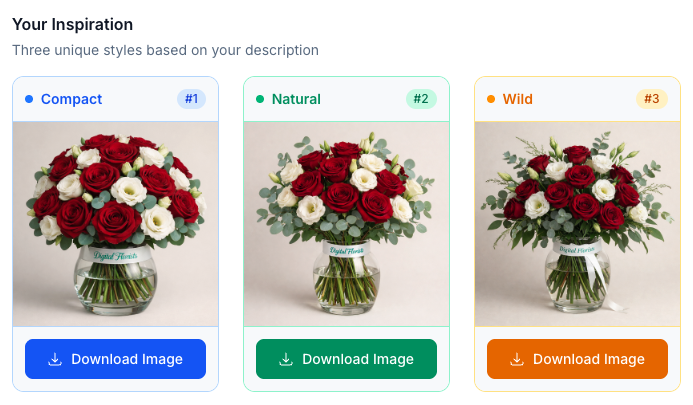
The three styles are three takes on the same brief:
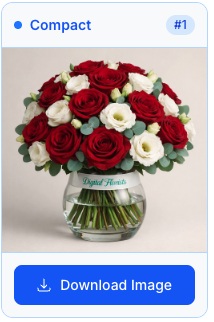
- Compact is dense and rounded, flowers packed tight with little gap.
- Natural aims for a garden-gathered hand-tied look. Check that its flowers and mechanics are workable.
- Wild is looser and asymmetrical, with more foliage and movement.
Download And Revisit
Each result has a Download Image button. Click the image itself to open it full size in a new tab.
Use Archive to move an idea out of your current list without deleting it. Ideas that you have not opened for 90 days move to Archived automatically. They remain saved there, and Restore puts one back in your current list.
Tips And Best Practices
- Be specific. Name the stem count, colours, foliage and ribbon. AI may still alter what you asked for.
- Keep every image as a private reference. It is not a photo of real flowers or a customer proof. Reject fake-looking blooms, impossible colours and unworkable mechanics.
- Check every colour. AI can alter a variety or invent a shade. Compare the result with real availability before using the idea.
- Compare the three styles. Use Compact, Natural and Wild to explore shape, then make the design decisions yourself.
- Watch your image credits. The count remaining and reset date sit at the top of the page. Each style uses one credit and failed images are refunded.
- Price it separately. This tool shows the look, not the cost. Work out what to charge with the Arrangement Calculator, or for sympathy work the Tribute Calculator.
Common Questions
How many images do I get? Each set contains three styles: Compact, Natural and Wild. Each style uses one image credit.
What do Compact, Natural and Wild mean? Three design takes on the same brief. Compact is dense and rounded, Natural is the achievable garden-gathered hand-tie, and Wild is looser with more movement.
How long does it take? The images fill in as they finish. If a job cannot finish within its queue limit, it stops and returns that image credit.
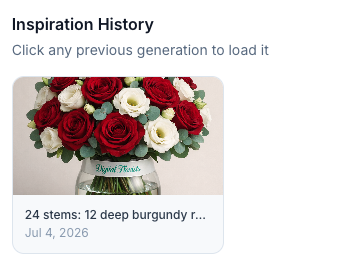
Can I save or download them? Yes. There is a Download Image button under each result, and every generation is saved automatically. Tap View History to reopen a past one.
Why did a colour come out different? AI can get colours wrong. Check the variety and shade against real flowers and your supplier's availability.
Which arrangements can I make? Bouquet, centrepiece, buttonhole, corsage, wire and tribute. Tributes carry frame shapes such as Heart, Cross, Wreath and Letter; bouquets and centrepieces carry a container style.
Do the images carry a mark? Each image has a small Digital Florists label. Keep it in private working notes or internal mood boards. Do not use it as product photography or a client-approved design.
Keep reading
Try it in your own toolbox
Create a free Florist Toolbox account to get started. The tool this guide covers is part of the Plus plan.
Create your free account