
Business Defaults
Store your VAT rate, markups, labour rate, delivery charge and staff-output preferences once, so your tools open with your own numbers.
Set your usual figures once and many tools open with your own numbers already filled in.
Business Defaults save you typing the same VAT rate, markups and labour rate into every calculator. Set them up once and tools like the Arrangement Calculator, the Tribute Calculator and the Pricing Guide Generator pick them up as their starting point. The whole section is optional, so you can fill in as much or as little as you like.
What It Does
Business Defaults are your own business settings, kept private to your account. They do three jobs:
- Pre-fill your calculators. Your VAT rate, markups, labour rate and delivery charge become the starting values in tools that use them, so you are not retyping them each time.
- Decide how a new arrangement opens. Your pricing method, wastage and price rounding set the starting point for each new job in the Arrangement Calculator.
- Set what your team sees on staff outputs. The printable sheets and staff PDFs some tools produce can show or hide labour cost and ingredient prices, in the format you choose.
Changing a default here updates the starting point for future calculations. It does not touch arrangements, recipe sheets or pricing guides you have already saved.
How To Find Them
Click your name in the top right of the screen, then open your profile. Find the Business Defaults section and open it (it starts collapsed). Make your changes, then click Save Defaults at the bottom.
What To Set Up
The form has five short groups. Work through them top to bottom.
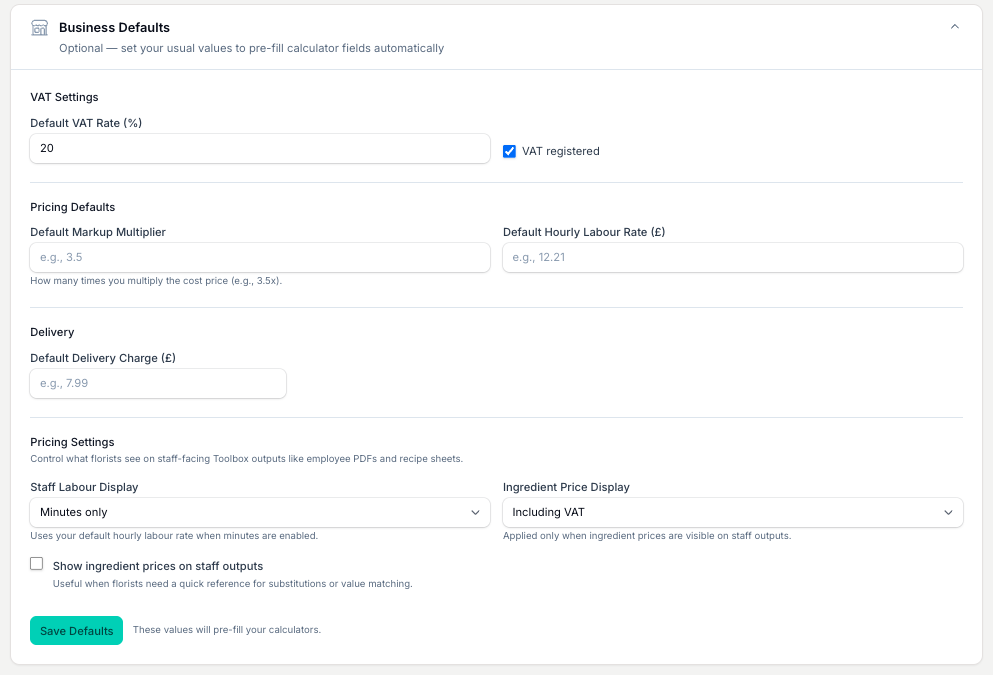
VAT Settings
Default VAT Rate (%). Type your standard VAT rate as a number, for example 20. Tools use this figure wherever VAT is added to or taken off a price.
VAT registered. Tick this box if your business is VAT registered. When it is ticked, tools include VAT where it applies; when it is off, they leave it out. If you are not sure whether you should be registered, or which rate fits your work, check with your accountant.
Pricing Defaults
Default flower markup. The number a flower's cost is multiplied by to reach its retail price, for example 3.5. It is used for every new flower you add to your price list, and it is where the Arrangement Calculator starts. Anchor it to your own overheads and margins, not the shop down the road.
Default sundry markup. The same for sundries, on its own number, because wrap, ribbon and containers rarely carry the same markup as stems.
Set them to the same figure if you price everything on one multiplier. Tools that ask for their own markups, like the Pricing Guide Generator, start from what you enter there instead.
Default hourly labour rate. The hourly rate you want to charge for labour, in your currency. Tools use it to work out the labour part of a price, and it feeds the staff labour display below when minutes are shown.
Arrangement Calculator Defaults
This group sets how a new arrangement opens in the Arrangement Calculator. Saved arrangements keep the settings they were saved with, so nothing here changes work you have already saved. Every box is optional. Both dropdowns offer No preference, which leaves the calculator on its own starting point.
Pricing method. Choose Use price-list markups to price each ingredient on the markup saved against it. Choose Set markups for each arrangement to start every new job with the two markups above instead.
Use flower wastage and Flower wastage (%). Tick the box and set a percentage to have new arrangements open with flower wastage costed in. Wastage raises your material cost before the markup is applied.
Use sundry wastage and Sundry wastage (%). The same for sundries, on their own percentage.
Round retail price. Tick this to have new arrangements open with price rounding switched on.
Rounding method and Nearest amount. Pick Nearest amount, End in .99 or End in .95. With Nearest amount, set the step you want in the box beside it, such as 0.50 or 1.00.
Wastage and rounding live in the calculator's Detailed mode, so turning any of the three on here also opens a new arrangement in Detailed rather than Quick.
Delivery
Default Delivery Charge. The delivery fee you usually charge. Tools that add delivery as a line, such as the Delivery Profitability Calculator, pre-fill this, and you can still change it per job.
Pricing Settings
This group controls what your team sees on staff-facing outputs, like employee PDFs and recipe sheets. It changes presentation only, never how prices are worked out.
Staff Labour Display. Choose how labour appears for your team. The options run from Minutes only (shows how long the job should take, no cost) through Minutes and labour cost and Labour cost only to Hide labour completely. When minutes are shown, the figure uses your default hourly labour rate.
Ingredient Price Display. Choose whether per-ingredient prices show Including VAT or Excluding VAT. This applies only when ingredient prices are switched on for staff outputs.
Show ingredient prices on staff outputs. Tick this if you want your team to see per-ingredient prices on the printable sheets. Leave it off to keep cost figures off staff documents. This tick box is the master switch for the Ingredient Price Display setting above.
When everything looks right, click Save Defaults.
Tips And Best Practices
- Set your defaults up before you start pricing. It makes every calculator faster from the first job.
- Use your real numbers, not aspirational ones. Your actual costs, rates and delivery fee give you honest prices.
- Review them every few months, especially after a wage rise or a jump in supplier costs.
- Not sure of your markup? Start with what you already charge and adjust over time as you test your pricing. The Business Markup Calculator can help you work a markup out from your overheads.
- Set the arrangement defaults you use most. Ticking wastage or rounding here saves you switching a new arrangement to Detailed every time.
- The ingredient-prices tick box is the master switch. If it is off, the Including VAT / Excluding VAT choice has no effect.
Common Questions
Do I have to fill in every field? No. The whole section is optional. Leave any field blank and fill it in later; setting them up early saves you time in the tools.
Can I change a default inside an individual tool? Yes. Defaults are only the starting point. Each tool lets you adjust its figures for that one calculation without changing what you have saved here.
What if I change my VAT rate or registration status? Update them here and tools use the new values from then on. Work you have already saved is not affected.
Where do I set separate flower and sundry markups? Here, under Pricing Defaults. Default flower markup and Default sundry markup are saved separately, and they set both new price-list items and the Arrangement Calculator's starting point. Individual tools can still override them for one job, and the Pricing Guide Generator takes its own pair of markups per guide.
Do my default markups affect every tool? They set the starting point wherever a tool prices flowers or sundries from a multiplier, and they are what a new flower or sundry on your price list is created with. Tools with their own markup boxes start from the values you enter in them for that one calculation.
Keep reading
Try it in your own toolbox
Create a free Florist Toolbox account to use the tool this guide covers, no card needed.
Create your free account